
Genius AI is your building companion inside the Betty Blocks builder. You describe what you want in plain language; Genius AI turns that into a structured proposal, and once you approve it, the platform builds the pages, data models, and actions for you.
Note: If you have worked in Betty Blocks before, multi-page generation used to live in the Modules section, where you wrote prompts and pressed Generate requirements. Modules are phased out. Everything described below now happens in Genius Chat.
Start a new Genius session
Open your application and look for the Genius AI button in the builder bar on the left, just below the app icon.
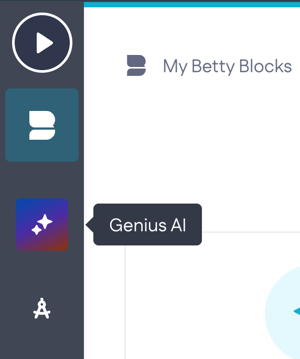
The Genius AI panel opens on the right. Click New session to begin, or pick an earlier session from the list below it to carry on where you left off.
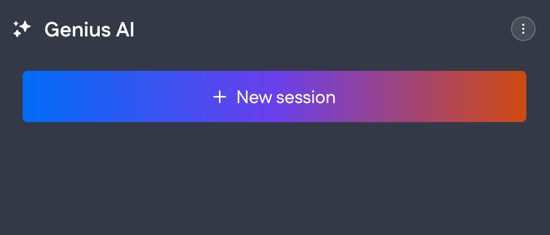
Sessions are app-wide, so you can keep one session for your work with your data model, another for a specific screen, and jump between them.
Describe what you want to build
Type your prompt and send it. For our simple case with a book catalogue, the prompt is the following:
Create a book catalogue app for a small community library, so staff can keep track of the books they own. New visitors can register an account and sign in with email and password. Once signed in, staff can browse the catalogue and add, edit, or remove books — each with a title, author, and ISBN. Keep the design clean and professional.
Read also: What makes a good prompt?
Genius AI reads your message, checks your app's current setup, and tells you what it found. In this case, it identified the existing User and Role models and decided to build login and registration on top of them, plus a new Book model with a CRUD archive page, all under a single shared layout.
Bigger requests take a little longer. You will see status lines like "Drafting a proposal" and "Double-checking everything fits together" while it works.
Review the proposal
Genius AI comes back with a proposal: a grouped list of everything it wants to create. For the book catalogue, that is 3 pages, 1 model, 4 actions, and 1 layout. Every item has a short description of what it does.
Expand any group to read the details before you commit to anything.
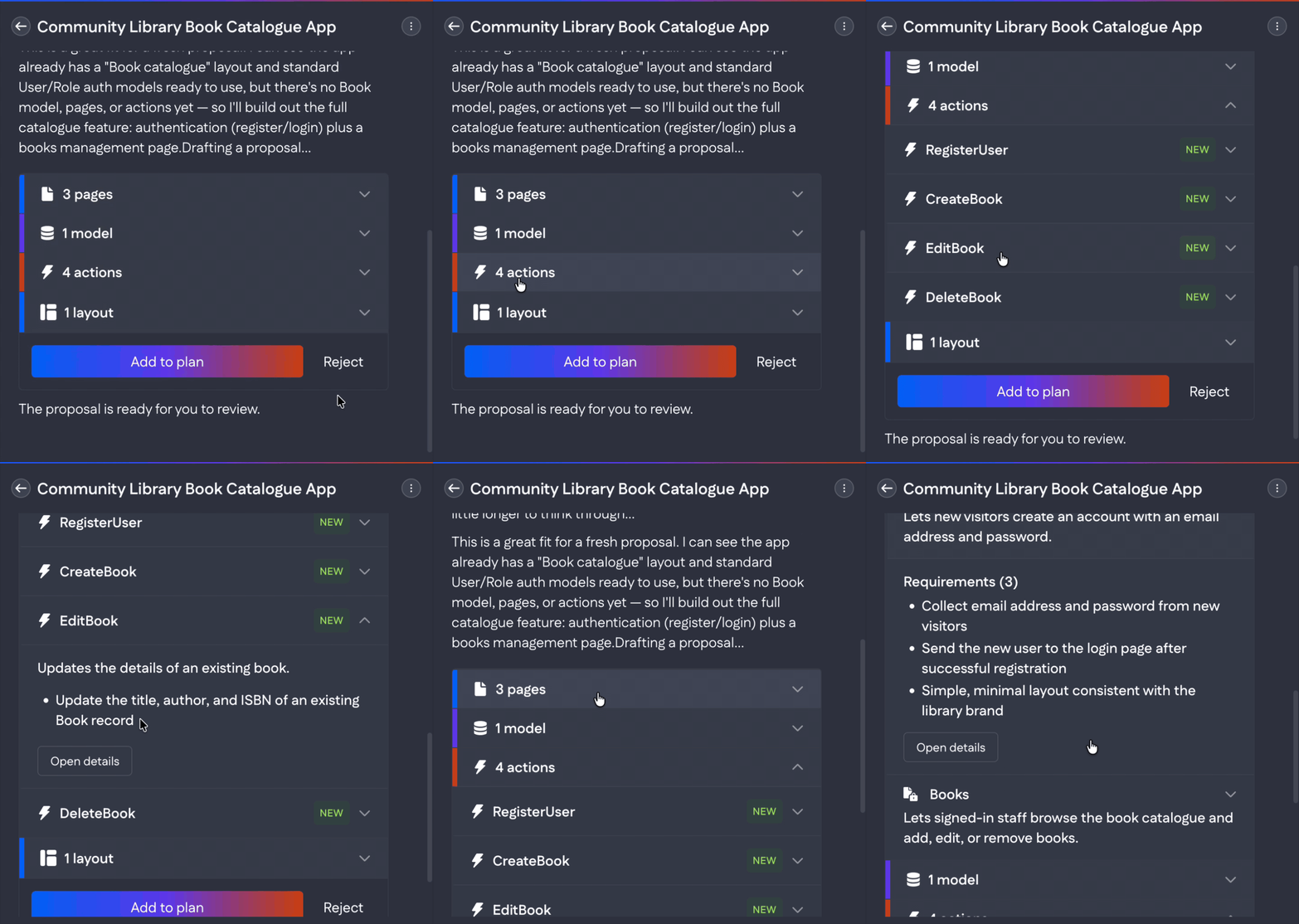
You have two options:
- Add to plan — move the proposal into the build plan, where you review it in full.
- Reject — discard it.
Not quite right? You do not have to reject it. Keep chatting in the input field below the proposal ("Ask Genius to extend or modify") and refine it conversationally. Ask for an extra field, a different page, or a stricter validation, and Genius AI updates the proposal.
Check the build plan
Once you add the proposal to the plan, a Build plan ready for review banner appears. Click Review to open the build plan panel.
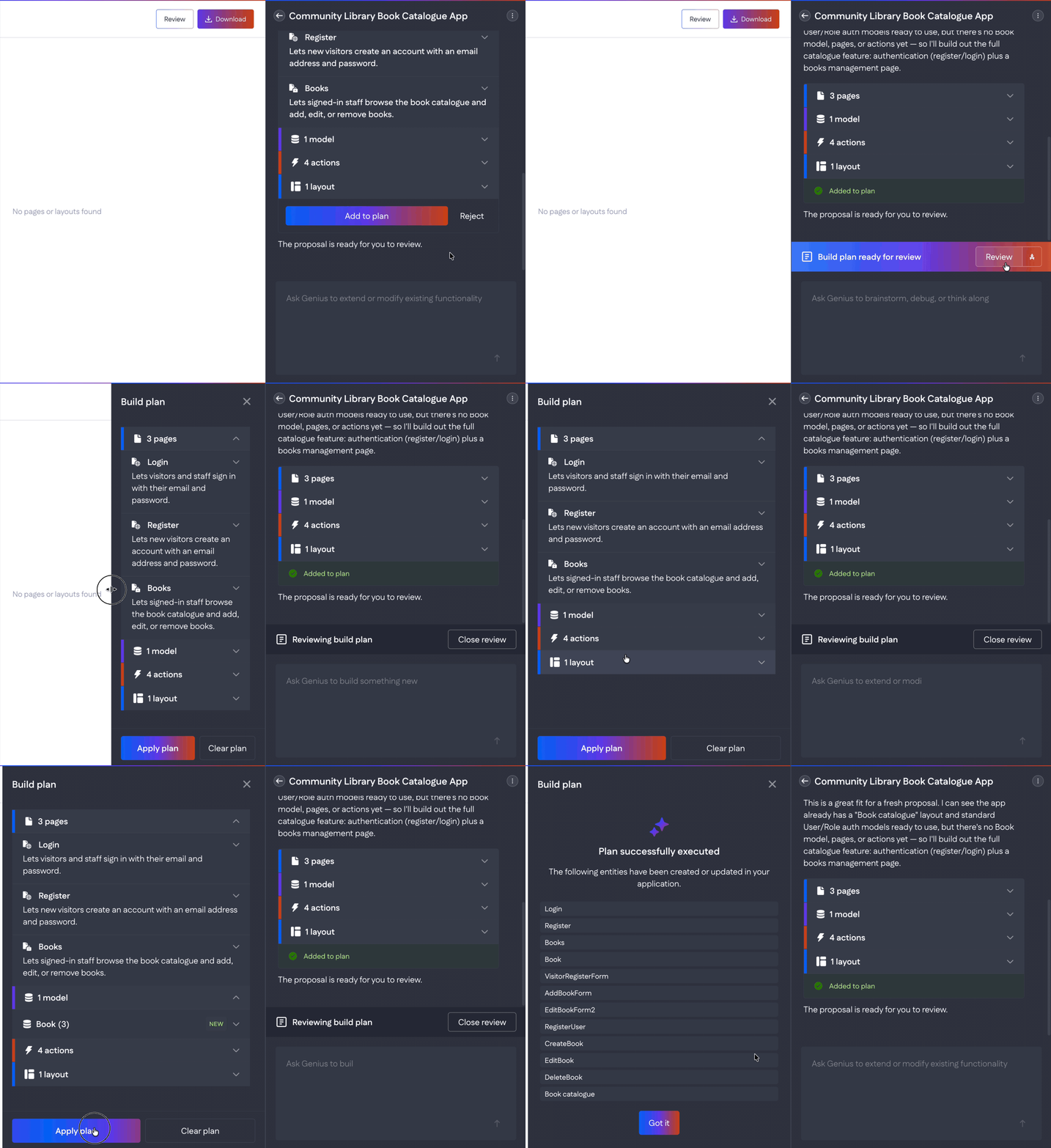
The build plan panel opens next to the chat and lists everything queued up, grouped the same way. This is your last checkpoint before anything is created in the app.
Apply plan— build everything in the plan.Clear plan— empty the plan and start over.
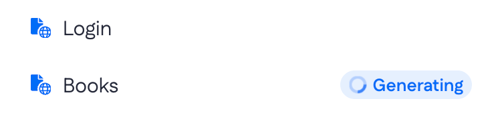
Press Apply plan. Genius AI starts building, and you can follow along in the Pages section: each page shows a Generating label while it is being created.
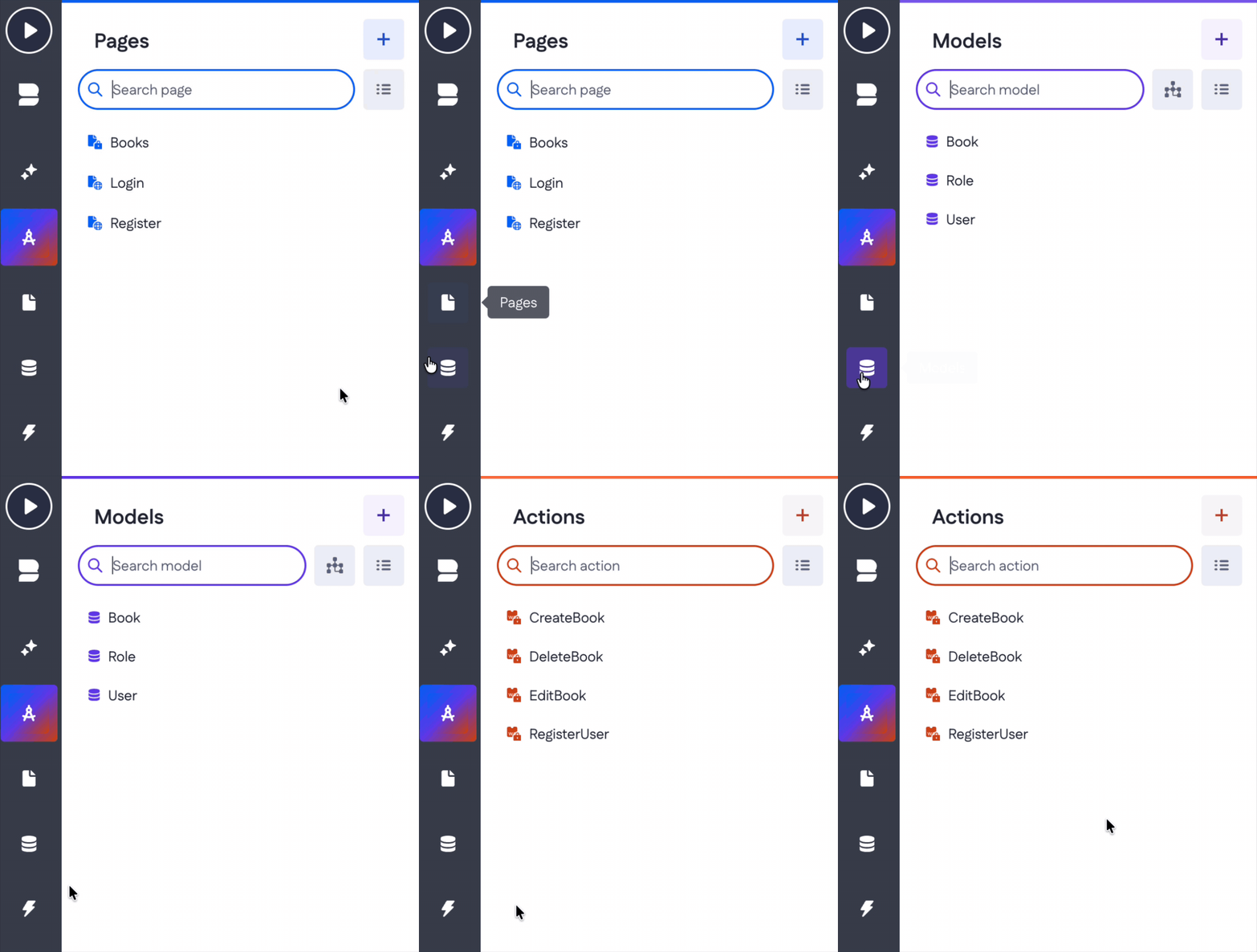
Data models and actions appear in their own sections in the same way.
Which application entities were built?
Back in the chat, expand any page, model, or action to see the functional requirements Genius AI worked from. The Login page, for example, lists these three:
- Allow sign-in using an email address and password
- Provide a link for new visitors to create an account
- Simple, minimal layout consistent with the library brand
You can see the generated pages in the Pages section. Open the page you want, then refine it either visually in the canvas or conversationally in Genius Chat.
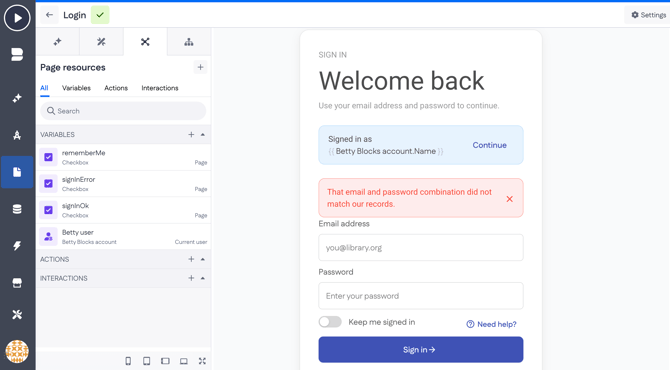
Want to explore page editing capabilities of Betty Genius? Check out this article.
Actions
Actions carry the logic. Create Book lists "Ensure title, author and ISBN are present" and "Save the new book record to the catalogue", so you can see exactly what was generated and why.
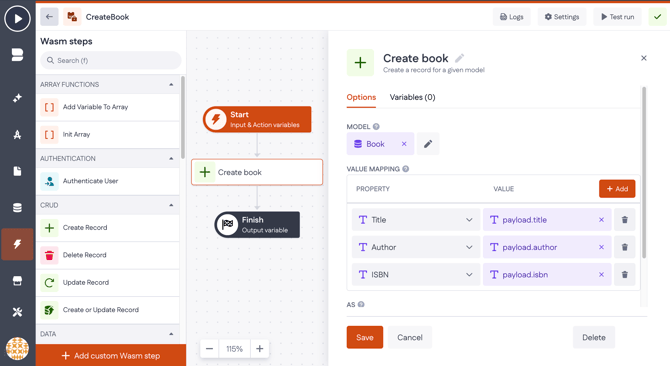
Genius AI creates these as Wasm actions. That matters if you want to open one up and change it by hand: Wasm actions are built and edited in the Wasm action builder, not the older action builder.
See What is Wasm-based action builder? for how it works.
Data models
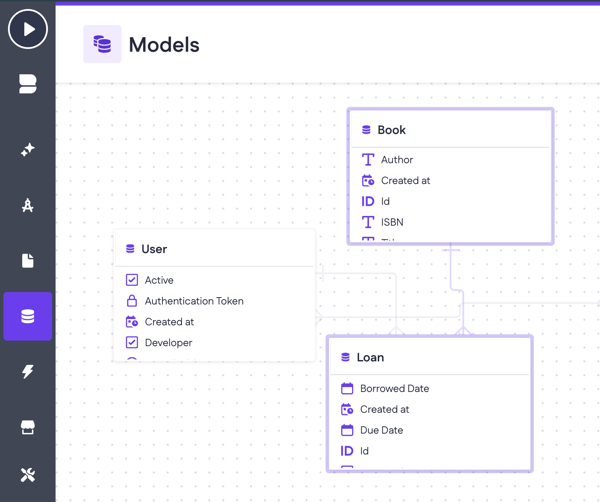
The Book model holds the data behind the archive: the fields Genius AI derived from your prompt, such as title, author, and ISBN. Models work the same whether you generate them or add them yourself, so everything in the data model documentation applies — field types, relations, and validations included.
Find your work in the App Blueprint
Everything Genius AI creates shows up in the App Blueprint, where you get a visual overview of your app: pages grouped by layout, standalone pages, and how they relate.
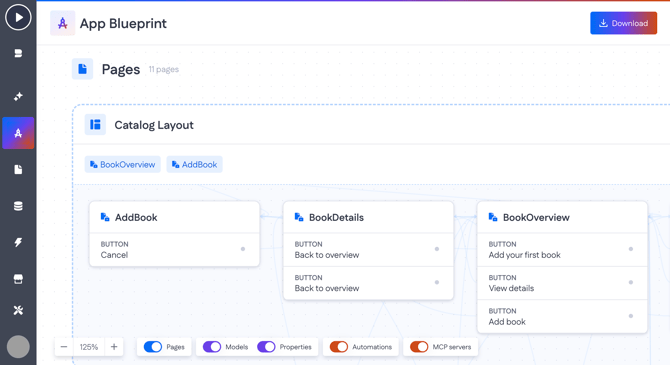
Additionally, you can see data models and their properties, automations, including native actions and Wasm actions, MCP server folders, including the actions inside them. Use the toggles below to control what appears on the blueprint.
Read also: What is App Blueprint?
Keep working with Genius AI
Generation is the starting point, not the whole story. Genius AI stays available from anywhere in the builder, so you can ask it to:
- add a page or extend an existing one
- create or adjust a data model
- build an action
- explain what a page or action currently does
- talk through an approach before you build anything
Because sessions persist, you can pick up an old thread and build on the context you already gave it.
Example: add lending to the catalogue
Open the session you used to build the app and continue there. Genius AI already knows the Book model and the pages around it, so you can describe the new feature without repeating what exists:
Staff need to see which books are out on loan. Let staff record that a book is borrowed by a member, with the date it went out and the date it is due back. Add a loans overview page where staff can see all current loans and mark a book as returned.
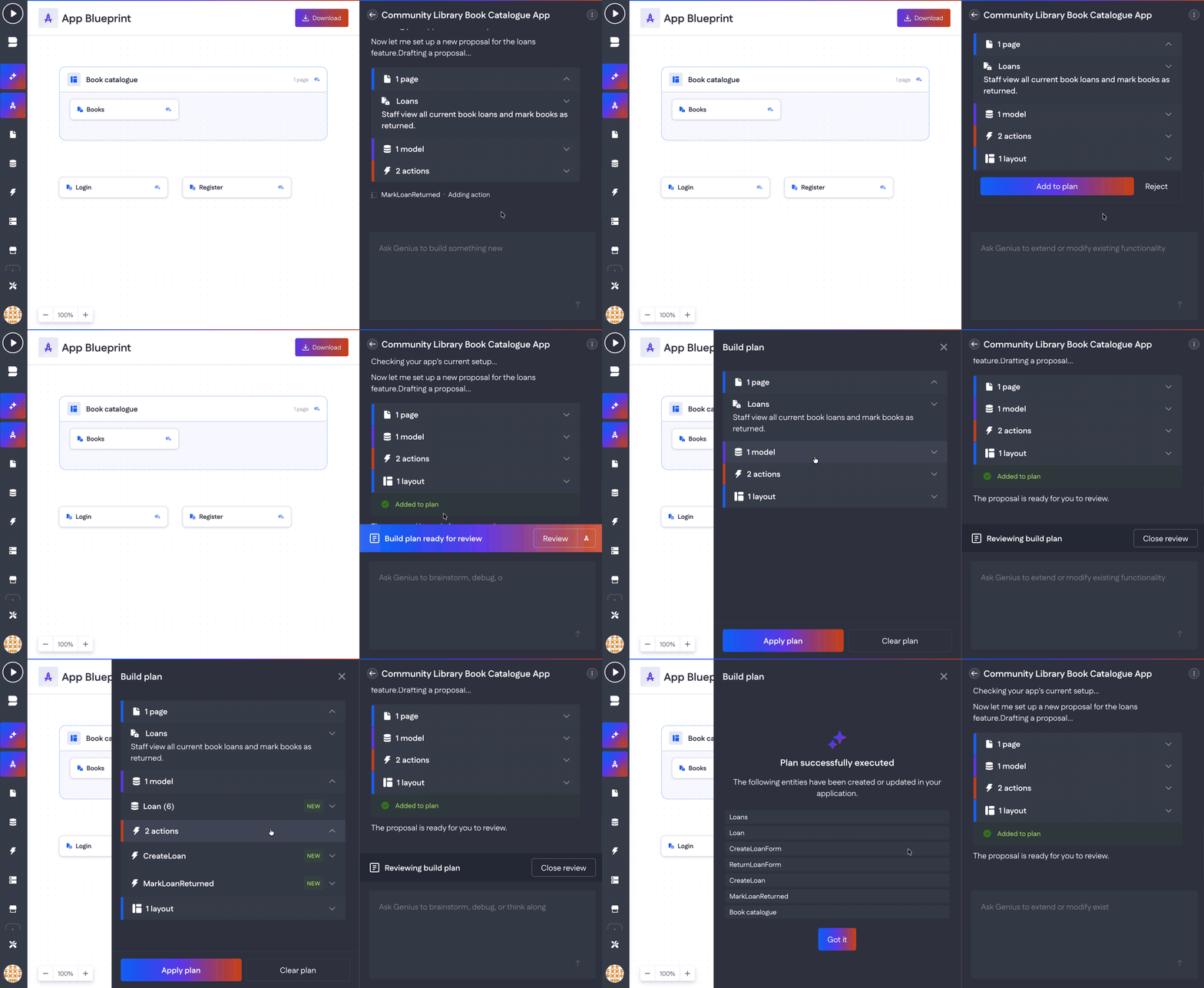
The proposal comes back smaller than the first one, because most of the app is already there:
- one page — Loans, described as "Staff view all current book loans and mark books as returned"
- one model — Loan, with six fields
- two actions — CreateLoan and MarkLoanReturned
Notice what is missing: no new layout, no second book model. Genius AI reads your current setup first, so it extends the app instead of duplicating it.
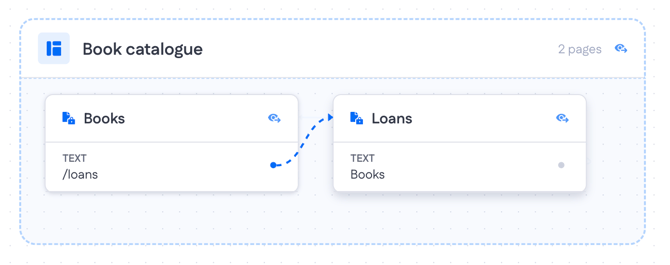
When the pages are done generating, you can see changes reflected in App Blueprint. The Book catalogue layout now holds 2 pages: Books and Loans. The dashed arrow between them is a navigation link Genius AI added on its own — a /loans link on the Books page, and a link back from Loans.
Tips for better results
- Name the pieces, not the implementation. "A book archive with search and filters" works better than "a data table component with a filter bar".
- Start small, then extend. A short prompt plus two rounds of chat usually beats one long prompt.
- Read the requirements before you apply. They are the clearest signal of what you will actually get.
- Let Genius AI reuse what exists. Mention the models you already have so it builds on them instead of creating duplicates.
- Use separate sessions for separate jobs. One session per feature keeps the context clean.