
Genius AI lets you generate full applications or single pages by describing what you want. The prompt – the text or input you provide – shapes your app's structure, data model, logic and visual design.
How to create pages
How you start depends on the scope of what you are building.
One page — go to Pages and generate it directly from a prompt. You can also start from scratch with the manual builder.
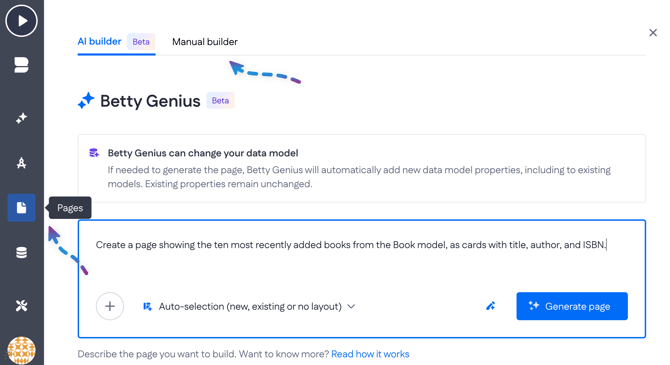
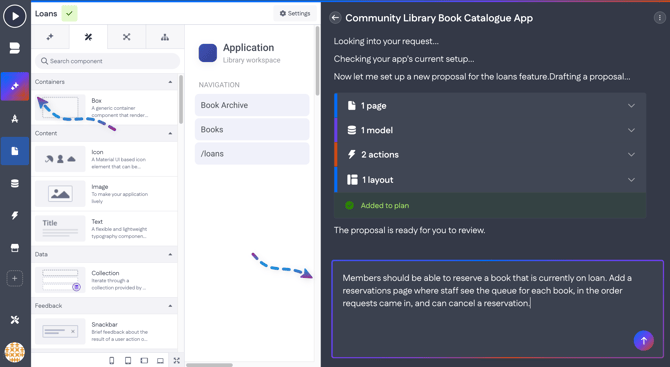
Multiple pages, or a full application draft — use Genius AI, the chat you will find above the Pages section in the builder bar.
Create a single page
When you add a new page (Pages > +, or New page in the Pages overview), you can choose between Betty Genius and Classic page generation.
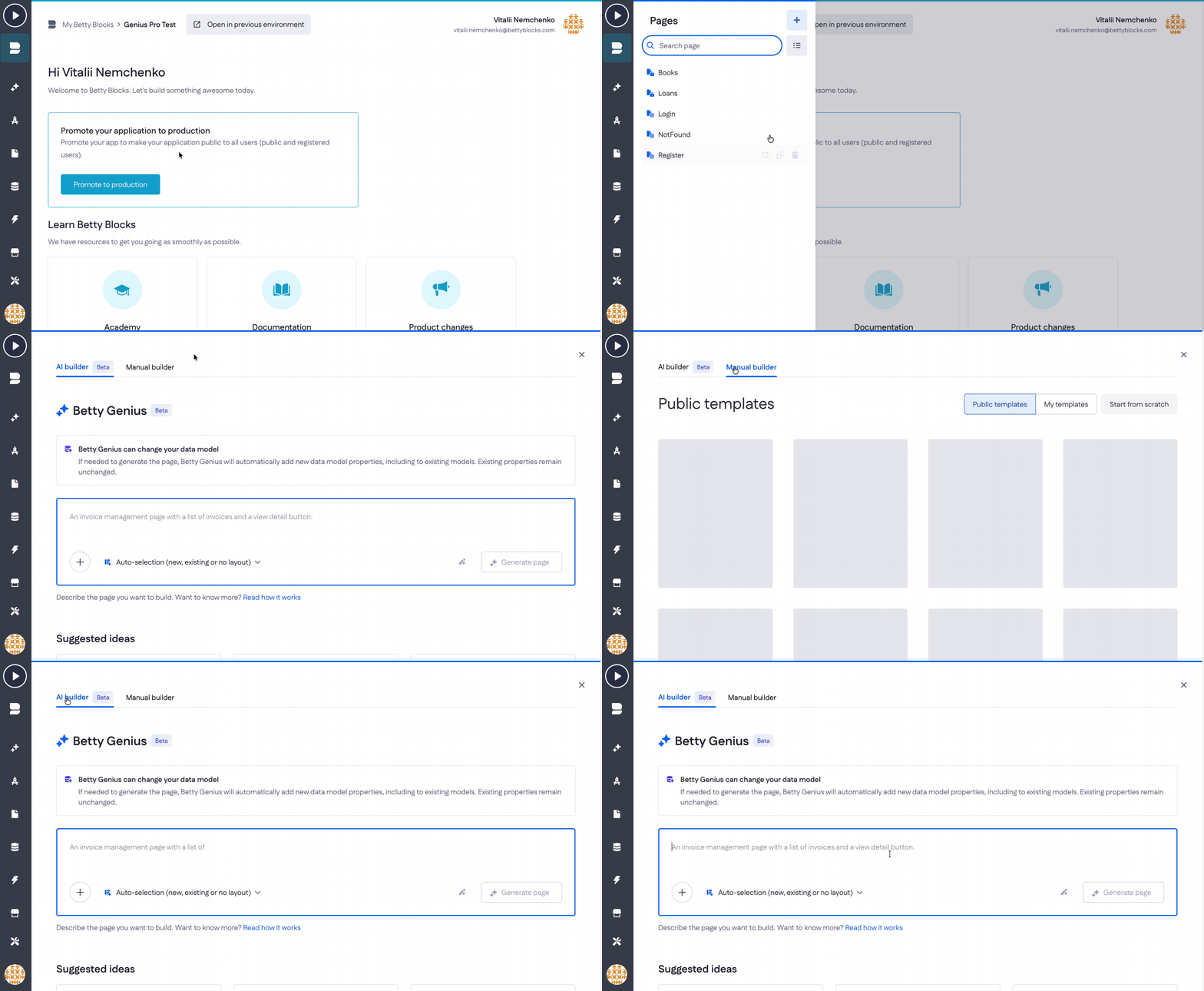
With Betty Genius selected, type your prompt in the input field and press Generate page. Betty Genius will build the page based on your description — this includes not just the front-end layout, but also any data models and actions your page requires.
Important! Betty Genius makes only additive changes to your data model and actions:
-
Models — creates new data models when needed, reuses existing properties when they match your intent, and extends the data model by adding new properties. It never deletes or modifies existing ones.
-
Actions — creates new actions if needed. It never alters existing actions.
-
To learn how layouts and widgets work as the backbone of your app, see Page layouts and widgets.
-
Once generated, you can edit the page directly — see Editing your pages with Betty Genius. The new page also appears in the Pages overview and quick menu.
Generate multiple pages in Genius AI
Open Genius AI and start a new session. Write a prompt describing the functionality you want across your app — not one page, but the feature as a whole.
Genius AI turns your prompt into a proposal: a structured overview of the pages, data models, actions, and layouts it wants to create, each with its own functional requirements. This is where you get control before anything is built.
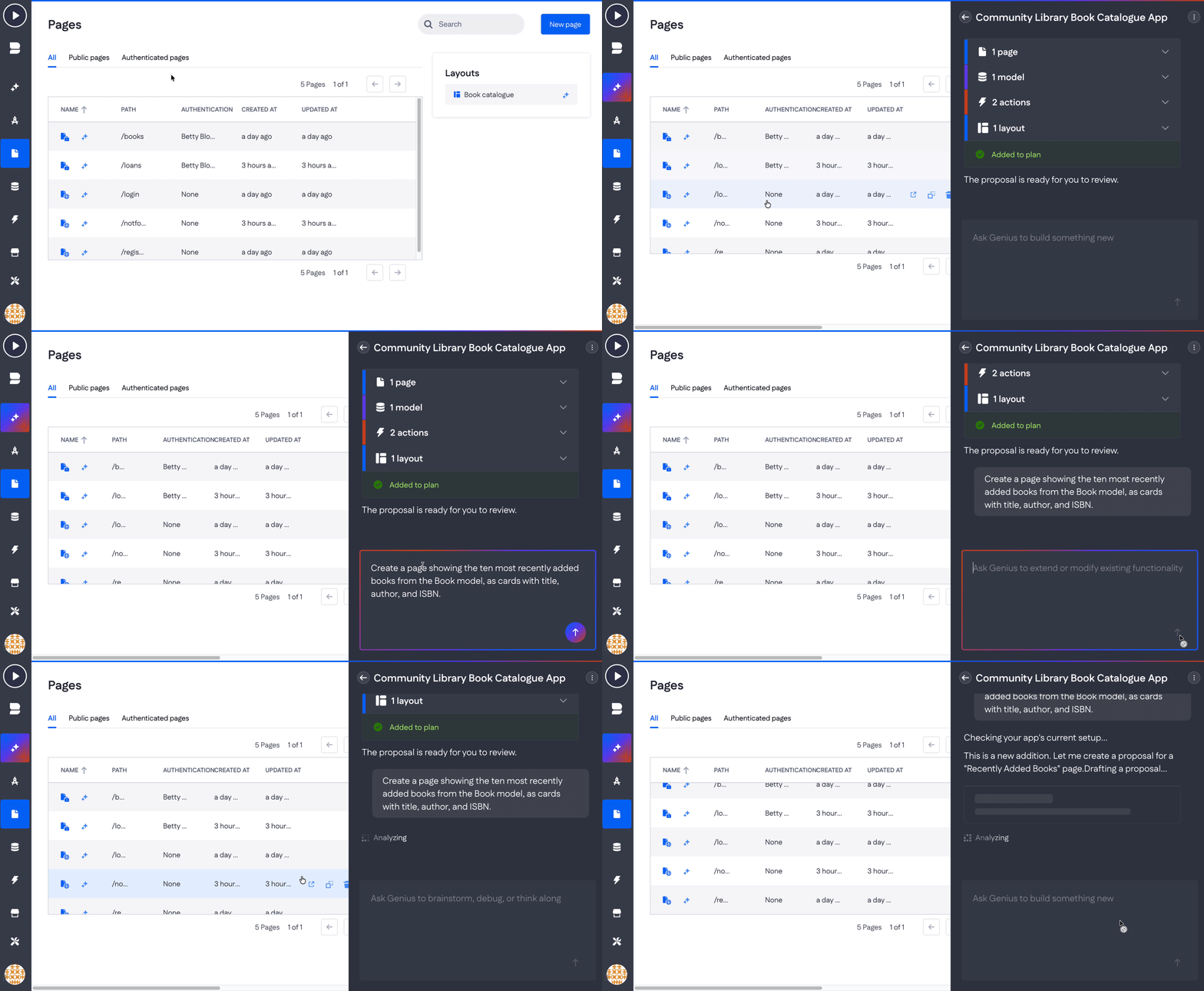
From there:
- Add to plan — move the proposal into the build plan for a final review.
- Reject — discard it.
- Keep chatting — if the proposal is close but not right, refine it conversationally until it fits.
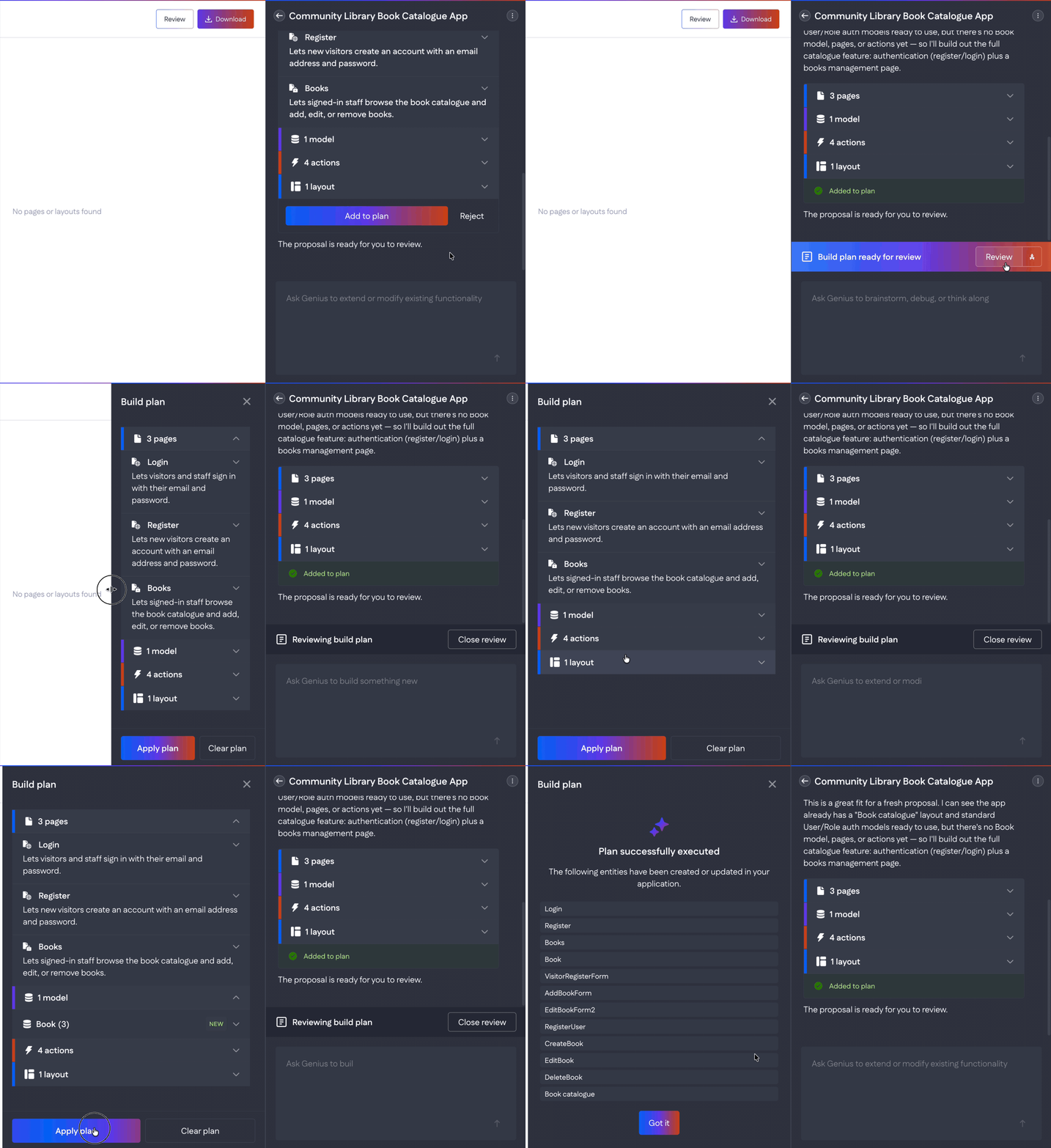
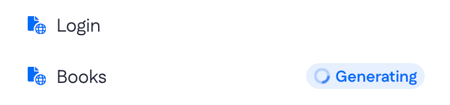
Once you are happy with the build plan, press Apply plan. Genius AI builds everything in it, and you can follow the progress in the Pages section.
Note: multi-page generation used to live in the Modules section, where you wrote prompts and pressed Generate requirements. Modules are phased out — the proposal in Genius AI chat replaces the requirements overview, and you now iterate on it in the chat instead of on a separate page.