
Table of contents
When building pages with Betty Genius, every page is composed of reusable building blocks that define both its structure and its content. Two key elements enable this modular approach: widgets and page layouts. Widgets group components into reusable functional blocks, while layouts define the structural framework shared across multiple pages. Understanding the hierarchy and difference between them helps you build consistent and maintainable applications.
Widgets as building blocks
Widgets are grouped collections of components that function as a single unit. Instead of configuring individual components separately, widgets allow you to work with higher-level building blocks that represent complete interface elements, such as forms, search bars, lists, or content sections.
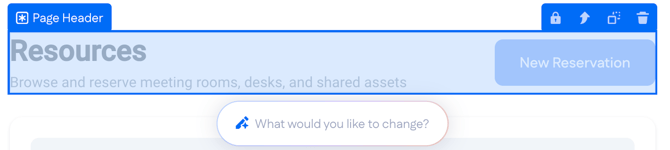
In Betty Genius, widgets can be modified using prompts. Just select a widget from your page canvas and type in what you want to change. See an extra button added to the page header widget:
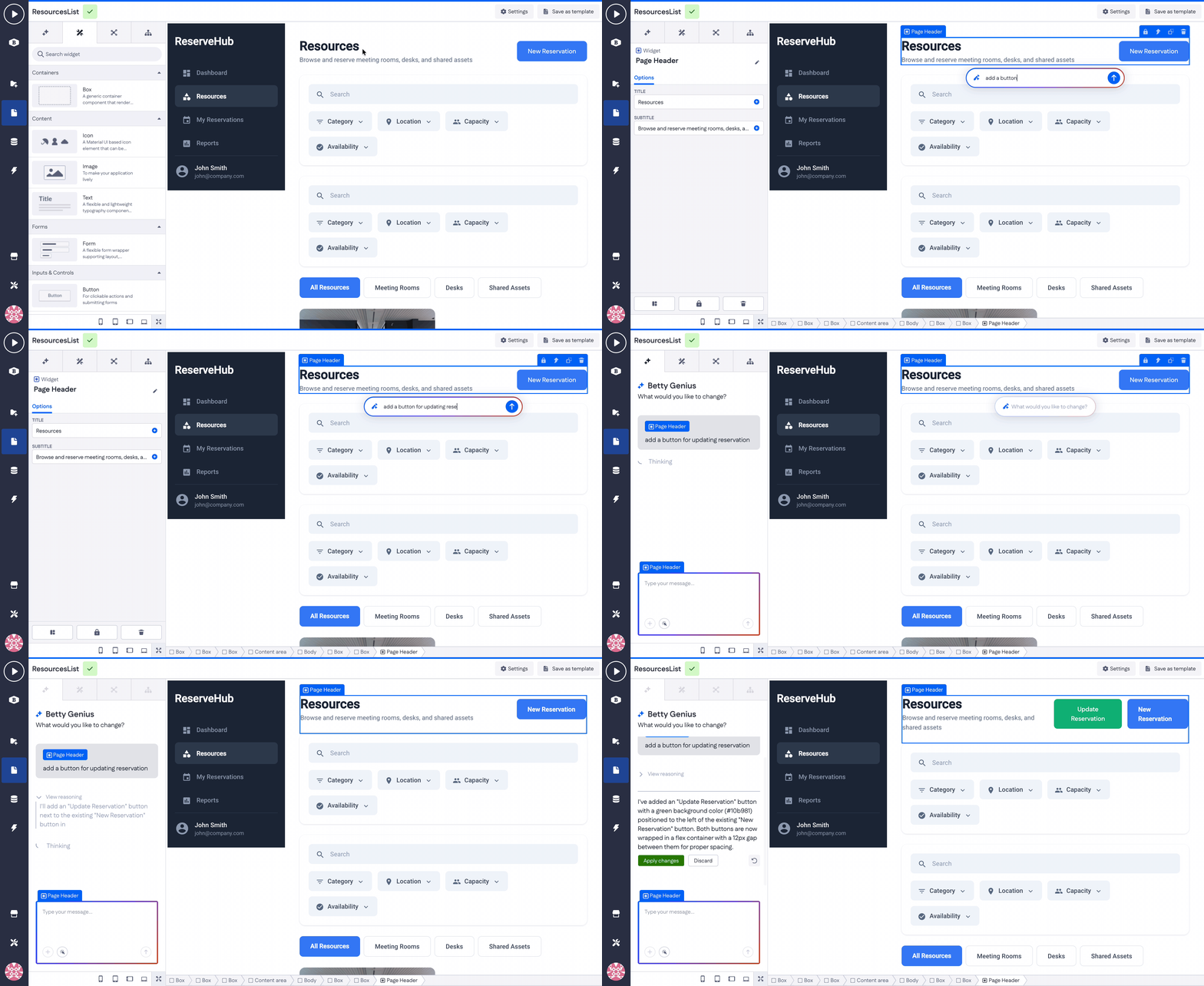
A widget may contain multiple components (for example, a container, text fields, buttons, and logic) grouped into a single reusable element.
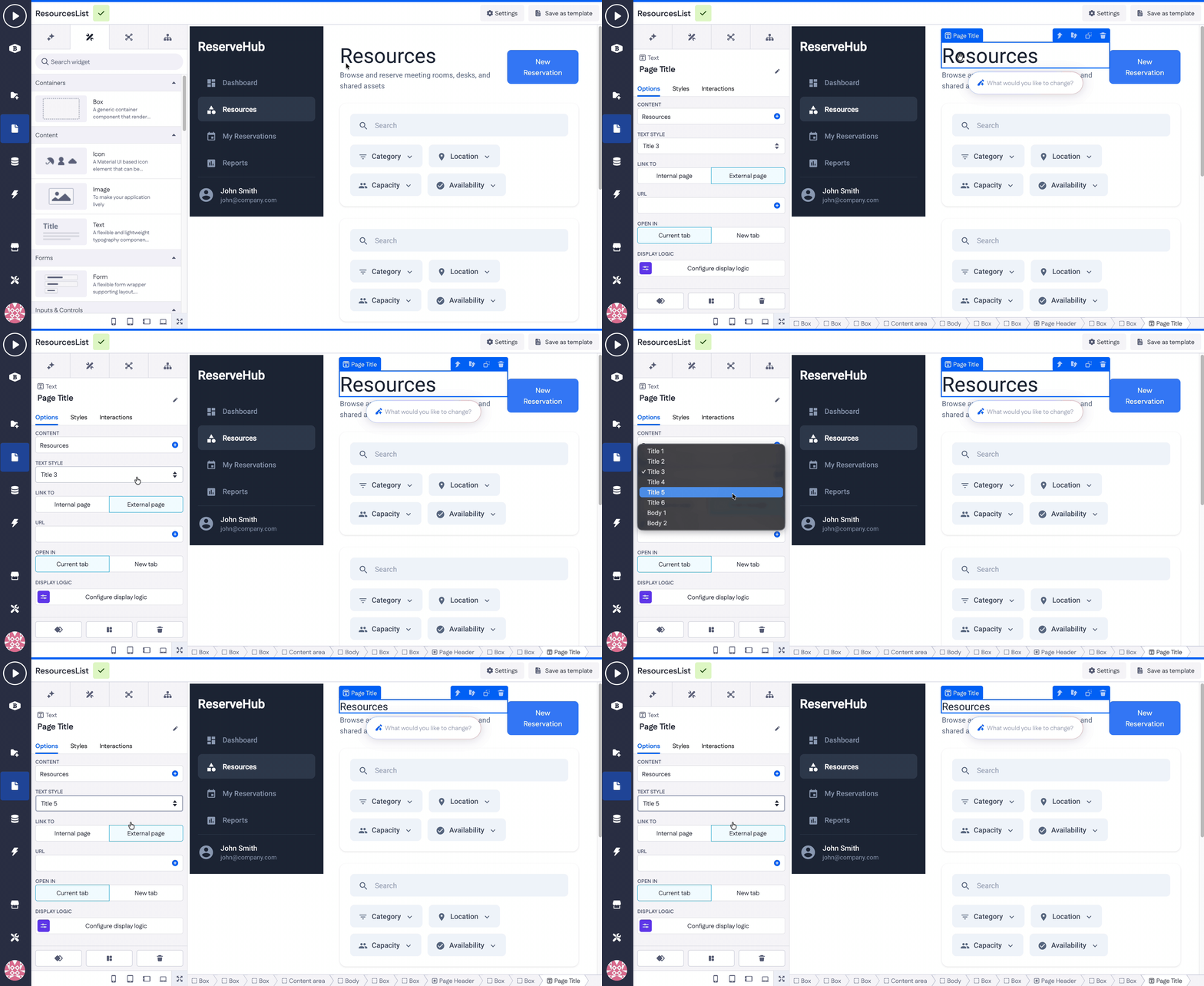
With builder permissions, you can easily unlock a widget to access and rearrange its internal components manually, or even add more components to it. Press the corresponding button in the top right of a widget (or just press Cmd (Ctrl) +left mouse click on the component inside a widget). From this small menu, you can also:
- Navigate to the parent page element (up arrow)
- Copy or delete a widget

The example below shows how the Text component is reached and changed after unlocking the widget:
Note: Most of the time, Betty Genius AI works with CSS styling options that can overwrite the default styling options. Read more about CSS styling in Using unified component styles
Each widget behaves as a controlled unit within the page builder. When locked, it protects its internal structure. When unlocked, you can edit or reorganize the underlying components.
Widget options
Widgets are content blocks that deliver specific functionality or UI patterns—such as search bars, data display sections, forms, content panels, and other custom functional elements. They focus on functionality and content rather than the overall page structure.
Widgets surface only the most relevant settings — for example, placeholder text, resource references, or display options — so you don’t have to configure every individual component manually.
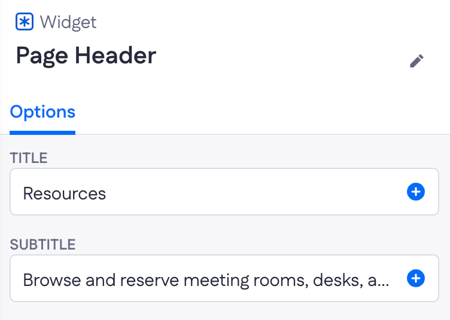
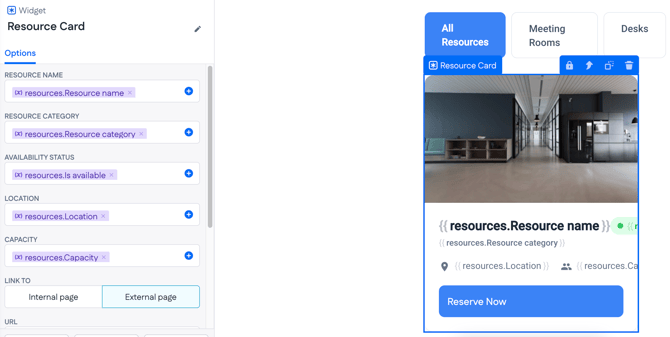
Depending on the widget’s components and intended purpose, its available options can vary. In the Card widget example below, many of the option values are driven by page variables. You can freely adjust these values without opening the widget or manually editing each individual component.
Layouts as structural frameworks
Page layouts define the structural framework of a page. They separate shared structural elements from page-specific content and ensure consistency across the application.
Every page layout consists of two distinct sections:
-
Layout section (1) — shared structure, such as navigation bars, sidebars, and footers
-
Body section (2) — page-specific content that changes depending on the page's purpose
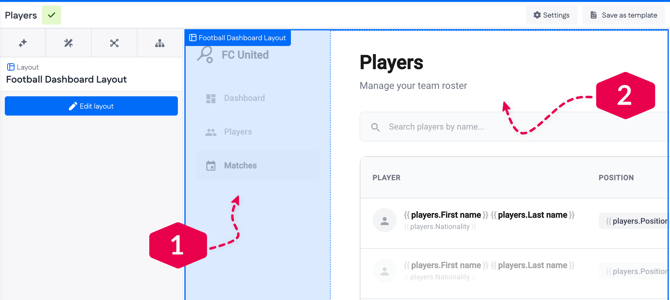
Page layouts act as reusable structural templates that wrap around the body section. They ensure shared UI elements remain the same across multiple pages.
Where do I find layouts?
As you generate the requirements for your future application, two distinct items will be created: pages and layouts. To put it simply, in most cases, there is going to be one layout to be reused on most pages.
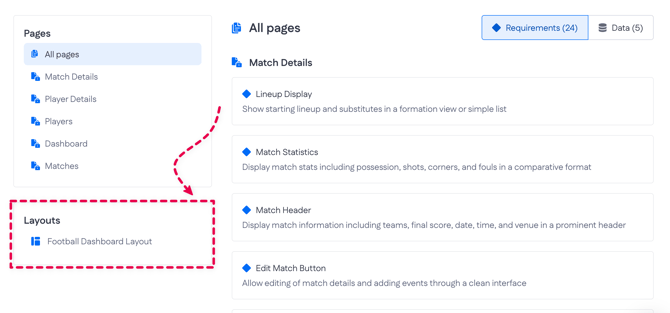
In the page builder (while editing your page), layouts are easy to distinguish on the canvas by clicking around. Usually, key navigation elements - a header or a side menu (sidebar) - will be wrapped in a single layout.
.gif?width=670&height=366&name=Screen-Recording-2026-02-20-at-1%20(1).gif)
Layout builder and editing
Layouts are edited separately from individual pages using the layout builder. As we’ve already defined, the page layout consists of a layout section and a body. In our case, a layout section is presented by Sidebar widget (left) and Content area (right).
You can reach the layout builder by selecting the layout element on the page and clicking the Edit layout button.
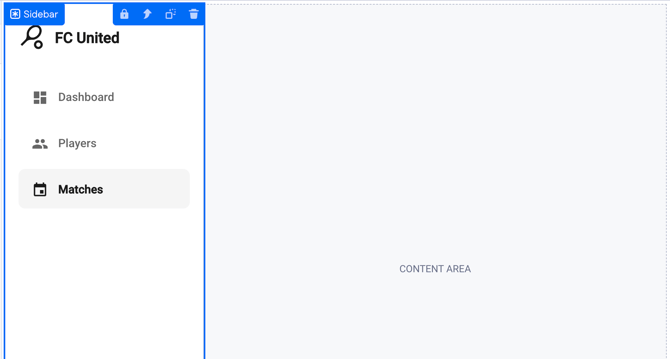
In this layout builder mode, you focus only on the layout structure, not the full page. Everything else remains the same as described at the beginning of the article - you work with widgets and page components, changing them using AI prompts or manually modifying their structure.
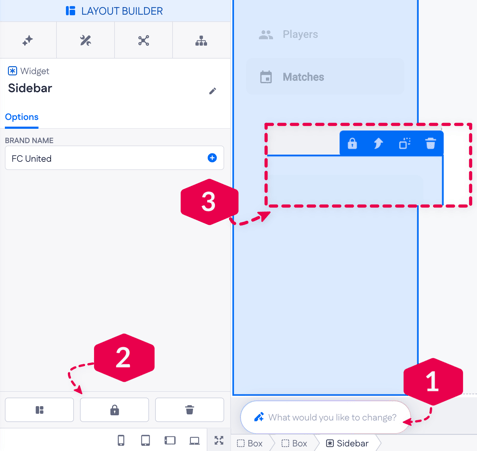
Select a layout widget from the page canvas, then type in the changes in a prompt input below the widget (1). Otherwise, to get into widget editing, first unlock it using a special button in the menu below (2); also, find the same button in the right corner of a widget (3).
Things to remember when editing a layout:
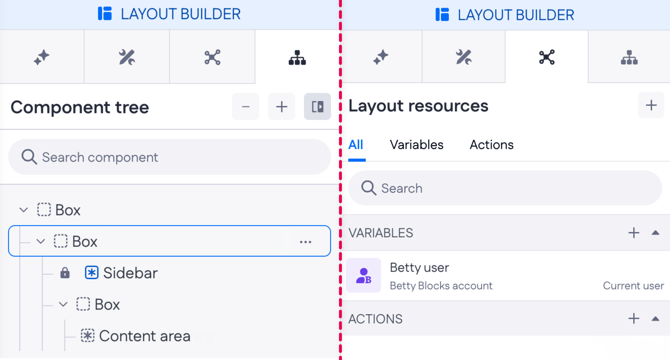
- Component tree shows only layout elements
- Layout resources panel shows only layout-specific resources
- Changes made to a layout automatically apply to all pages using that layout
Editing a layout automatically updates all pages that use it. Individual pages then use this layout while providing their own body content.
Generate new page using existing layout
You can also create a new page based on an existing layout, or apply a layout when manually creating a page.
Go to Pages, click +, and select a layout in the creation panel. The page will inherit the selected structure, and you can then add page-specific widgets and content to its body.
- Auto-selection (new, existing, or no layout) lets Betty Genius choose the best option automatically. Depending on your prompt, it may reuse an existing layout, create a new one, or generate the page without a layout. Use this when you don’t need to control the layout yourself
- Existing layouts (such as Reservation Layout or Football Dashboard Layout) reuse a predefined structure. The page inherits shared elements like navigation or sidebars, while the body content remains unique. This helps maintain consistency across pages
- Generate layout creates a new reusable layout based on your prompt and applies it to the page. This is useful when your page requires a new structural pattern
- No layout generates the page without shared structure. This is suitable for standalone pages that don’t need reusable navigation or layout elements
How widgets and layouts work together
Widgets and layouts operate at different levels of page composition.
- Layouts define the structural skeleton of the page
- Widgets define functional or content blocks placed inside layouts or page bodies
A layout may contain widgets (for example, a sidebar widget or footer widget). Pages then place additional widgets inside the body section to create page-specific content.
Hierarchy example:
- Layout (1)
- Sidebar widget / Header widget
-
- Content area (2)
- Boxes
- Page-specific widgets (3)
- Content area (2)
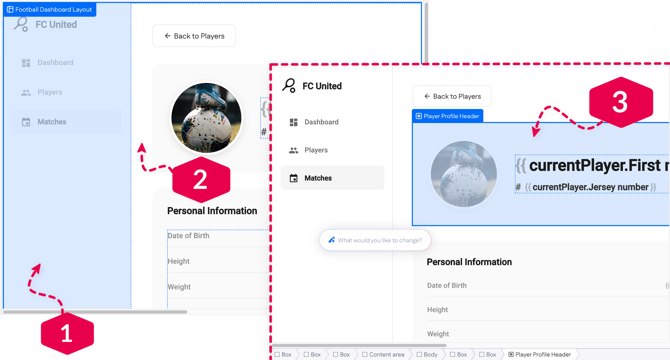
In this structure, widgets act as modular building blocks within the larger layout framework. Widgets operate within layouts, and layouts provide the structural foundation for widgets.
If you’d like a more in-depth walkthrough, you can easily request it via this link: Request demo