
Page variables store data that lives on a single page. Once you create one, you can reference it anywhere on that page — so you can hold a value like the current task in one place, instead of querying for it again in every component that needs it.
Add a page variable
Note: When using Betty Genius, you can just ask AI to create the necessary variables.
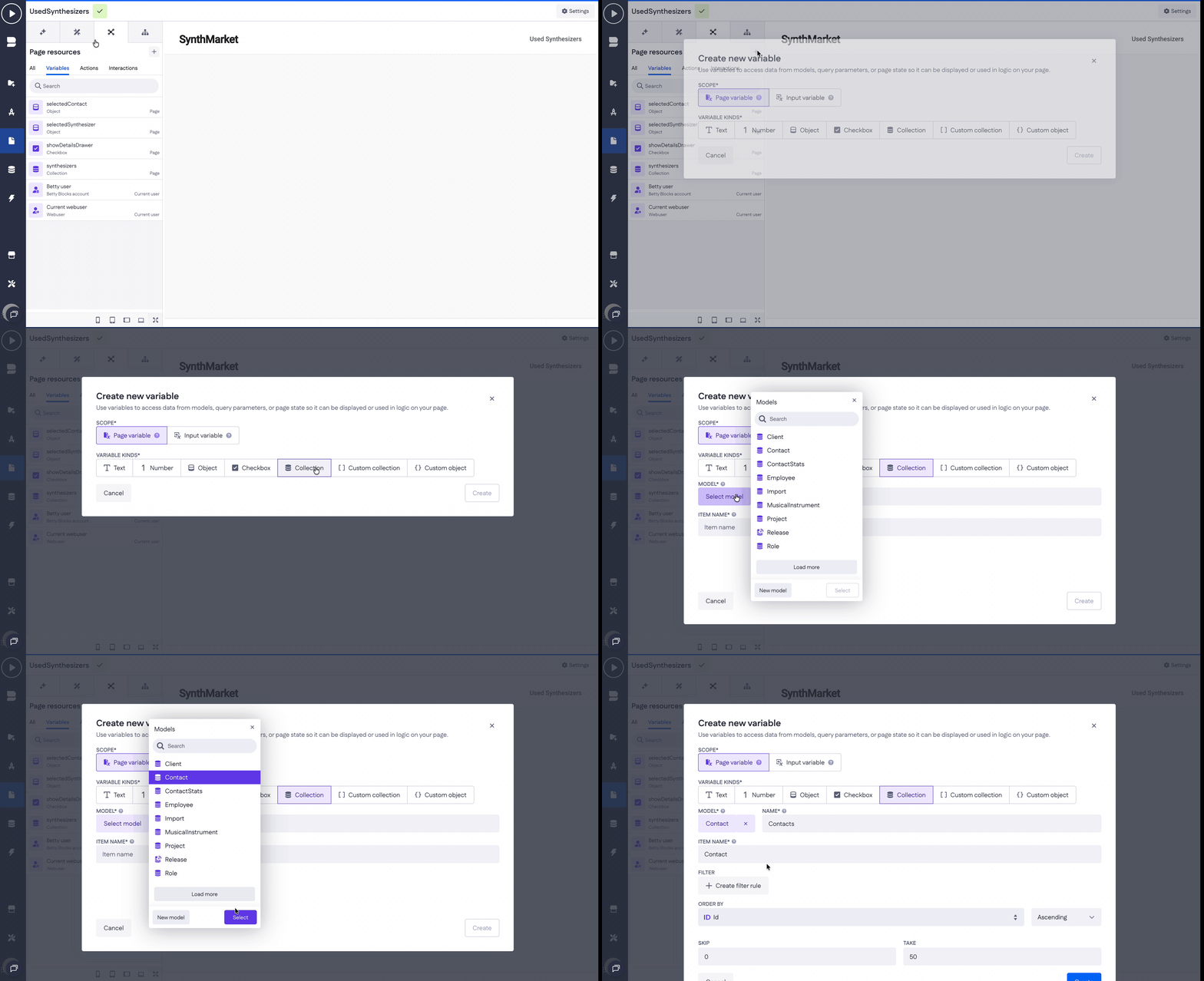
- Open Page resources > Variables and click the
+button. - Set the scope to Page variable.
- Choose a kind and fill in any required fields (for example, a model for an Object, or an item name for a Collection).
- Set up additional options (like Filter or Order)
- Click Create.
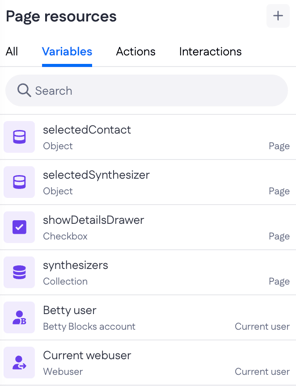
The new variable appears in Page resources under the Variables tab. Click it whenever you want to edit it.
Page variable kinds
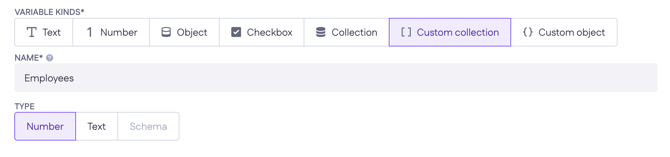
You can create a page variable of any of these kinds:
- Text — a single line of text. Just give it a name.
- Number — a numeric value. Just give it a name.
- Checkbox — a true or false value. Just give it a name.
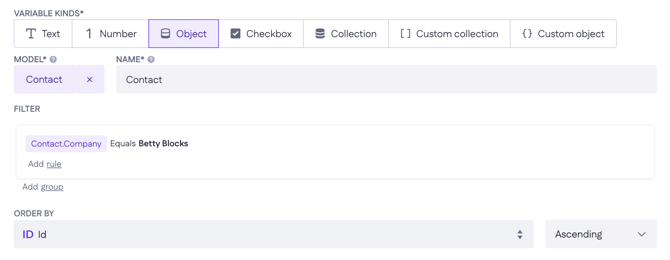
- Object — a single record from one of your models. Pick the model, then name the variable.
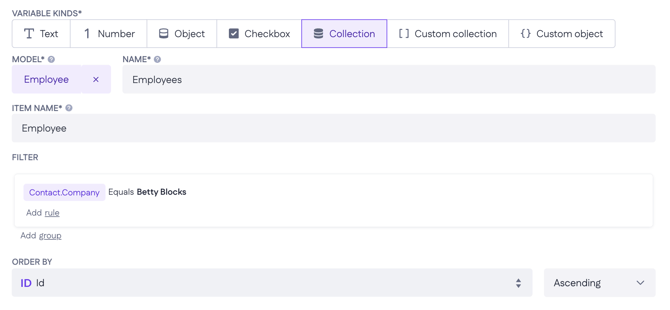
- Collection — a set of records from a model. Pick the model, name the variable, and set an item name (how you refer to each record).
- Custom collection — a list you define yourself, not tied to a model. Name it and choose the type: Number, Text, or Schema
- Custom object — a single object based on a schema model rather than a data model. Select the schema model, then name it.

Object and Collection options
Object and Collection are both tied to a model, so they share a set of query fields. The difference is what they return: an Object holds one record, a Collection holds many — so a Collection has a couple of extra fields on top.
Both types have:
- Filter — limits which records the query looks at. In the screenshots, it only considers contacts where the company equals "Betty Blocks," rather than the whole model.
- Order by — sets the sort: a field and a direction (ascending or descending). For a Collection it decides display order; for an Object it decides which record you get when the filter matches more than one, since the Object takes the first in that order.
A Collection adds:
- Item name — the name for a single record when you loop over the collection (for example, in a list that repeats). Each pass of the loop hands you one record under this name, so the components inside know which record they're showing.
- Skip and Take — control paging. Take is how many records to return at once (50 here); Skip is how many to pass over from the start (0 here). Together they let you load one page of results at a time instead of the whole set, which keeps the page fast on large collections.
Example use case
Page variables often work together with an input variable. Say a page shows a single task, opened with the task's ID in the URL (for example, yourappname.betty.app/task/3). You create an Object page variable — say selectedTask, based on the Task model — and add a filter that matches its ID against the task_id input variable read from the URL.
The page variable now always holds the exact task named in the URL, ready to display anywhere on the page.