Think of variables as storage for values, which you can reference by name. A variable can be assigned a different value at any time, making it usable in dynamic situations. For example, a coder can create a formula like a + b = c, using the 3 variables a , b and c . By assigning different values to the variables, this formula can be reused over and over and produce different outcomes.
A variable consists of a name and a type. The variable type indicates which kind of value this variable contains. For example a piece of text or a number.
Variable categories
In the action builder, the following 4 variable categories are available while building an action: input, action, step and output variables. The difference between them comes down to two things: where the value comes from, and where you can use it.
- Input variables get their value from outside the action, from whoever runs it. You define them on the Start step but don't fill them in there. Use one when the action needs information from the outside, most often a page variable.
- Action variables get their value inside the action. Use one to hold a value you want to carry across the whole action, such as a running total or a status.
- Step variables live inside a single step and only exist there. Use one for a value you need in that step alone.
- Output variables hold the result of a step and can be handed back at the end of the action.
Put simply: input variables come in, output variables go out, action variables travel through the whole action, and step variables stay put.
Input variables
Input variables are created on the Start step, on the Input variables tab. You can't give them a value inside the action. Instead, they receive their value from whoever runs the action, for example, a page that sends form values into the action.
A page is the most common source. Usually that's a page variable, but the value can also come from a Form component field or a URL parameter. Another action or an external call can supply input variables too. Because the value only arrives when the action runs, you leave it empty while building.
Click + Add on the Input variables tab, then pick the kind and name the variable. Click a variable in the list to edit it.
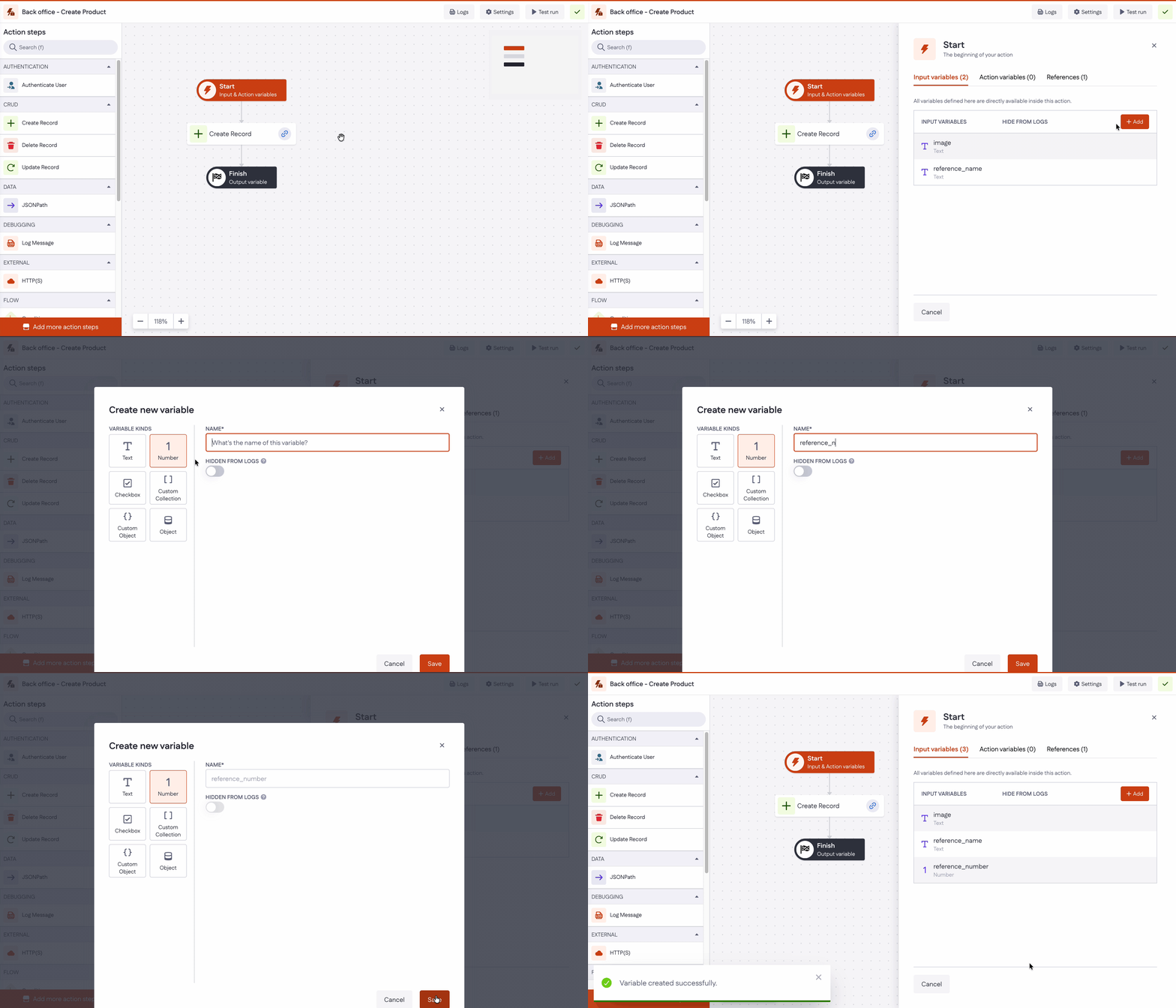
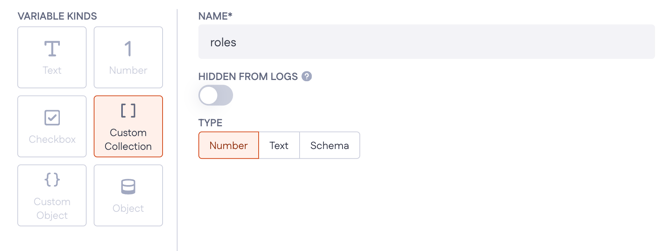
In the pop-up which is displayed to you, you can select the variable kind – Text, Number, Checkbox, Custom Collection, Custom Object and Object – and specify the name of the variable.
You can turn a Hidden from logs toggle on to keep the variable's value out of the action logs, which is useful for sensitive data such as passwords or tokens.
Note: Hidden from logs option does not hide the value if it is logged intentionally, such as through a Log message step, or if it is saved to a property that is not encrypted.
This option is not yet available for Wasm-based actions.
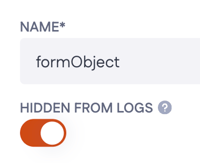
Editing the variable can be done by clicking on the variable in the list.
Action variables
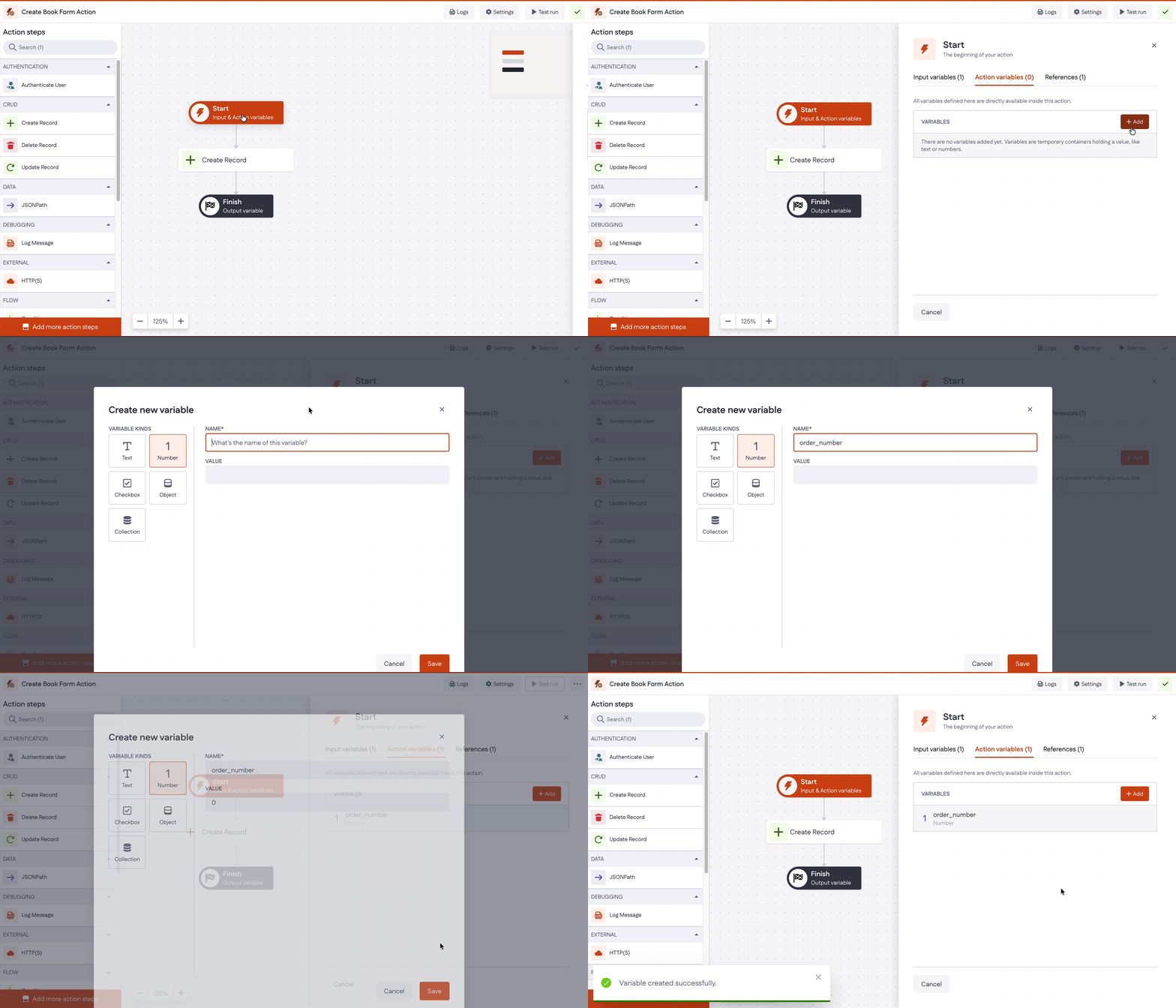
An action variable is created and given a starting value on the Start step. Click + Add on the Action variables tab to create one.
Every step in the action can read an action variable. Whether a step can also change it depends on the kind: Text, Number, and Checkbox action variables can be updated by later steps as the action runs, while Object and Collection action variables keep the starting value you gave them.
In the Create new variable modal, you pick the variable kind, give it a name, and set its value. To edit a variable later, click it in the list.
Step variables
Step variables are created inside a step's own configuration. Select a step, click + Add, then pick the kind and name the variable. Click a variable in the list to edit it.
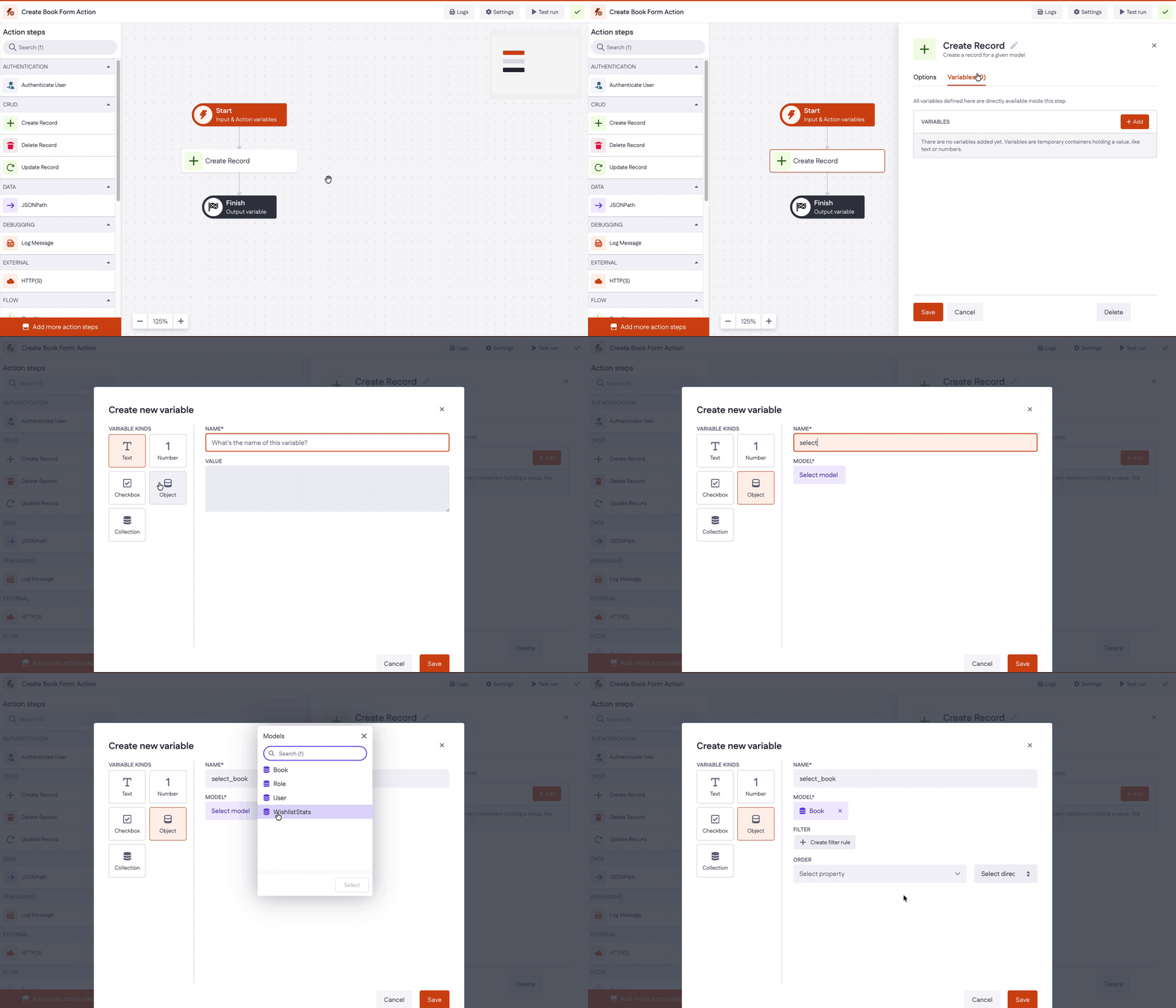
A step variable only exists in the step that created it. Steps before or after it can't use it. There's one exception: steps with a circle-shaped icon, such as the Loop step, share their variables with the steps nested inside them. See the scope of variables below.
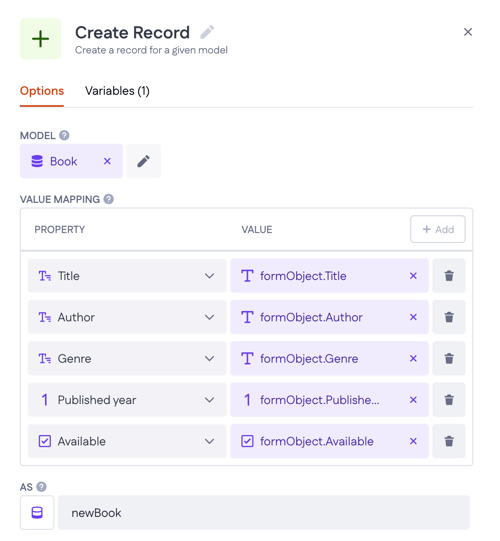
For example, a Create Record step that adds a Book takes its values from a Form on the page: each property of the Book (Title, Author, Genre, Published year, Available) is mapped to the matching field the form sends in. The step then stores the new record as a variable, newBook, through the AS field, so later steps can use it.
Output variable
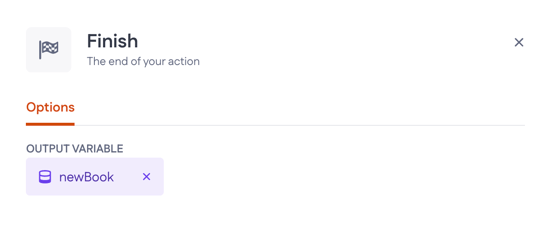
In the Finish step of the action, you can choose a variable (which was created within the action) that will be returned to the end-user as a result of the action.
References
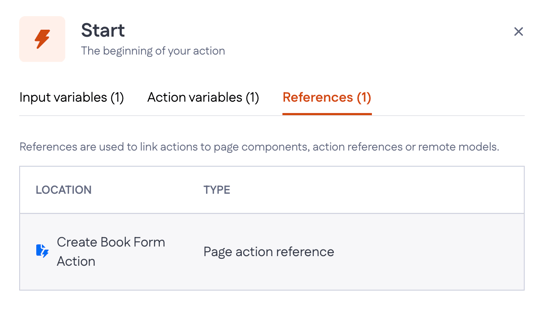
The Start step has a third tab, References, alongside Input variables and Action variables. References link an action to page components, page action references, or remote data models. Each reference shows its location and type in the list. Click the referenced component or model to jump straight to it. Note that an action used as a sub-action inside another action does not show up here.
Variable kinds
Input variable kinds
Text — holds a piece of text, up to 4 GiB of characters. Use it for names, descriptions, external identifiers, or any free-form value passed into the action. For example, a book title coming from a form.
Number — holds a whole number, positive or negative, with no decimals. Use it for counts, years, quantities, or numeric IDs. For example, a book's published year.
Tip: You can use Text variable kind for decimals
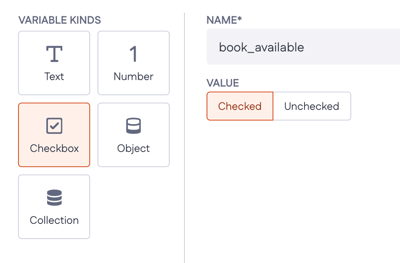
Checkbox — holds a true/false value. Use it for a yes/no or on/off input. For example, whether a book is available.
Custom Collection — a list of values that all share one type. You pick the type:
- Number or Text — a simple list of numbers or strings, such as a list of genres.
- Schema — each item in the list follows a schema model you select, so you can pass in a list of structured items. For example, choose Schema and select the
Create Book Form Schemamodel to receive several book entries submitted together.
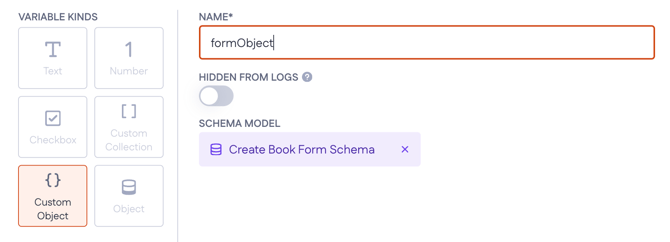
Custom Object — a single structured object shaped by a schema model, rather than a database model. Use it when the action receives a group of fields that don't map to one database record. You select the schema model, for example Create Book Form Schema, to receive all of that form's fields as one object.
Object — a single record from one of your data models. Use it when the action needs an existing database entry to read and work with. You select the model, for example Book.
Action variable kinds
- Text — as above, with a starting value.
- Number — as above.
- Checkbox — a true/false value, set to Checked or Unchecked.
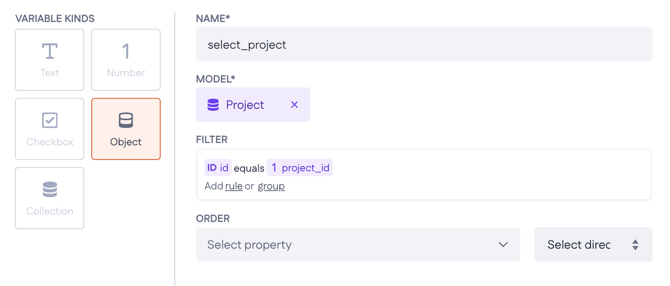
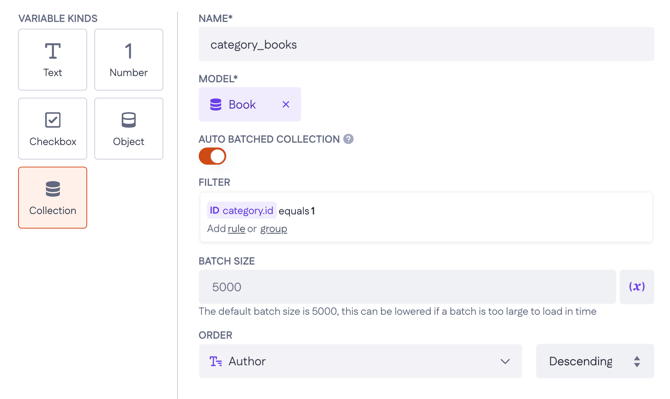
- Object — a single record from a model. You select the model and can add filter rules and set an order (property and direction).
- Collection — a list of records from a model. Alongside the model you can set:
- Auto batched collection — loads the records in batches instead of all at once. Turn it on when the collection could be large and you plan to loop over it: it keeps the action from running out of memory or timing out on big result sets. With it on, you set a Batch size (default 5000) rather than Skip and Take.
- Indexed — keeps track of each record's position in the collection, so you can reference an item by its index (for example, the first one). Turn it on when you need to reach items by position rather than only looping through them in order. Read more here
-
- Filter — a filter rule that narrows the collection to the records you actually need. Use it to load only relevant records, which keeps the action faster and its logic simpler.
- Skip — how many records to skip from the start. Combined with Take, it lets you page through a collection, for example skip 50 to start at the 51st record.
- Take — how many records to return. The default is 50 and the maximum is 5000. Lower it to load only what you need; raise it when you genuinely need more.
- Order — the property and direction to sort by, so the collection comes back in a predictable order (for example, books by title, A to Z).
Scope of variables
Variables can only be used within the part of the action where they are created. This is known as their scope.
-
Action and input variables are available within the scope of the whole action. Everywhere in the action, these variables can be read or changed.
-
Step variables are limited to the step where they are created. If you create a step variable in a Create Record step, you can use it only within that Create Record step, not in any previous or following steps
Steps with their own (scoped) variables
Variables defined in the Loop step are available to every step configured inside the loop. Once the loop finishes, they can't be used anymore.
The iterator variable is available to every step inside the loop. For example, In an action that deletes a set of books, the Delete Record step inside the loop sets its Record field to current_book, so each pass deletes one book.
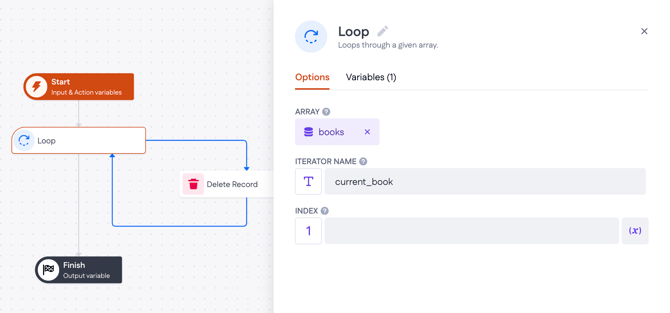
Once the loop finishes, current_book no longer exists, so you can't use it in later steps or return it from the Finish step. In other words, variables created in the loop are available only inside the loop flow.
This applies not only when you're deleting records, but also when you're updating them. After the loop ends, those variables can no longer be used outside the loop flow.
Note on relational data: Retrieving relational data through your variables has a depth limit of four levels; past that, Betty Blocks shows an error. The limit is there to keep data loading in your app efficient.
Current user variable
When an action runs for a logged-in user, you can use the current user variable to read details about that user, such as their email address or name.
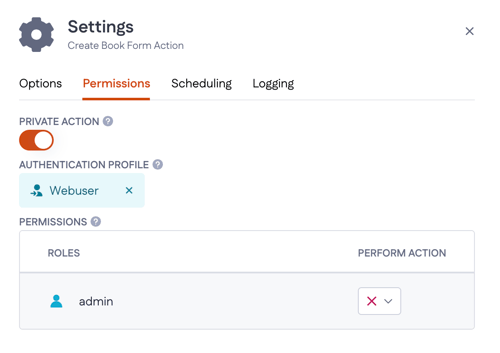
To make it available, the action needs an authentication profile. Open the action's Settings, turn on Private action, and select the authentication profile your action flow should use. The current user variable then becomes available wherever you pick a value.
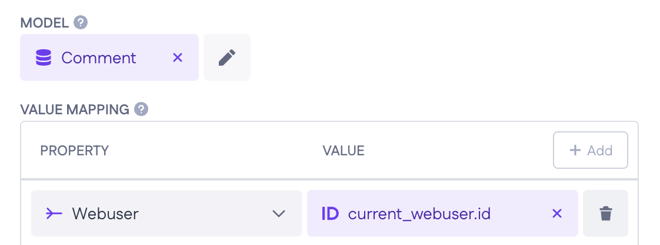
For example, take a Create Comment action where you want to link each comment to the user who wrote it. In the Create Record step, keep your usual field mappings and add one more: set the Comment's Webuser relation to the current user. Each comment is then linked back to the logged-in user automatically, pulled straight from the current user instead of a form field they could leave blank or fill in as someone else.