Single Sign-On (SSO) in Betty Blocks can apply to different parts of the platform, depending on who needs access and what they are accessing. This is where confusion often starts: signing in as a builder is not the same as signing in to a running application.
At a high level, Betty Blocks supports three distinct SSO scopes:
1. Company-level access
Access to My Betty Blocks for the entire organization, including builders, administrators, and owners. With company SSO, users authenticate once and can access My Betty Blocks and all application development environments they have builder rights for.
2. Application-level access (for builders)
Access to the development environment of a single application. This is typically used when external developers or partners need builder access to one specific app, without access to My Betty Blocks or other applications.
3. Runtime (internal) application access
Access to the running application itself, intended for end-users, customers, or internal staff. This type of SSO is fully customizable and implemented inside the application logic.
Note: In Betty Blocks 5, authentication concepts are more tightly coupled with the backoffice, which makes SSO configuration a different (and more complex) topic. This article focuses on the current platform setup.
Company and application access for builders
Both company SSO and application-level SSO control how builders authenticate in Betty Blocks. Technically, they work the same way and use the same SSO standards and identity provider setup. The difference lies purely in scope.
-
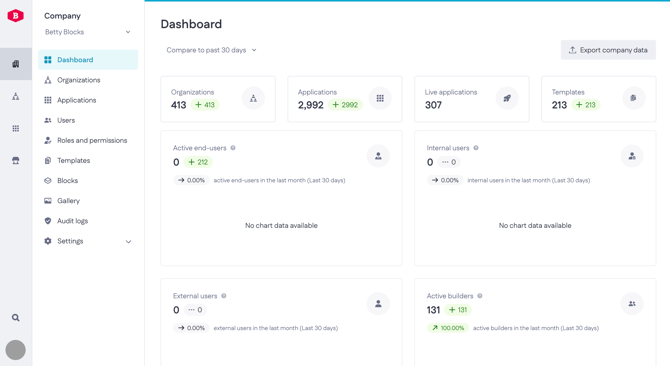
Company SSO is configured for My Betty Blocks and applies to the entire organization. Once enabled, builders authenticate via SSO to access My Betty Blocks and all application development environments for which they have permission
-
Application-level SSO is functionally identical, but limited to one specific application’s development environment. It’s typically used when external developers or partners need builder access to a single app, without access to My Betty Blocks or other applications.
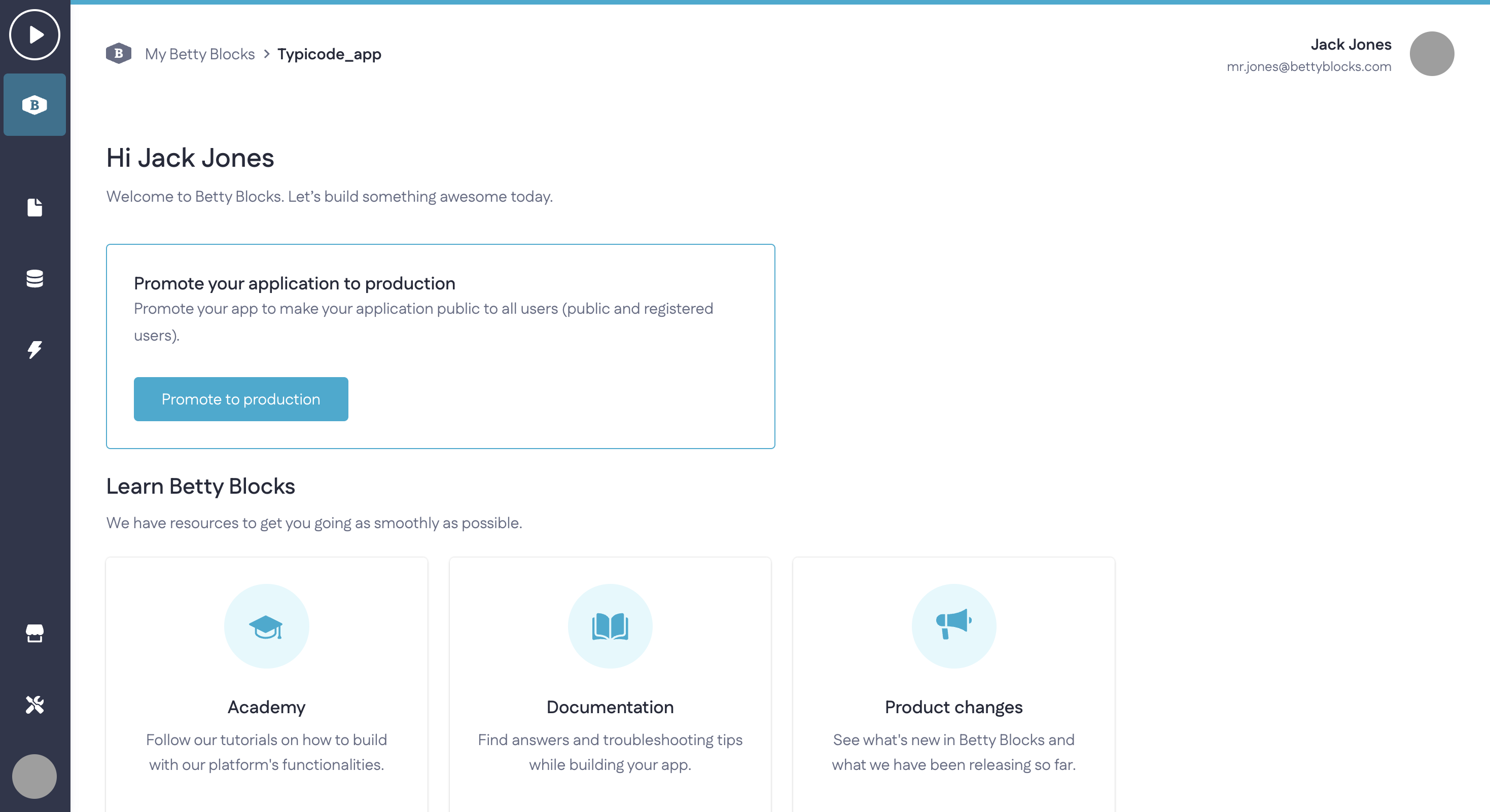
In both cases, SSO is used by builders, admins, and workspace owners to build and manage applications, assign roles, and manage users within their allowed scope.
Setup overview
Neither company SSO nor application-level SSO can be configured directly by users. Both require coordination with the Betty Blocks support team.
To enable either setup, you need a configured identity provider (IdP) that supports OpenID Connect (OIDC)
Information required for SSO setup
When working with the support team, you’ll be asked to provide:
- Provider name — display name for your identity provider
- Client ID and client secret — credentials used during authentication
- Issuer — public URL of your identity provider
- Authorization, token, and user info endpoints — provided by the IdP
- Email domain(s) — users from these domains will authenticate via SSO
After the connection is enabled, the support team will provide the callback URL and any additional parameters required to complete the configuration.
Runtime (internal) application access
Runtime SSO lets end-users log into a specific Betty Blocks application using their existing credentials — for example, signing in with Google or Microsoft. This setup does not grant access to builder tools or platform management.
Application owners or builders who want to let external users sign in easily, without creating separate accounts.
Supported types:
Betty Blocks supports the most common SSO protocols through OpenID Connect (OIDC), used by providers such as Google, Microsoft, and Okta.
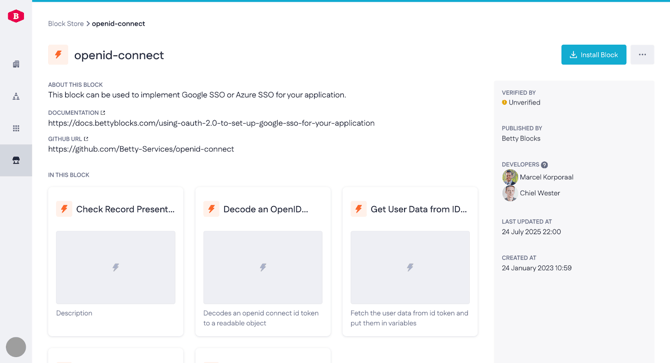
If your identity provider relies on a different protocol, you can still connect it using the HTTP(S) + JSON path block to configure a custom integration.
How to configure application SSO
1. Open your application and go to Models. Create a Webuser data model with (at least) Email and Password fields
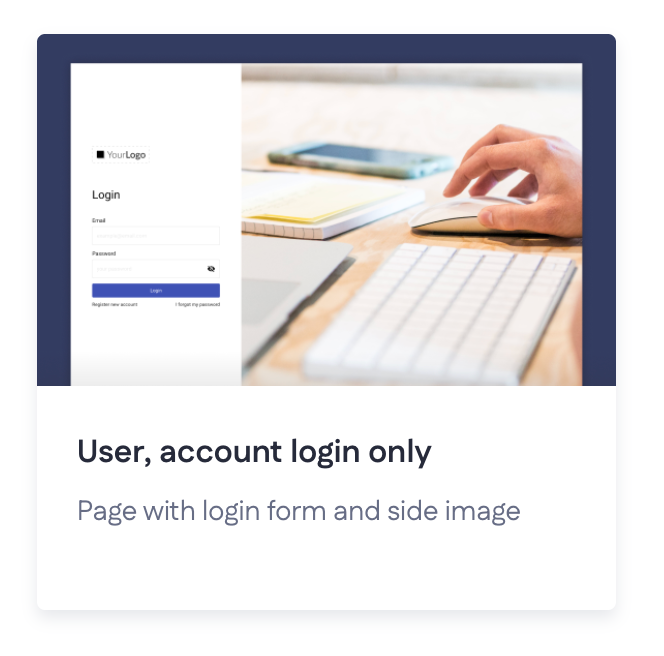
2. Set up a login page. You can use the template 'User, account login only', which includes a login form
3. Create a login button that redirects to your provider’s login page. Check the provider’s documentation for the correct link.
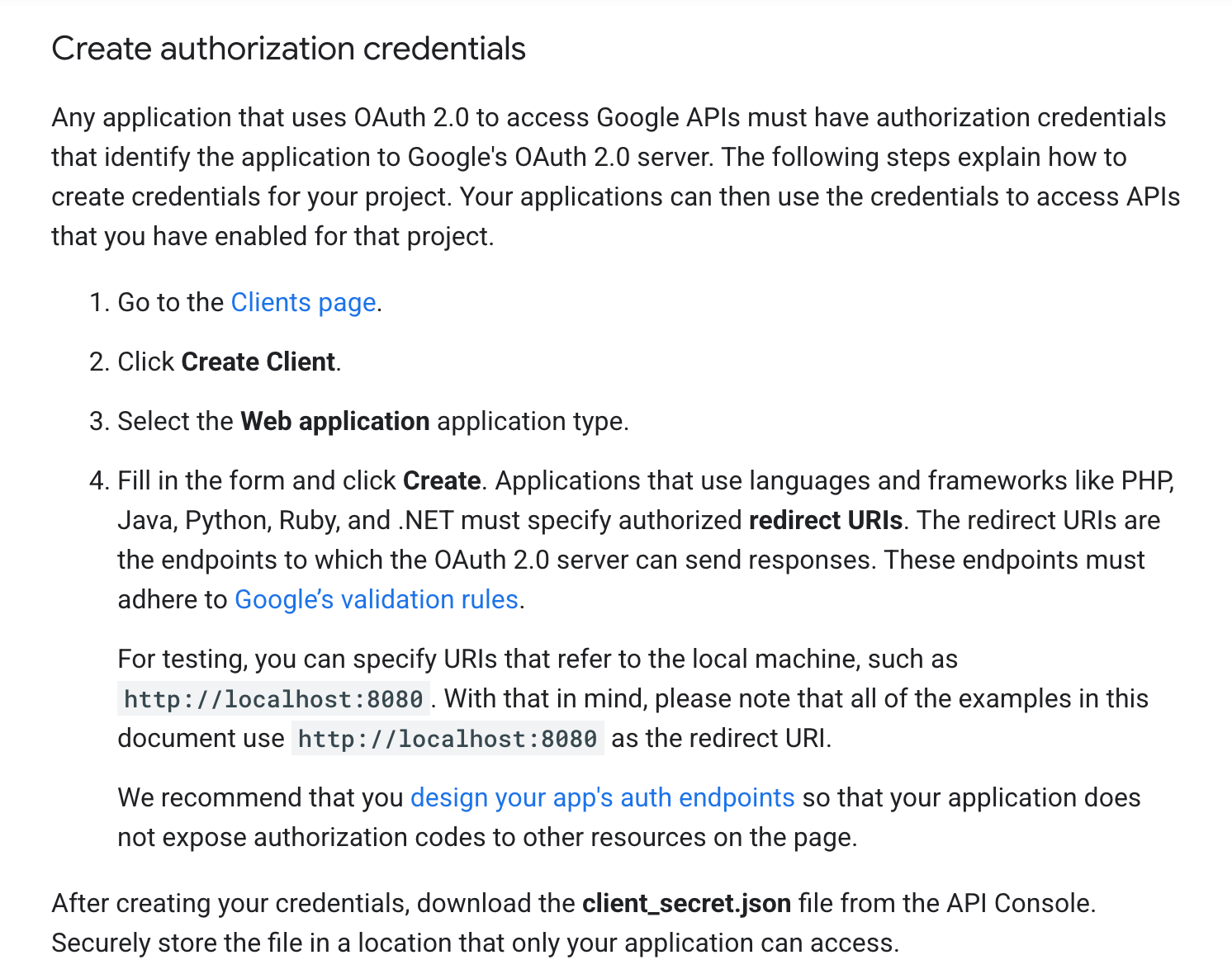
For example, here’s Using OAuth 2.0 for Web Server Applications in Google’s documentation. In the Create authorization credentials section, you will find some steps on how to get the credentials we need from Google:
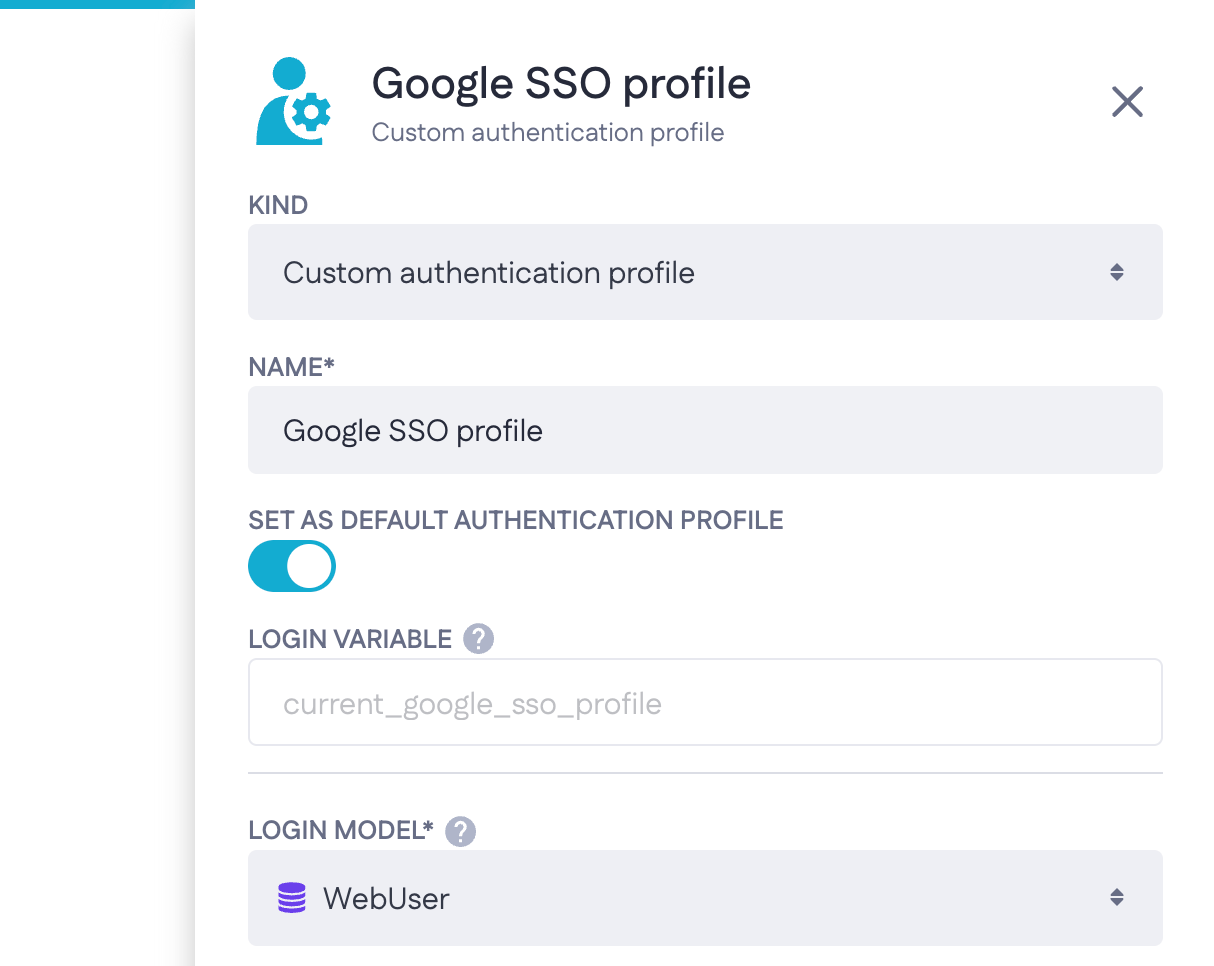
When configuring the login form, create a new authentication profile (e.g. ‘Google SSO profile’) and assign your user model - the one you’ve probably set up while using the login template
In your application, go to Actions and make sure the correct integration blocks are available:
- OpenID Connect — install this block from the Block Store for OIDC-based providers
- JSON path — also installed from Block Store and used to process or map authentication data
- HTTP(S) — available by default and can be used for custom setups
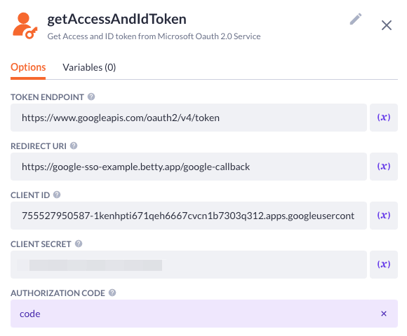
Register your application with your SSO provider and obtain the required credentials (such as Client ID and Client Secret). The exact steps depend on the provider and protocol you use.
7. Configure the callback actions and redirect:Ensure the redirect or callback URLs in your SSO provider match those configured in Betty Blocks. Any mismatch will prevent the SSO login from working.
After setup, test logging in through your SSO provider to confirm the authentication process works as expected.
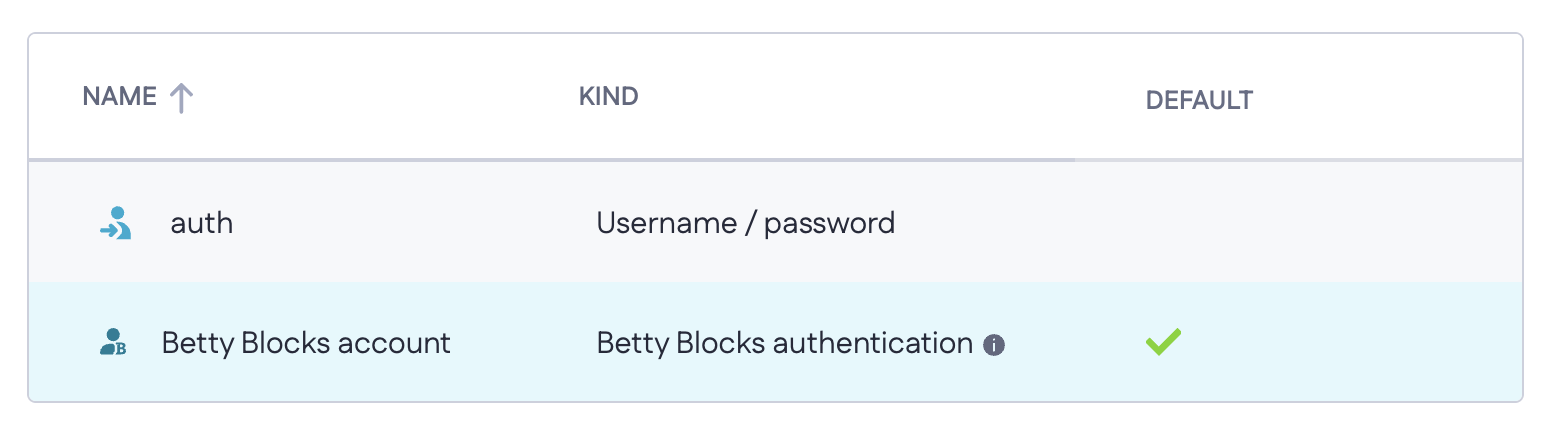
Note: If a builder also needs access to the runtime application, they can sign in using their own Betty Blocks account, provided an account has been created for this purpose. The corresponding Betty Blocks account authentication profile will then handle their login to the runtime application