
Software catalog gives people who have the manage software catalog permission one place to see all the software, applications, integrations and APIs used across their IT landscape. Think of it as a registry: a record of what your organisation already has — Betty Blocks apps, external systems, and the connections between them.
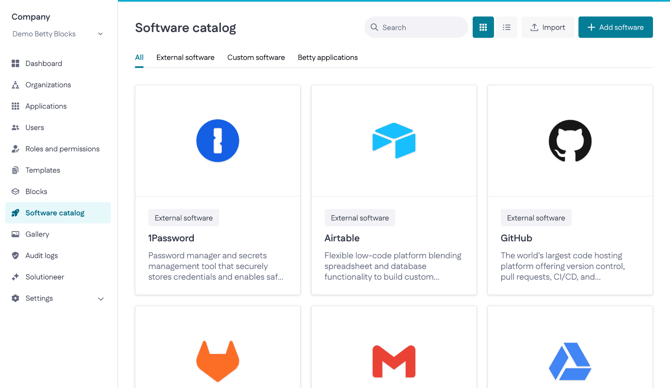
It also acts as a reference point for the Solutioneer. Before someone builds a new application, the catalog can surface what already exists, so teams don't rebuild something they already have.
Why it's useful
- Governance and compliance — show which systems are connected and where data flows, which supports GDPR and security audits.
- Impact analysis — check which applications depend on an integration before you change or remove it.
- Fewer duplicate builds — existing software shows up before a new app is started, saving time and budget.
- Cost control — spot integrations you no longer use and cut unnecessary licensing costs.
- Faster onboarding — new team members can understand the connected landscape without opening every app.
Where to find it
Go to My Betty Blocks > Company (overview) > Software catalog.
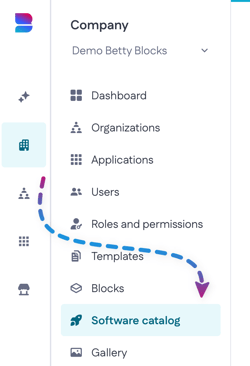
You'll need access to the Company overview to see it — usually that means you're a company admin or hold an IT governance role.
Browsing the catalog
The catalog opens on a full list of everything registered, split across three tabs
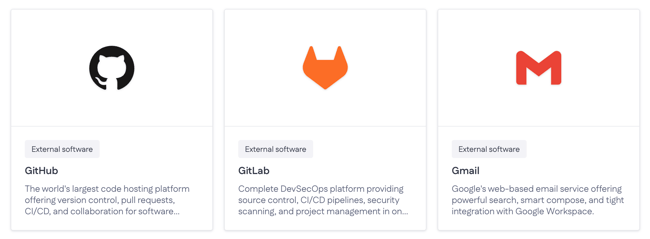
- External software — third-party systems your organisation connects to, like Salesforce, GitHub or Gmail.
- Custom software — software you've registered manually that isn't a standard external product or a Betty Blocks app. Useful for in-house or niche tools.
- Betty applications — your live Betty Blocks apps, detected automatically.
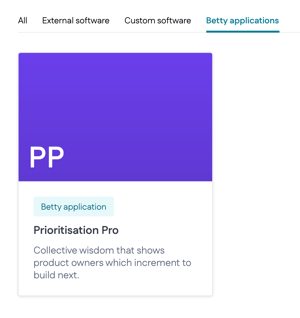
Each entry shows an icon, a name and a short description. You can search and filter to find a specific system.
Open and edit a software entry
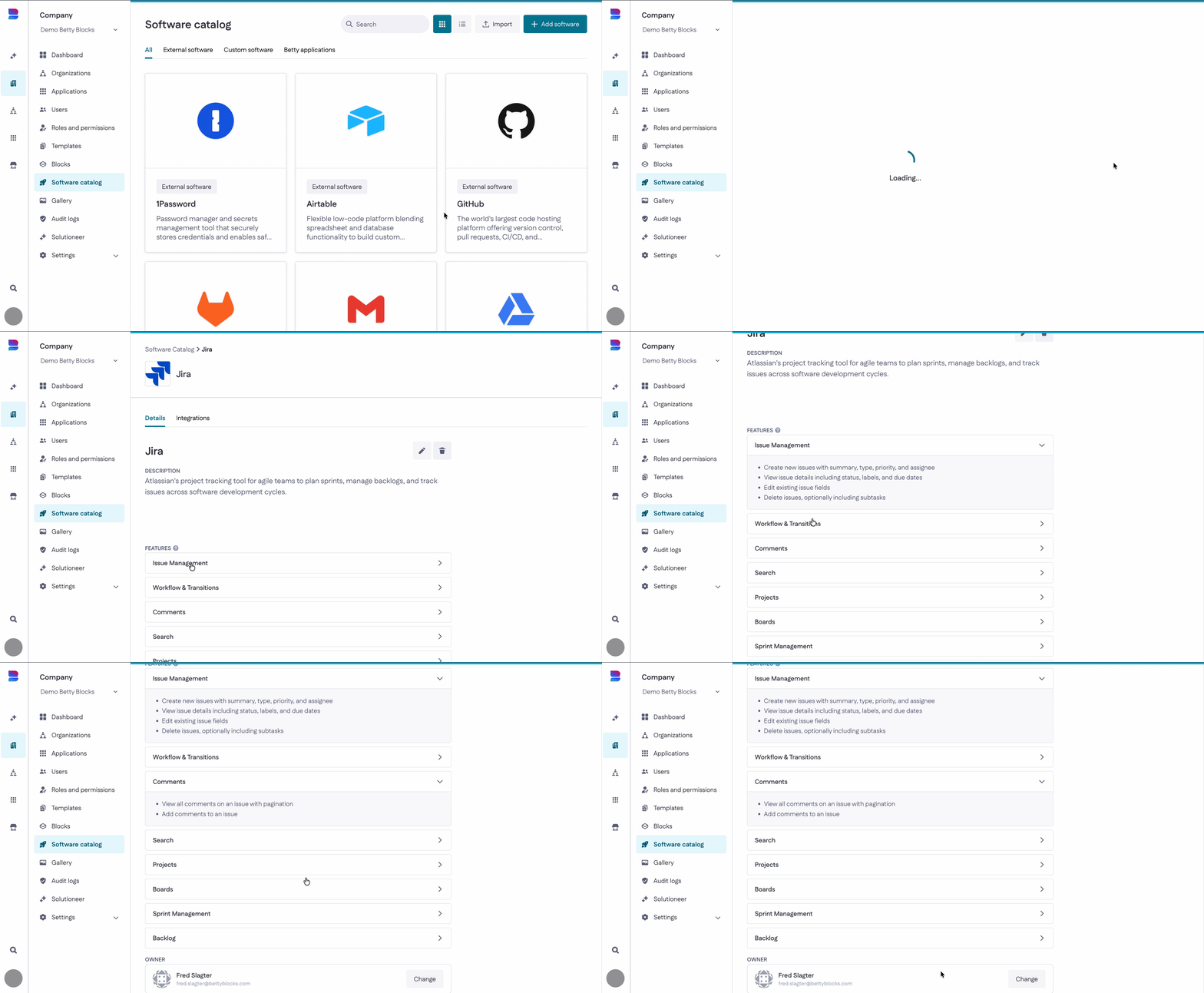
Select any entry to open its detail view. Here you'll see:
- Description — a short summary of what the software does.
- Features — the main capabilities, grouped into sections (for example, "Message management" or "Drafts") that you can expand.
Good to know: features aren't just documentation. In future, the Solutioneer will use them to check for existing software before a new app is built — so the more clearly you describe an entry, the better it helps avoid duplicate work.
- Owner — the person responsible for this entry, so it's clear who to ask about it.
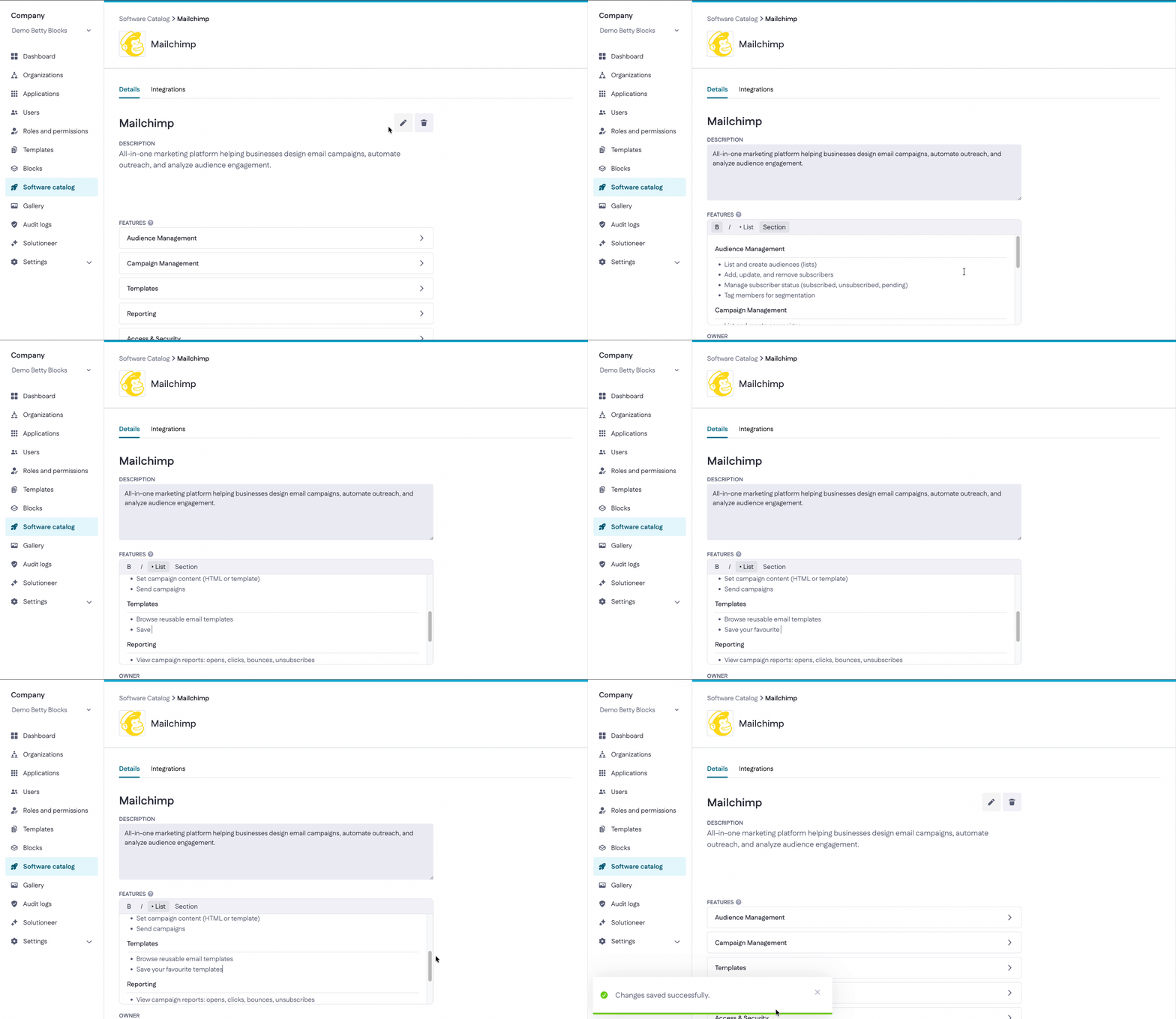
To make changes, switch to edit mode. You can rewrite the description and build out the features list: add a section heading for each main feature, then list its sub-features as bullet points. Save when you're done.
Integrations
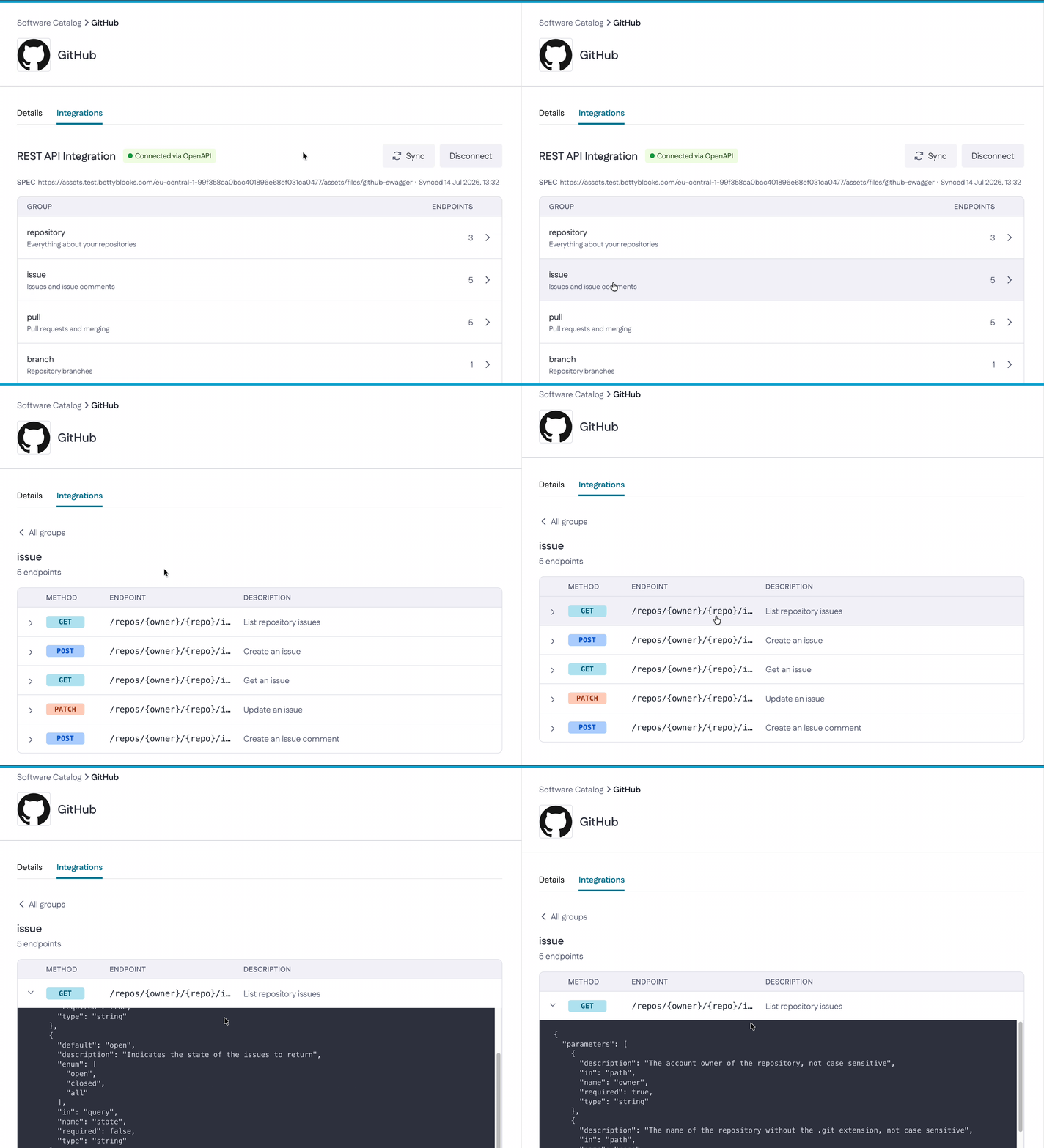
Open the Integrations tab (A) to see how a software connects through its API.
When an entry is connected via an OpenAPI specification, the catalog reads the API documentation and lists what's available. Endpoints are organised into groups (for example, message, thread, label), and each group shows how many endpoints it contains (B)
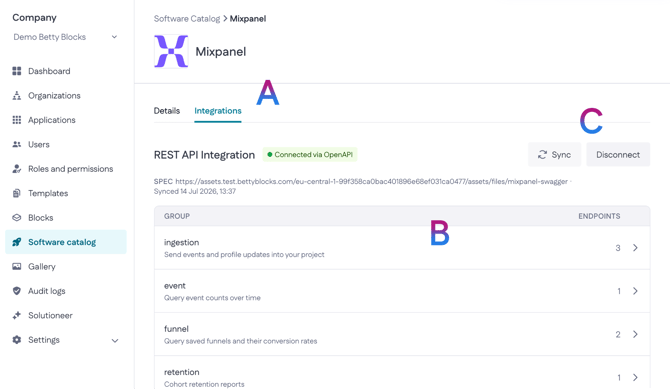
At the top of the tab (C), you'll find two buttons for managing the connection:
- Sync re-imports the endpoints from the saved spec URL, so the list reflects the latest version of the API documentation. The tab shows when it last synced.
- Disconnect removes all imported endpoints for that software.
Open a group to see its endpoints, with the HTTP method (GET, POST, DELETE), the path, and a short description of what each one does. Select an endpoint to expand its details and view the underlying spec, including parameters like userId or a query filter.
One thing to be clear about: this is read-only insight. The catalog lists endpoints from documentation so you can see what an API offers — it doesn't make live calls to it.
Adding software
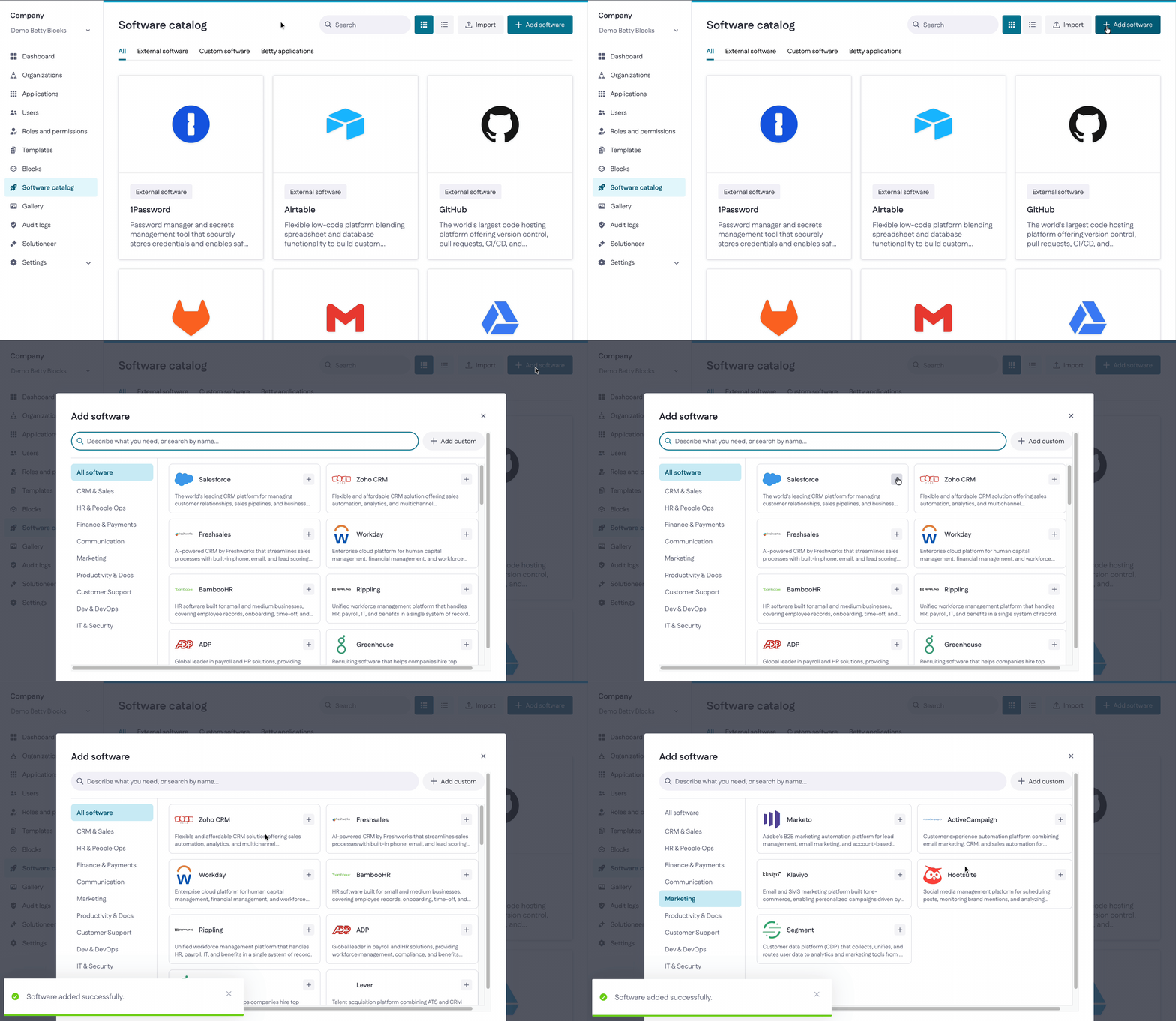
Select Add software to register something new. You can:
- Search the list — describe what you need or search by name, browse by category (CRM & Sales, HR & People Ops, Finance & Payments, and so on), then select + to add a known product.
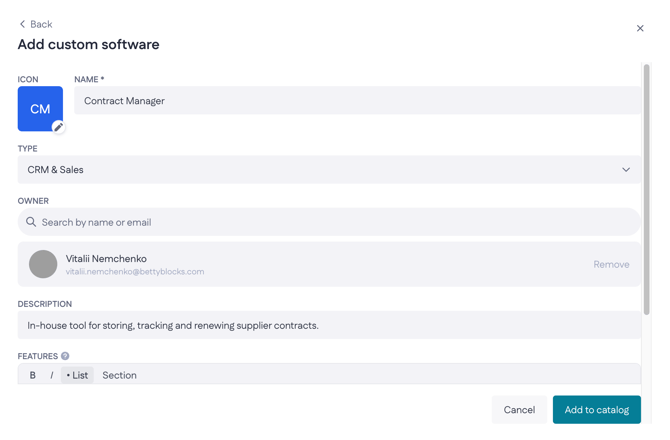
- Add custom — for anything not in the list. Select Add custom to open a form where you set an icon, name, type, owner, description and features.
There's also an Import button for bringing in software entries in bulk rather than adding them one by one.
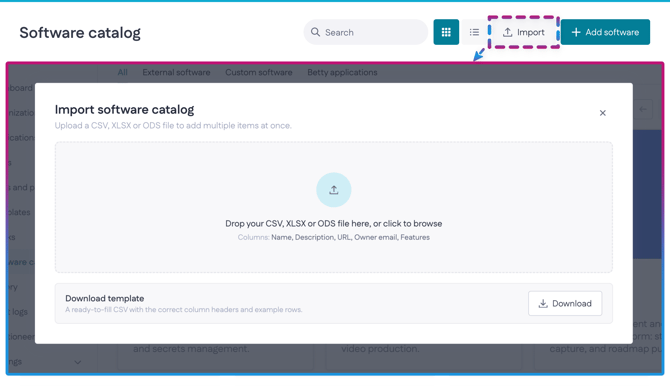
You can also download a template CSV from this pop-up, with the correct column headers and example rows to help you prepare your import.
What it doesn't do yet
The catalog is in alpha, so a few things are worth knowing up front:
- Integrations are registered manually. Automatic detection of integrations inside live apps isn't available yet — for now, you add external software by hand.
- The API catalog is read-only. It lists endpoints from the documentation. Live connections, per-endpoint access control, and using these endpoints at build time are out of scope for now.
- No change alerting. You won't be notified if an integration or endpoint changes or breaks.
- Betty app detail is basic. Detected Betty Blocks apps currently show an image and title; richer detail is in progress.