
Genius Pages only. The page interaction described here works only with the Genius component set. They are not interchangeable with classic Pages components — even when the names look the same, the options and runtime behavior differ.
Set values is one of the core interactions in Betty Genius Pages. It assigns a value to a variable when a trigger fires — a page loading, a button click, an input changing, or an action returning a response. Instead of writing logic to move data around, you point a variable at a value and pick the moment it updates.
The value can come from a static entry, another variable, a component (like the text a user typed), or an action response such as an API lookup. The target can be a page variable or a single property on a form, for example City or Street.
This article covers three examples:
- filtering a table live as the user types
- moving that same filter behind a button, so it only runs on click
- filling form fields automatically from an action response
All examples use a Book catalogue app with a Books list page.
Filter a table as the user types
In the first example, we use a Book List page that shows a list of available books and a search bar for filtering the list by name. Betty Genius has already created the page with a data table, a search field, and the Set values interaction in place.
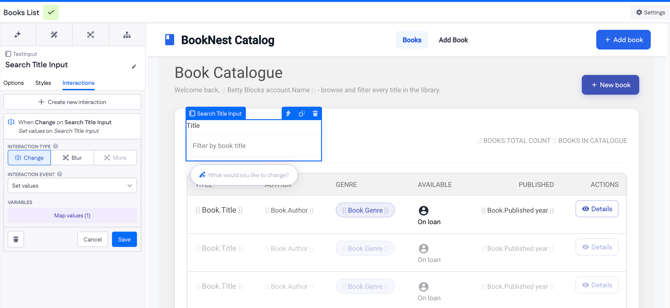
The page has a text input named Search Title Input and a page variable named titleSearch. The variable is used in the table's filter, so whenever it changes, the table re-renders.
This is how the Set value interaction setup would look like if we created it from scratch.
1. Select the text input and open the Interactions tab.
2. Select Create new interaction, then set the interaction type to Change.
3. Set the interaction event to Set values.
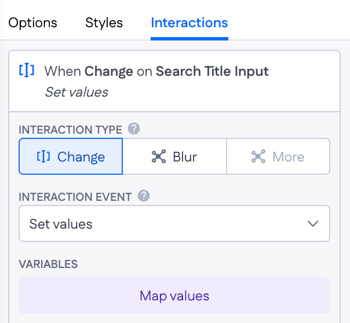
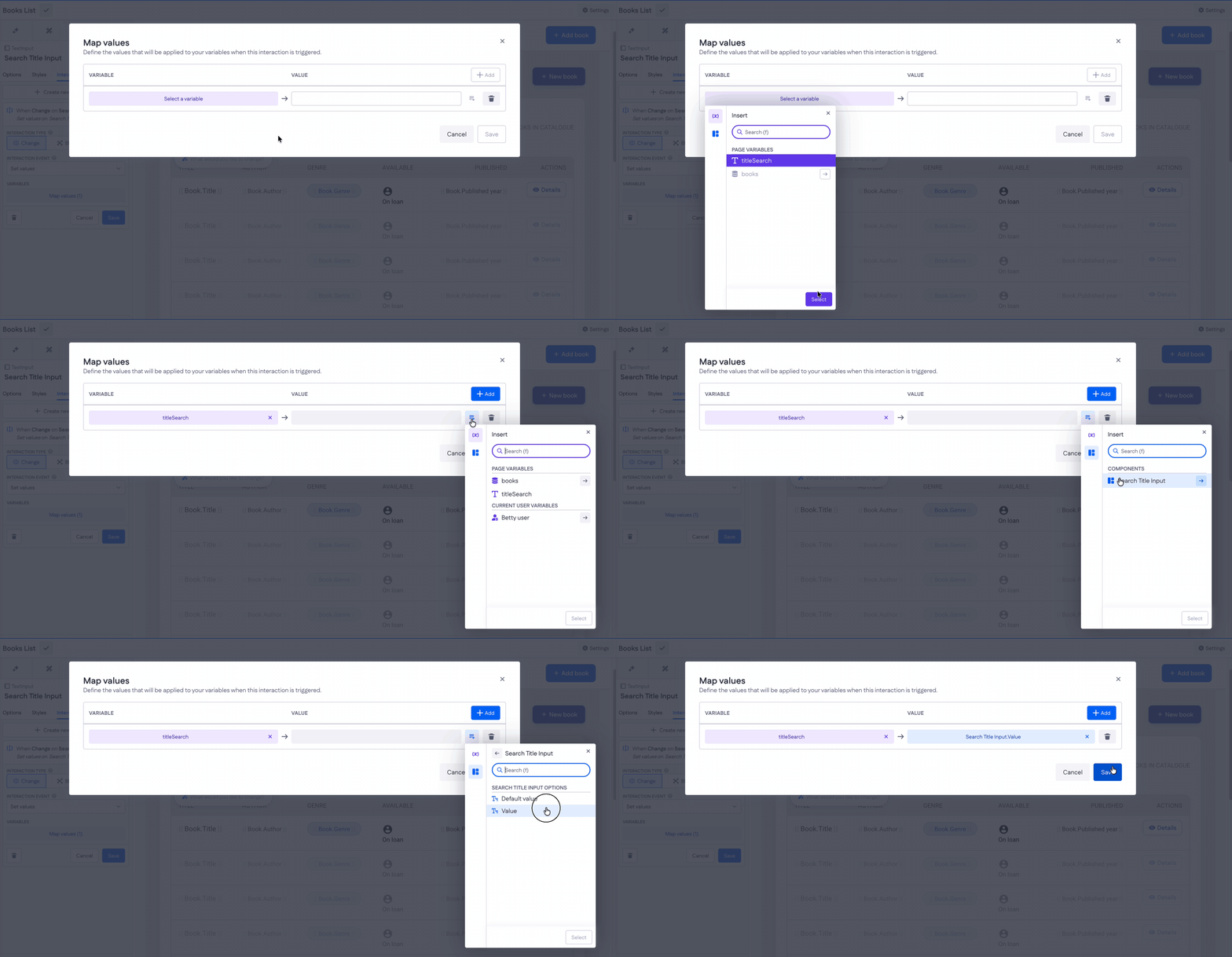
4. Select Map values and add a row: variable titleSearch.
5. In the value column, open the picker, switch to the component tab, and select Search Title Input → Value.
6. Save the interaction.
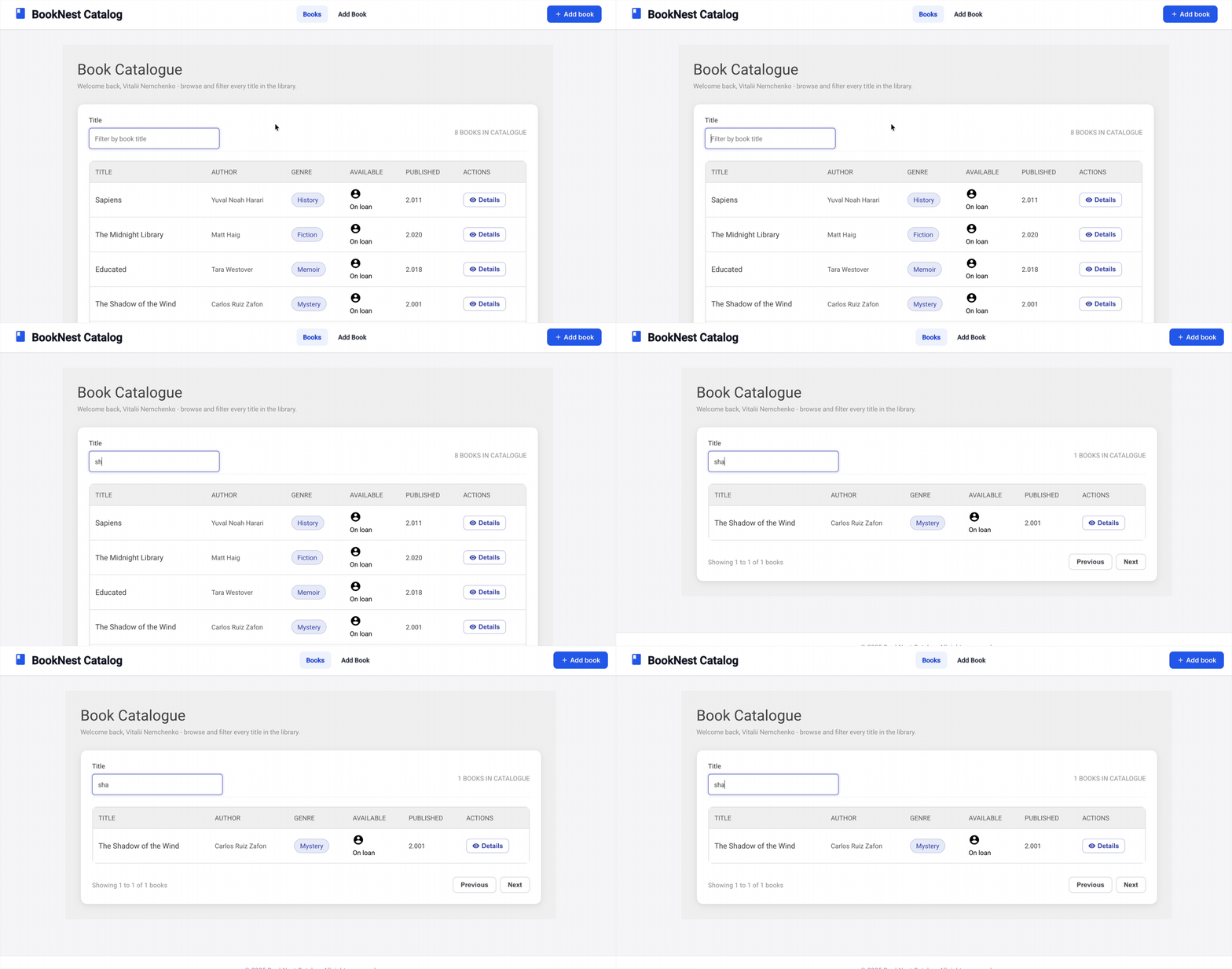
Now every keystroke updates titleSearch, and the table filters as the user types.
Tip: the value picker has two tabs. The first lists page variables and action responses; the second lists the options of a component (state), such as Default value and Value. If you select Default value, this will clear the text field.
Filter only when a button is clicked
Filtering on every keystroke sends a query for every character. If the collection is large, or you want the user to finish typing first, tie the same mapping to a button instead.
1. Add a button next to the search input and label it Search.
2. Select the button, open Interactions, and create a new interaction with the type Click.
3. Set the interaction event to Set values.
4. In Map values, map titleSearch to Search Title Input → Value — the same mapping as before.
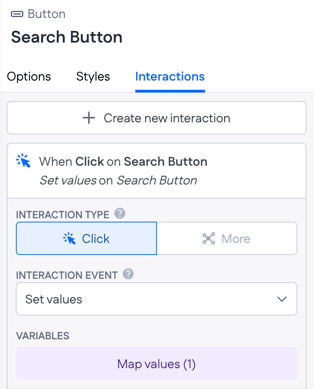
The mapping is identical. Only the trigger differs: the value is read from the input at the moment the button is clicked, not on every change.
Fill form fields from an action response
Set values also works with data coming back from an action. In this example, a user enters a postal code and house number, and the Street and City fields fill in from an address lookup.
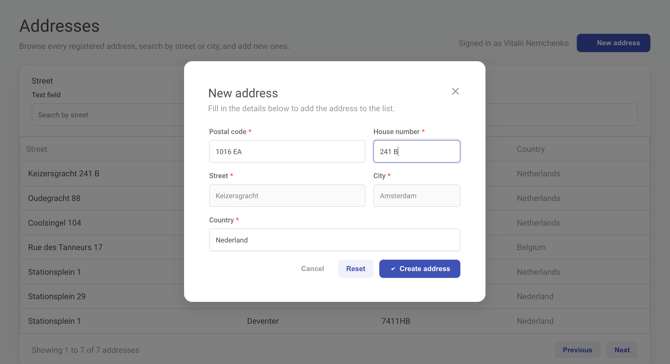
What the page needs:
- a form for creating an address, with fields for postal code, house number, street, city, and country
- an action that calls the address lookup API (here: Retrieve Address From API) and returns the match as an object
- an action reference to that action on the page, so its response is available as a page resource
With those in place, add the interaction:
1. Open Page resources → Interactions and add a new interaction.
2. Set When to On data condition.
3. Set the condition to Retrieve Address From API response.Is success equals true. The fields only fill in once the lookup actually returns a match.
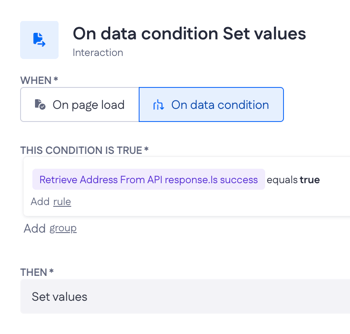
4. Set Then to Set values.
-
createForm.street→Retrieve Address From API response.Output.address.streetcreateForm.city→Retrieve Address From API response.Output.address.city
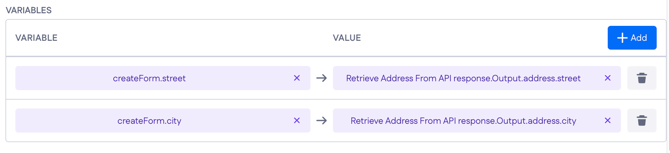
When the lookup succeeds, both fields populate on their own. The user only fills in the postal code and house number.