
Genius Pages only. The components described here belong to the Genius component set. They are not interchangeable with classic Pages components — even when the names look the same, the options and runtime behavior differ.
Page resources panel is the central place for the data and logic tied to a single page. It lists the variables your components read from and write to, the actions the page can run, and the interactions that trigger logic automatically. From here you can view, search, create, and manage all of them in one overview.
Open the Page resources tab (the third tab) in the page builder menu. The panel sorts resources under Variables, Actions, and Interactions. Use the tabs (All, Variables, Actions, Interactions) to filter the list, or the search bar to find a resource by name.
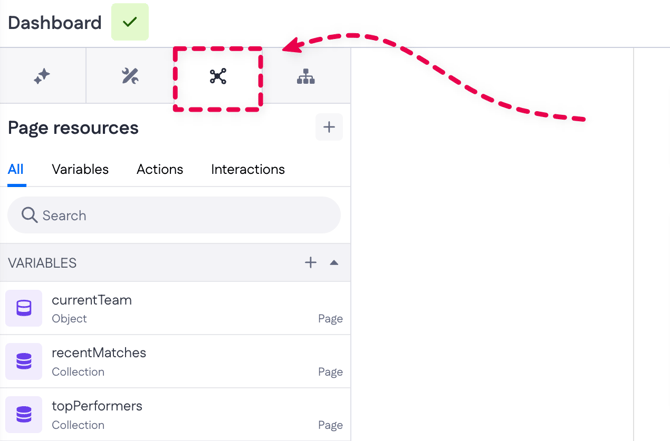
In Genius, page resources fall into three groups:
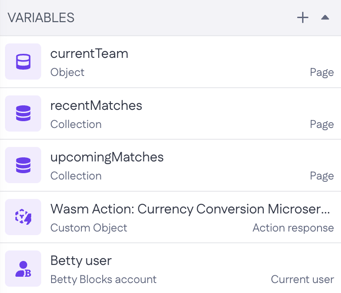
- Variables — store and reuse data within the page (page and input variables), along with variables that appear on their own, such as current user and action response variables.
- Actions — references to existing actions the page can run.
- Interactions — logic that runs on a set event, like page load or a data condition.
Creating a page resource
Click the + button at the top of the panel. The Create new page resource window opens, where you choose Variable, Action reference, or Interaction.
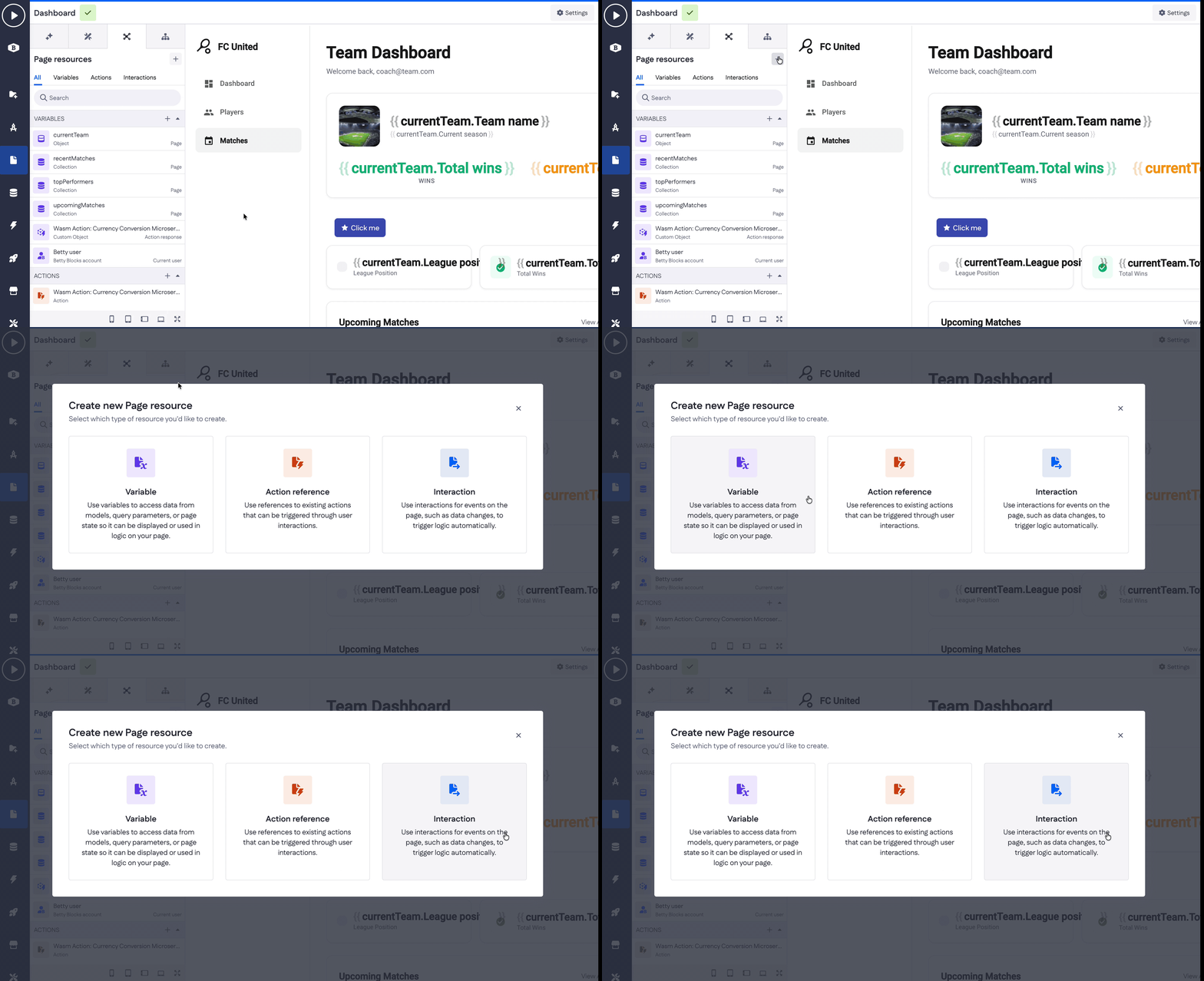
Or skip the selector: each section header (Variables, Actions, Interactions) has its own + button. Click it to create that resource type directly.
Variables
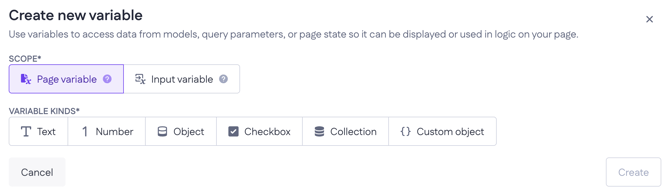
Variables hold the data your page works with. When you create one, you first choose a scope, then a kind.
Scope
- Page variable — available only within the current page. Use it to hold and reuse data from models or page state — such as a selected record or a list of items — and display it or drive logic on that page.
- Input variable — receives data passed into the page through a redirect from another page, such as a query parameter (for example, a
project_idfrom the URL).
Kinds
For a page variable, you can choose from these kinds:
- Text, Number, Checkbox — just give the variable a name. For example: a search term (Text), a guest count (Number), or a "show cancelled only" toggle (Checkbox).
- Object — holds a single record from a model. Select a model, give it a name, and optionally set a filter to narrow down which record is returned and an Order by to decide which one comes first. For example: the one reservation a user clicked on.
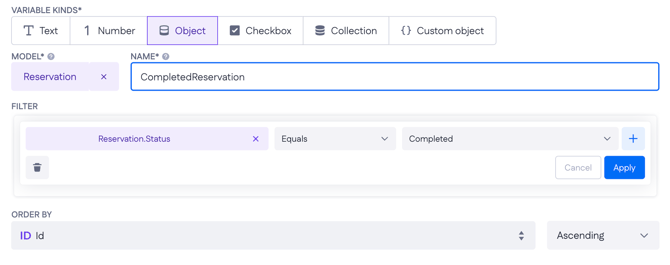
- Collection — holds a list of records from a model. Same as Object, plus an Item name (how a single item is referenced) and Skip / Take to control how many records load (for example, skip 0, take 50). For example: all reservations after today.
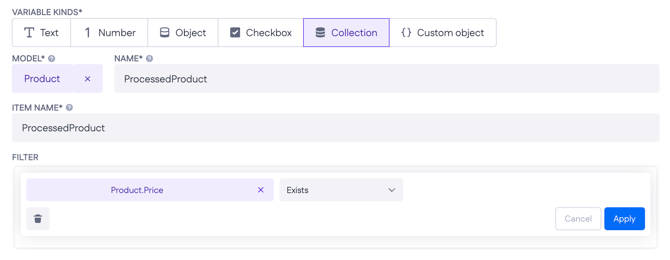
- Custom object — based on a schema model instead of a data model. Select a schema model and give it a name. Use the eye icon to open the matching schema model.
Input variables currently support only Text and Number. Object, Checkbox, Collection, and Custom object aren't available for input variables yet. For example: the fields of a Create product form before it's submitted.

Current user variables
A current user variable holds data about the logged-in user, based on the authentication profile set for the page (for example, Betty user for the native Betty Blocks profile).
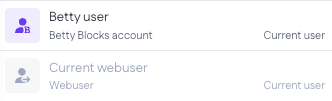
These appear on their own in the Variables list as authentication profiles are added to your application. The profile selected for the page is the active one; the rest stay inactive.
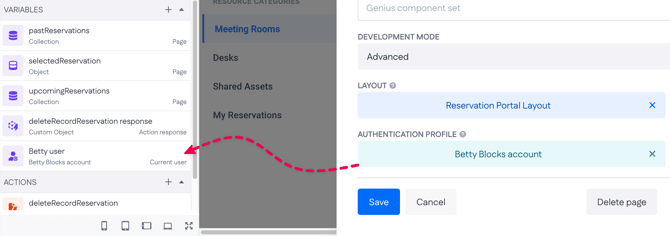
You can set the page's authentication profile in Settings, in the top-right corner of the Pages menu.
Example of use: filter a Reservations collection by the current user so the page shows only that person's bookings, without asking them to pick their account first.
Action references
An action reference points to an existing action so the page can run it. Select the action, then give the reference a name. Use the eye icon to open the action in the Actions overview. If you need to get to editing level of access to this action, click Edit permissions.
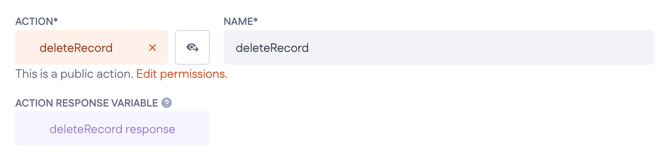
Each reference also creates an Action response variable, which holds the data the action returns (for example, Form Action response). You can reuse that response elsewhere on the page.
Example of use: link a Cancel reservation button to a Cancel reservation action. When the user clicks it, the action runs and its response tells you whether it succeeded, so you can show a confirmation message or refresh the list.
Interactions
An interaction runs logic when something happens on the page. When you create one, you set a trigger (When) and a result (Then).
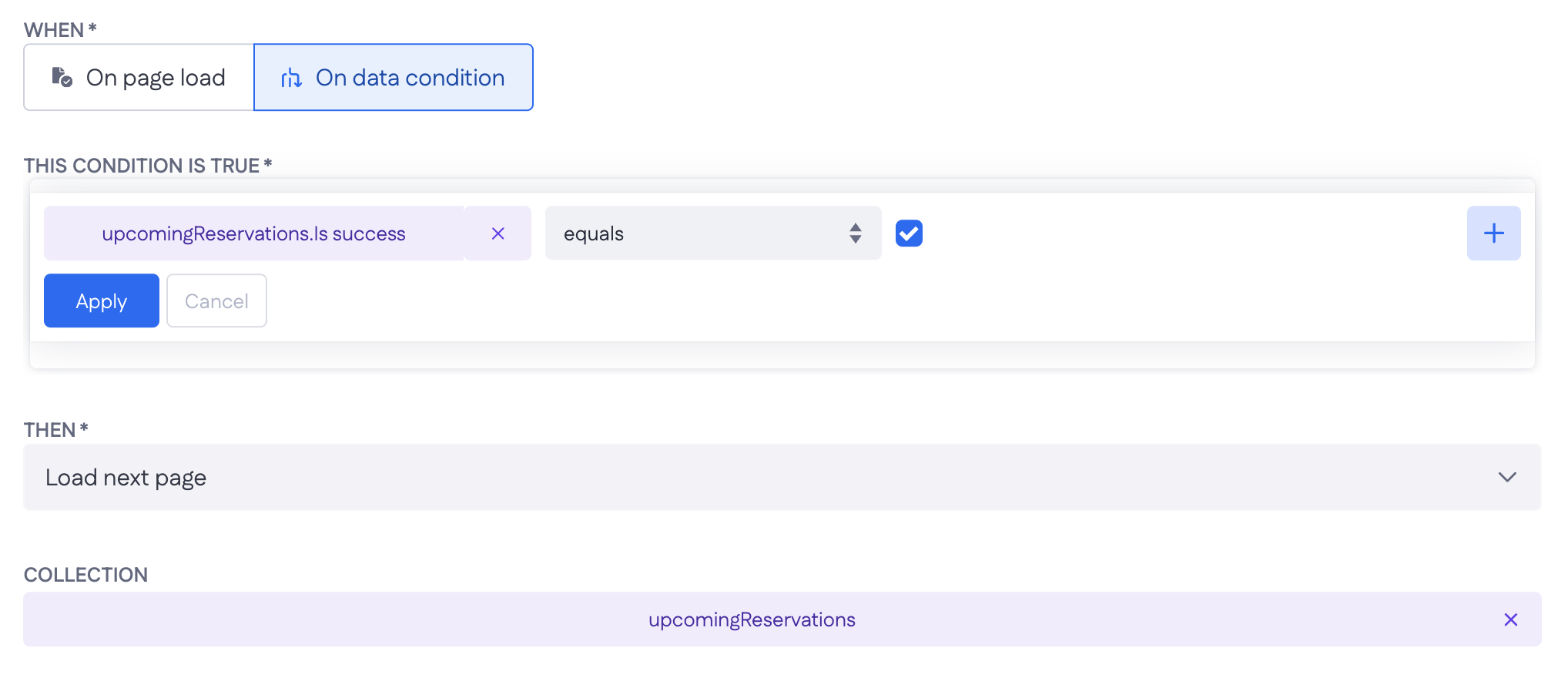
When:
- On page load — runs as soon as the page loads.
- On data condition — runs when a condition you set is true. Pick a property, choose a comparison (such as equals), and set the value to compare against. You can insert page variables, action response variables, or current user variables into the condition.
Then — choose an interaction from the list, such as Run action, Reset values, Redirect, Refetch page variable, Set variables, Load next page, or Load previous page.
Example: on page load, refetch the upcomingReservations variable so the list is up to date every time someone opens the page. Or, on a data condition, redirect the user back to the overview when a reservation's status equals "Cancelled."