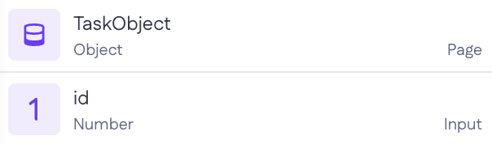
Page resources panel lists all variables available on the current page and acts as the central hub for accessing and managing the data used by your components and logic. This includes input variables and page variables, which store and reuse data within the page, and current user variables, which provide details about the logged-in user.
Together, these resources let you bind data to components, control behavior, and make sure the page responds dynamically based on the data that’s available.
Page resources panel
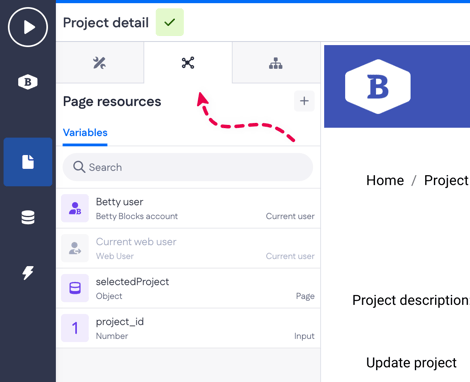
Navigate to Pages > Page resources - second tab in the page builder menu. This panel gives you access to all data-related variables connected to the current page. It provides a single overview where you can view, search, and manage the resources that power your page’s data and logic.
Current user variables
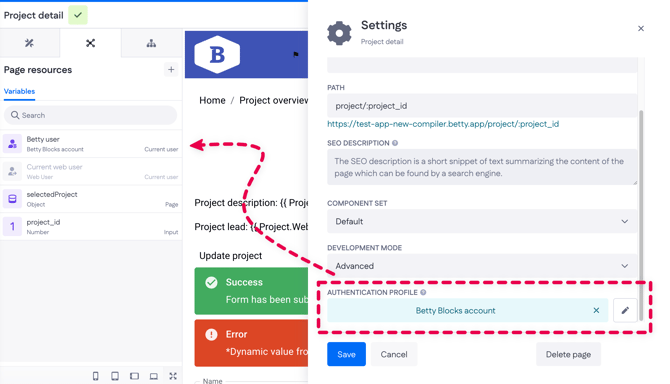
Current user variable provides user-related data based on the authentication profile selected for the page, such as the Current web user or the Betty Blocks user (native authentication profile)
Current user variables are tied to an authentication profile and appear in the Page resources overview as new authentication profiles are added to your application. You can set the page’s authentication profile in Settings (top-right corner of the Pages menu).
The variable associated with the profile selected for the page is used as the primary current user variable for that page; all others remain inactive.
Curious about page security and configurations available? Check out Page security (for a specific role) article.
Input variables
Input variables are typically used to receive data from outside the page, such as query parameters or values passed into the page (for example, a `project_id` input variable). You can currently add variables of two kinds: Text and Number
-
To add a new variable, click the
+button.
.gif?width=670&height=275&name=Screen-Recording-2026-02-12-at-1%20(2).gif)
- Click on Save to create the variable. You'll now see the input variable in the list of variables.
Page variables
Page variables store data that’s only available within a single page. You can reference these variables anywhere on that page, so one query is enough to hold information like a task title. Currently, you can only use the Object variable type as a page variable in your application (for example, `finishedProject` based on the Project model).
-
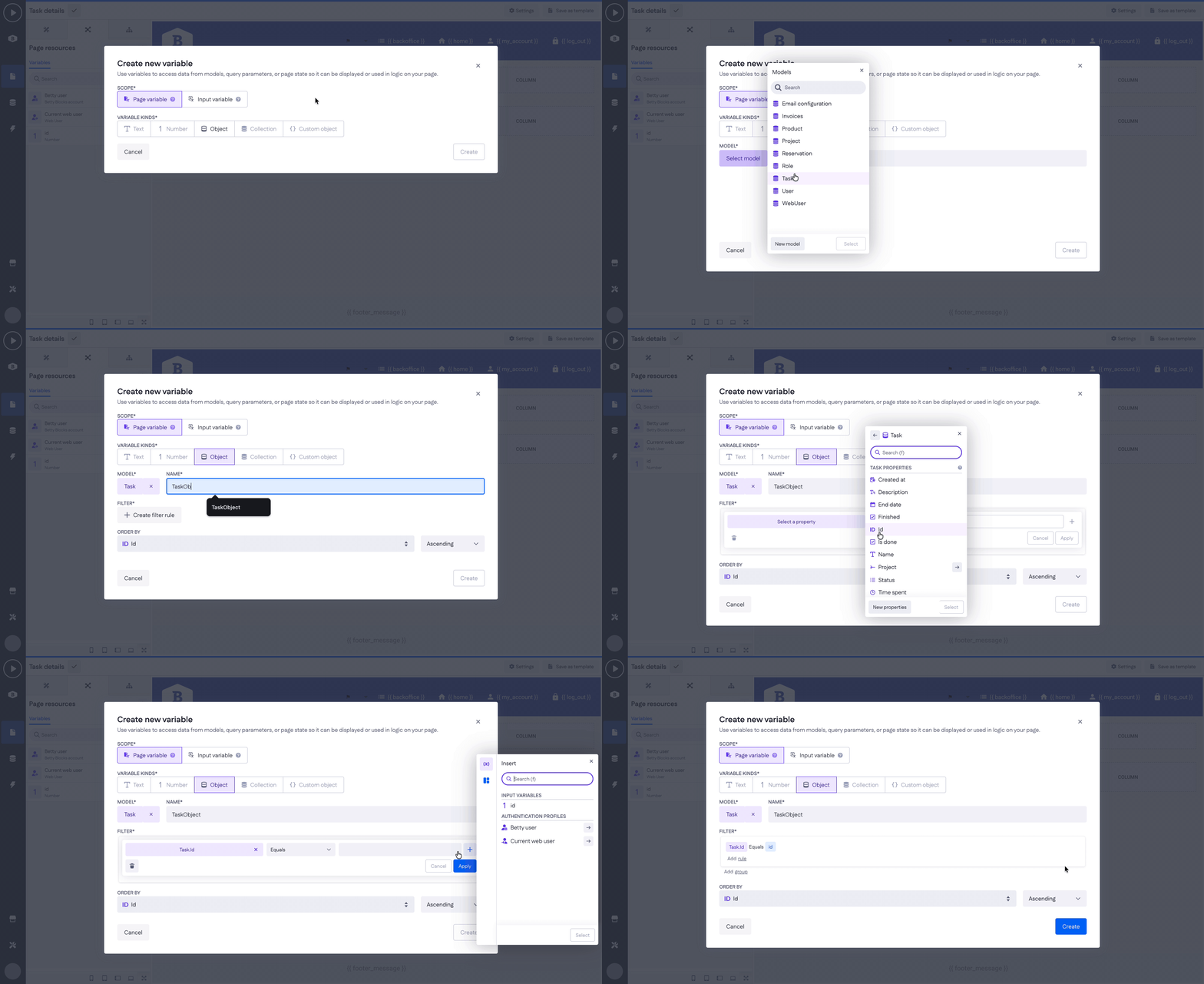
Create a page variable from the Page resources menu by following the same steps you use for input variables.
-
In the example below, the input variable you created earlier is combined with a page variable in a filter. This ensures that the task object stored in the page variable is the same task whose ID is specified in the URL (e.g.
yourappname.betty.app/task/3)