
Table of contents
Pre-setup:
Building pages:
Why go model-based for translations?
Betty Blocks includes a built-in Translations feature that works well for straightforward cases. Translations are defined when you build the app and are tied to the browser's language setting. For many projects, that's perfectly fine.
But what if you need more flexibility? What if your content editors need to update translations without touching the builder? What if users should be able to pick their own language rather than relying on the browser? What if translated content is part of the application's data – not just labels on buttons?
A model-based approach stores translations as data records. That changes what's possible:
- Translations can be added, updated, or extended at any time with no rebuild required
- Content editors can manage everything through the application itself
- Users can switch languages with a single click
- Works especially well when translated content is part of the domain, not just the interface
The application used as an example throughout this guide includes a multilingual FAQ and a product catalogue – both good illustrations of the pattern in action. In this use case, we’re going to:
- Create data models and build relations between them
- Build the back office pages to help us properly structure and store values
- Create Products example page to test the flow
- Use Dynamic Translation Text widget that will simplify this translation setup
- Set up the language switcher (manual switcher & automatic update via URL)
- Test the working translation feature in the prepared application
Setting up static translations
Static UI translations — page titles, button labels, input field names — are handled by Betty Blocks' built-in Translations tool. Even though this application uses a model-based approach for dynamic content like FAQs and products, the built-in tool is still needed for these fixed interface strings that don't come from the database.
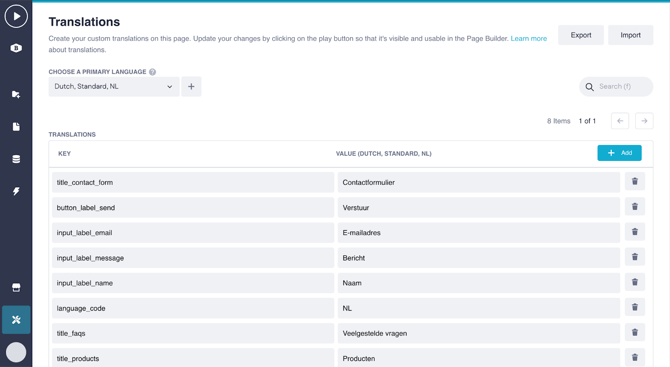
Navigate to Tools > Translations, choose your primary language, and add your keys and values. For this application, the keys used across English and Dutch look like this:
|
Keys |
Value (EN) |
Value (NL) |
|
title_faqs |
FAQs |
Veelgestelde vragen |
|
title_products |
Products |
Producten |
|
title_contact_form |
Contact form |
Contactformulier |
|
button_label_send |
Send |
Verstuur |
|
input_label_email |
|
E-mailadres |
|
input_label_name |
Name |
Naam |
|
input_label_message |
Message |
Bericht |
|
language_code |
EN |
NL |
Setting up the data models
The whole approach rests on four models. Two handle the translation infrastructure (Language and Translation); two are the content models for this specific application (Product and FAQ).
Language
Stores the languages your application supports. Each record represents one language.
|
Property |
Type |
Notes |
|
Name |
Text (single-line) |
e.g. English, Dutch, German |
|
Code |
Text (single-line) |
e.g. en, nl, de |
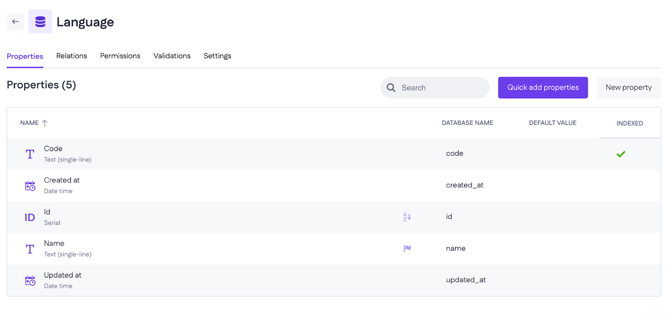
Create one Language record per supported language. One of them should serve as the default – useful as a fallback when a translation is missing. Every user in the system is linked to a Language record, which is what drives personalised language display throughout the app.
Translation
Stores translated content that comes from the database — things like product descriptions, FAQ questions, and answers tied to specific records. Unlike static UI strings (page titles, button labels), which are handled by the built-in Translations tool, this model deals with content that is part of the data itself and needs to be managed per record and per language.
|
Property |
Type |
Notes |
|
Key (for error translations) |
Text (single-line) |
A stable identifier, e.g. btn_save, err_not_found, ttl_faq_page |
|
Language code |
Text (single-line) |
The code of the language this value belongs to (e.g. en, nl) |
|
Text value |
Text (multi-line) |
The translated string for that key and language |
The Language code property is what the Dynamic Translation Text block (covered in the next section) uses to match a Translation record to the active language. It compares this value against the language code from the current user or page input variable to find the right record.
FAQ
The content model for FAQ items. It holds structure and ordering — nothing language-specific lives here.
|
Property |
Type |
Notes |
|
Is active |
Checkbox |
Controls whether the item appears on the front end |
|
Sort order |
Number |
Controls display order |
The translated question and answer text is managed separately — on the [BO] FAQ | Question translations and [BO] FAQ | Answer translations back-office pages.
Product
The content model for products in the catalogue. Structure only — no translated text stored directly on this model.
|
Property |
Type |
Notes |
|
Reference name |
Text (single-line) |
Internal identifier for the product |
|
Image |
Image |
Product image |
Title and description translations are managed on [BO] Product | Title translations and [BO] Product | Description translations.
The pattern in brief
Content models (FAQ, Product) hold structure and relations. The Translation model holds UI strings. Translated content for FAQs and products lives in separate translation records, always linked to both a content record and a Language record. Adding a new language means adding new records – no structural changes, no rebuild.
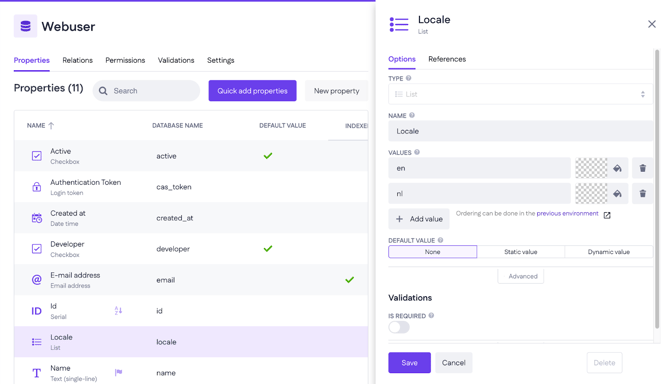
One important thing to set up before building further: use the Webuser model for authentication instead of Betty Blocks' default User model. The Webuser model should include a List property that stores the user's preferred language. In this application, the accepted values are en and nl.
Creating model relations
Now that we have our data models in place, let’s establish key relationships between them. It’s easily handled via the canvas view in Models.
1. Link Translation to Language models, so that Many Translations belong to one Language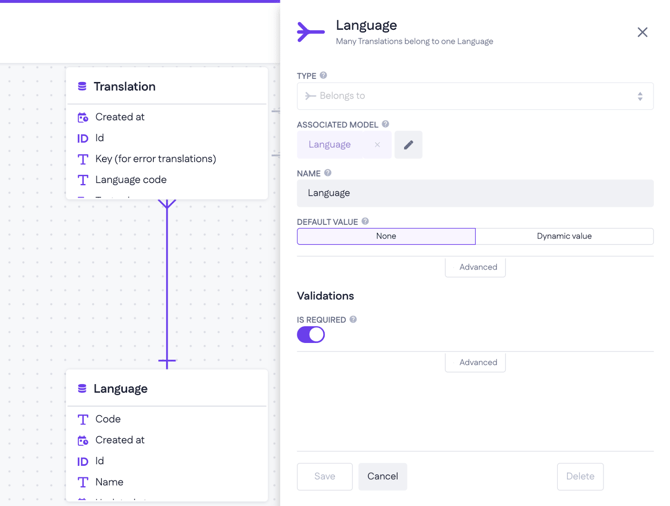
2. Create a connection between Translation and Product models, so that: One Product has many Translations. For these and the next model relations, we have to create two ‘has many’ relations – for Title translations and Description translations
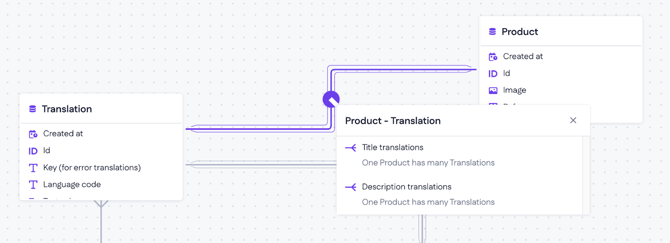
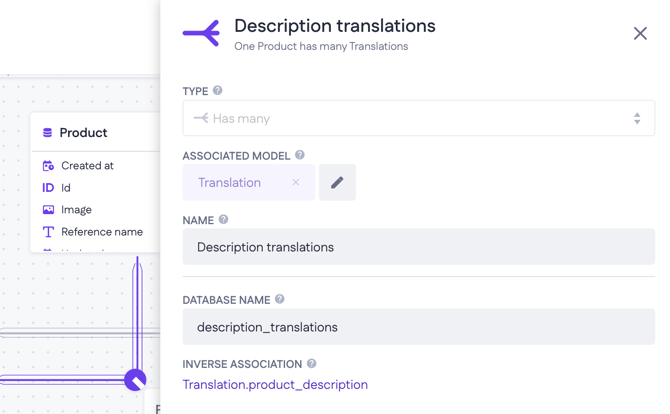
Note: Make sure you’ve renamed not only the two relations, but also the database name and inverse association with another model. This is an important distinction that will be used later in this use case.
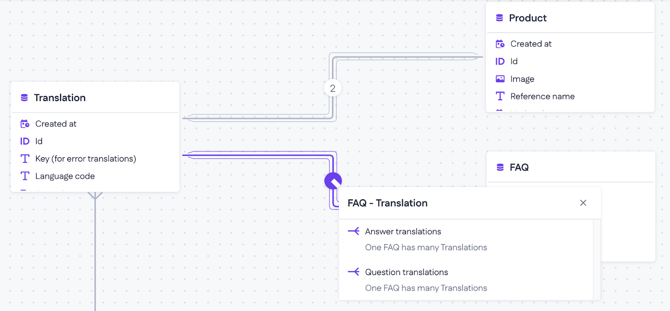
3. Lastly, you need to connect Translation and FAQ models, so that: One FAQ has many Translations – Answer translations and Question translations
Which pages are we going to build?
Before diving into page building, we need to set up two groups of pages: back-office pages (BO) for managing the data that powers the app, and front-end pages (FE) for displaying products and FAQ content to users.
Back-office pages
All BO pages are built using the back-office page template, each with a table showing the relevant model's data:
- [BO] All Translations /bo/all-translations — table based on the Translation model (Id, Language code, Text value)
- [BO] Error message translations /bo/error-message-translations — table based on the Translation model (Id, Language code, Key (for error translations), Text value)
- [BO] FAQ /bo/faq — table based on the FAQ model (Id, Sort order, Is active)
- [BO] FAQ | Answer translations /bo/faq/:faq_id/answer-translations — table based on the Translation model (Id, Language code, Text value). Requires a FAQ record ID to show the answer translations linked to that record.
- [BO] FAQ | Question translations /bo/faq/:faq_id/question-translations — table based on the Translation model (Id, Language code, Text value). Requires a FAQ record ID to show the question translations linked to that record.
- [BO] Languages /bo/languages — table based on the Language model (Id, Name, Code)
- [BO] Products /bo/products — table based on the Product model (Id, Reference name)
- [BO] Product | Description translations /bo/products/:product_id/description-translations — table based on the Translation model (Id, Language code, Text value). Requires a Product record ID to show the description translations linked to that record.
- [BO] Product | Title translations /bo/products/:product_id/title-translations — table based on the Translation model (Id, Language code, Text value).
Front-end pages
Every new Betty Blocks application includes two error pages by default — [FE] Error 403 (unauthorized) and [FE] Error 404 (not found). On top of those, we'll build two primary FE pages: [FE] FAQ and [FE] Products.
Next, before we get into building those pages, let's look at the key widget that makes multi-language display work a lot easier.
Dynamic Translation Text widget
Rendering the right translation on the page is handled by a widget block – Dynamic Translation Text – built specifically for this pattern. It combines a Data List, a Conditional, and a Text component to look up and display the correct translated value from a has-many relation in the database.
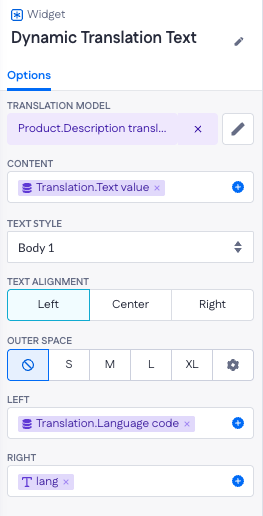
Understanding what the block does makes the subsequent page-building steps straightforward. Internally, it:
- Queries all translation records related to the current content record via a has-many relation
- Compares the Language code property on each Translation record against the active language code (from the current user or a page input variable)
- Displays the value from the matching record
There are four options to configure when you place the block on a page:
- Has-many relation: Select the has-many relation that connects your content model to its translation records. This lets the block fetch all related translations in a single combined query rather than making separate requests.
- Content: Select the property that stores the actual translation value — the text you want to display.
- Left: Select the Language code property from the Translation model. This is the value the block will compare against the active language.
- Right: Select the language code from the page input variable or from the current user object. This is the active language that the block matches against.
With that in mind, here is how the block gets applied when building the Products & FAQ pages.
Building Products page
When creating the Products page, set the URL to :lang/products. The :lang segment is what carries the active language code in the URL — for example:
https://translation-application.betty.app/en/products
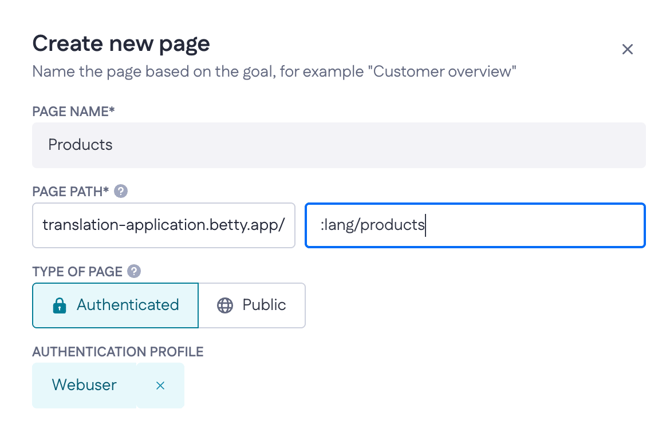
This matters because the language switcher we'll build later reads the language directly from the URL. Without this structure in place, switching languages via the URL won't work.
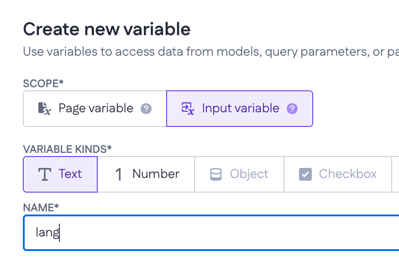
Next, create a new input variable on this page and name it lang. (Page resources > Variables > + > Input variable). This variable picks up the language code from the URL and makes it available to the components on the page – every language comparison you'll set up from here on will reference it.
Setting up the header
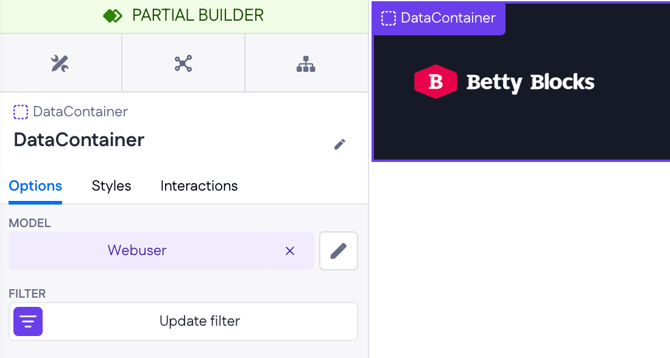
Start by wrapping the entire header partial in a Data Container and setting its model to Webuser. This gives the header access to the current user's data, which we'll need for the navigation links to work correctly.
Then add two navigation buttons. For the Products button, set the text to the title_products translation variable so it displays in the active language, set the “Link to” option to “External page” so that you can include an input variable in the URL and set the URL to /[lang]/products — this keeps the language code in the URL when navigating between pages. Repeat the same for the FAQs button, using title_faqs and /[lang]/faqs.
Leave an empty box on the right side of the header for now. We'll come back to it when adding the language switch.
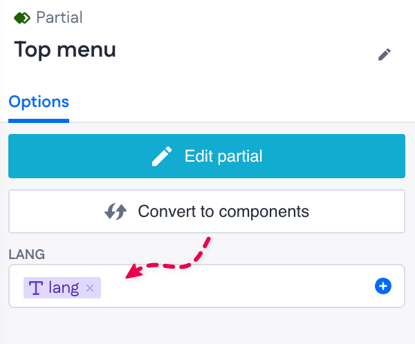
Also, make sure to select the lang input variable in the partial options under LANG — as shown above. Partials don't automatically inherit page variables, so passing lang in explicitly is what makes the navigation buttons inside the header aware of the active language.
Building the page body
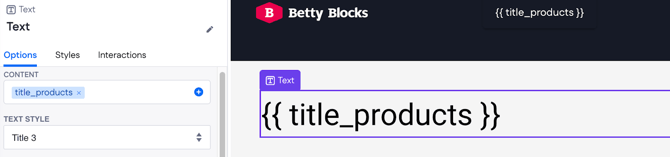
Drop a Title component onto the page body and select title_products as its text. This pulls the translated page title straight from the built-in Translations tool based on the active language.
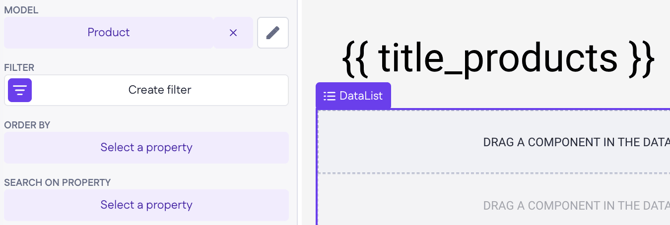
To display the list of products below, wrap the content area in a Data List and set its model to Product. This loops over all product records and gives each one its own block.
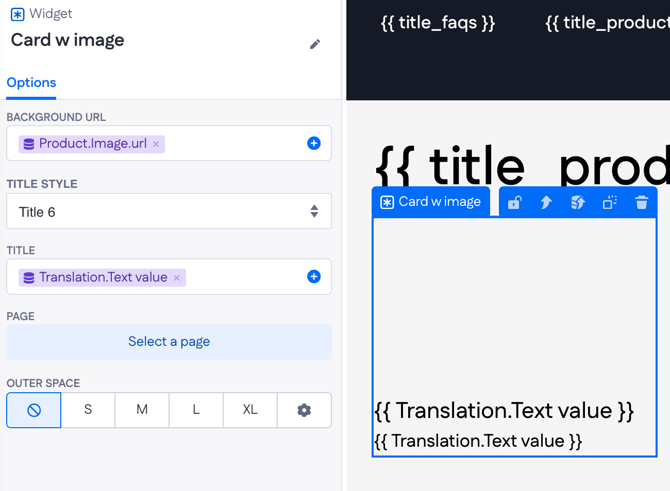
Inside that, drop a Card – or any other component or widget that fits your layout – to display the product content.
Now for the product titles and descriptions. Both use the Dynamic Translation Text widget – but before dropping it in, it helps to understand what it does internally. The widget combines a Data List, a Conditional, and a Text component to find and display the right translation. For each product, it fetches all related translation records, checks which one's Language code matches the lang value from the URL, and renders only that one.
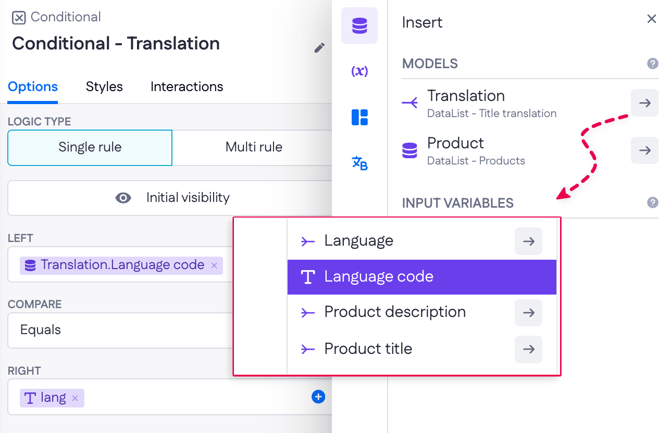
To show the product title, drop the Dynamic Translation Text widget onto the page and configure it as follows:
- Translation model: Product.Title translations
- Content: Translation.Text value
- Left: Translation.Language code
- Right: lang
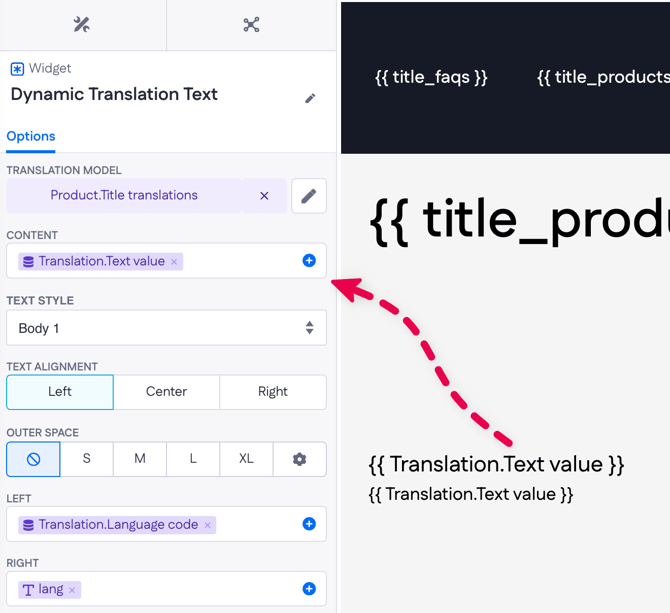
The Conditional checks each translation record against the lang value from the URL. Records that match are shown; the rest are hidden. So no matter how many languages you support, only one title will ever be visible at a time. Inside the Conditional, drop a Title component and set its text to Translation.Text value.
For the product description, use another Dynamic Translation Text widget, which runs the same Data List and Conditional logic internally, so you don't have to wire it up manually again. Drop the widget onto the page, unlock and configure it:
- Translation model: Product.Description translations — this sets the has-many relation the widget uses to fetch all related description records in a single query
- Content: Translation.Text value — the property that holds the actual translated text to display
- Left: Translation.Language code — the language code stored on each translation record
- Right: lang — the active language from the page input variable
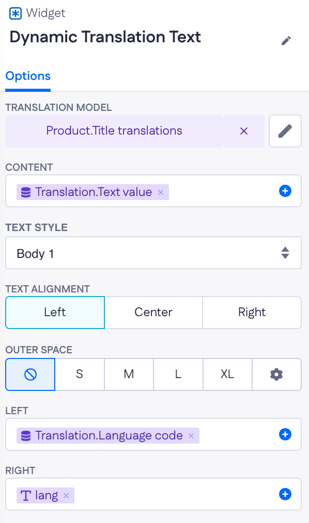
The widget compares Left against Right and renders only the record where they match, just as the Conditional does for the title above.
Note: The setup of the FAQ page is not covered here, as it follows the same steps as the Products page.
Setting up the language switcher
We'll handle language switching in two ways: automatically based on the URL, and manually via a selector in the header. Both use a Form with an action behind it. Let's start with the automatic switch.
Auto language switch
We've already laid some groundwork for this: the :lang/products URL structure and the lang input variable on the page are both in place. Now we need to wire up the logic that detects when the URL language doesn't match the user's current locale and corrects it automatically.
Go back to the header partial and find the empty Box we left on the right side earlier. Drop a Conditional component into it — name it Language mismatch. This Conditional will check whether the user's stored Locale matches the language code in the URL. If they don't match, it becomes visible and triggers the automatic switch. Configure it as follows:
- Left: Webuser.Locale
- Compare: Not equal
- Right: lang
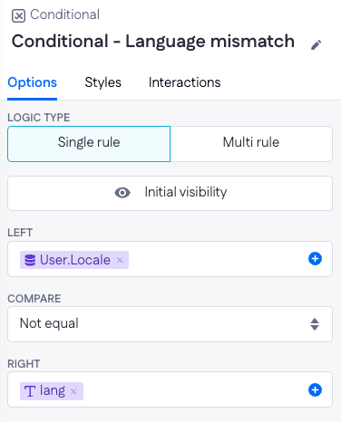
So as long as the URL language and the user's locale are in sync, this Conditional stays hidden. The moment they differ – say, someone navigates to /en/products while their locale is set to nl – the Conditional becomes visible and what's inside it kicks in.
Inside the Conditional, drop an action-based Form and name it Auto set language.
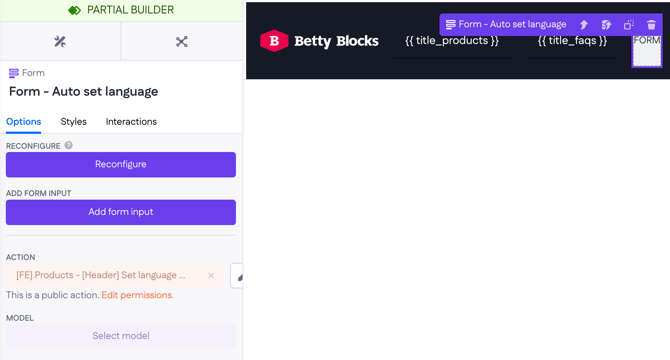
This Form needs two interactions set up under its Interactions tab:
- onRender → Submit on Form - Auto set language: the Form submits automatically as soon as it renders, with no user input needed
- onActionSuccess → setLanguage on Form - Auto set language: once the action completes, the language is updated accordingly
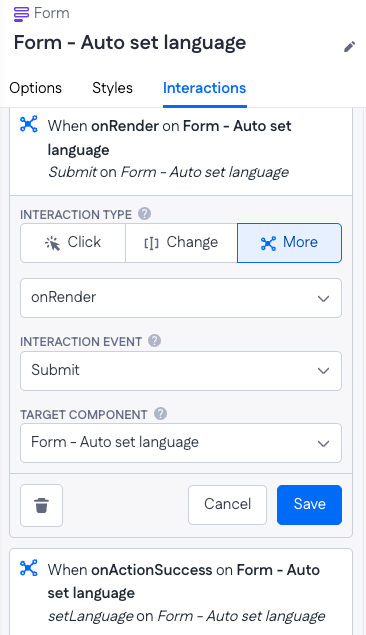
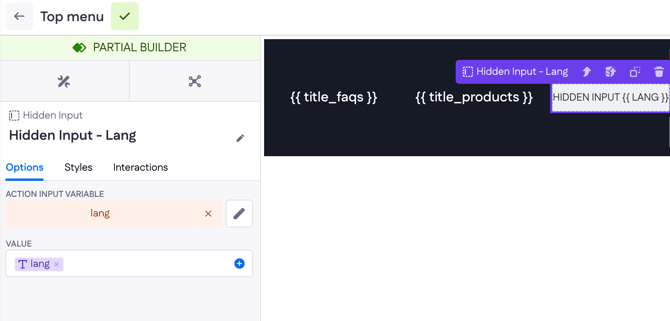
Before setting up the action, add a Hidden Input onto the Form first — this is what makes the lang value available to the action. Configure it as follows:
- Action input variable: lang
- Value: lang (the page input variable)
With the Hidden Input in place, you can now build the action behind the Form. It uses a single Update Record step:
- Record: current_webuser — the current logged-in Webuser record
- Value mapping: Locale → lang
This updates the user's Locale to match the language code from the URL, bringing the two back into sync.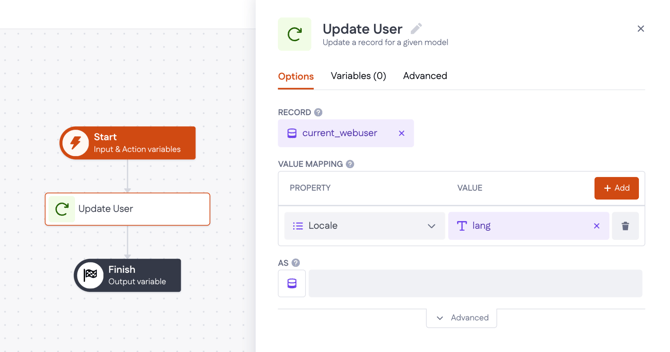
When the Conditional triggers, the Form renders, submits immediately, and the Update Record action sets the user's Locale to whatever language code is in the URL. Clean and automatic.
Manual language switch
Back in the header partial. This time, we'll add a Form to it — name it Form - Set language. Choose Webuser.Locale as a data model property. Inside the Form, you'll have a Select input and an Alert message component (added by default; you can style or hide it as needed). You can delete the success message and Send button.
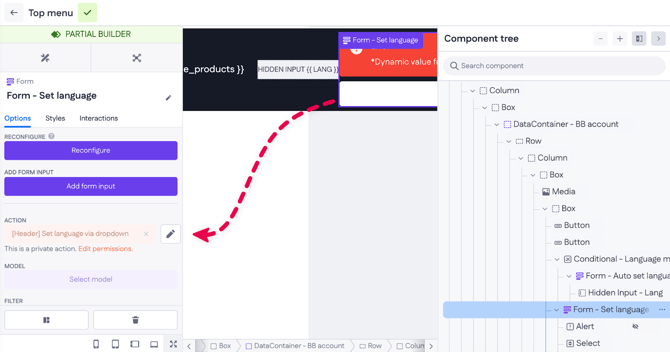
The Select input is what the user interacts with to pick a language. Set its options to Webuser.Locale and its value to the same variable. This means the dropdown reflects the user's current locale and submits whichever value they select.
The action behind this Form has three steps:
1. Update Record
Same pattern as the auto switch, but here the value comes from a locale input variable you need to create in the Start step of the action:
- Record: current_webuser — the current logged-in Webuser record
- Value mapping: Locale → locale
This updates the user's stored locale to whichever language they selected.
2. Expression – Output URL
Note: The following steps are only required if you want to redirect users to a specific URL within your application.
In most cases, you need the Form to refetch the current page:
- When onActionSuccess on Form - Set language → Set language
Once the locale is updated, we need to redirect the user to the correct URL. Add an Expression step with the following setup:
- Expression: "/en/products"
- Variables: key locale → input variable locale
- Result: output_url (Text)
This builds the redirect URL dynamically — so if the user switches to English, they land on /en/products; Dutch sends them to /nl/products.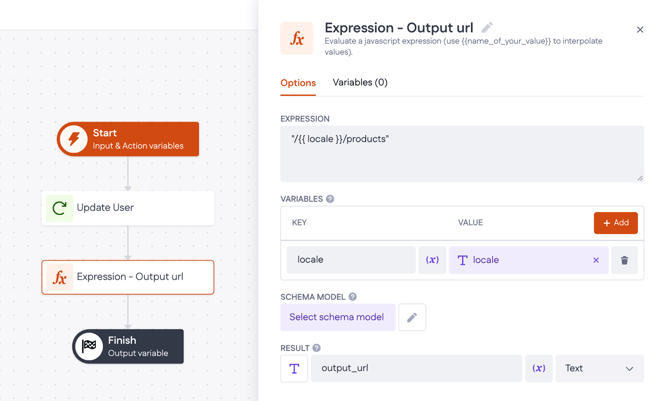
3.Finish
Set the output variable to output_url. This passes the constructed URL out of the action so the page can use it to navigate.
The Form itself also needs a second interaction. Under the Form's Interactions tab, add:
- When onActionSuccess on Form - Set language → navigateToOutputUrl on Form - Set language
Once the action completes and output_url is ready, this interaction triggers the navigation – sending the user to the newly constructed URL in their chosen language.
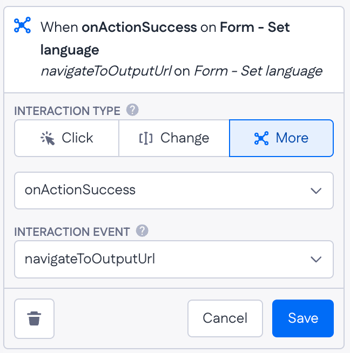
Now set up the interaction on the Select input. Under its Interactions tab, add:
- When onChange on Select → Submit on Form - Set language
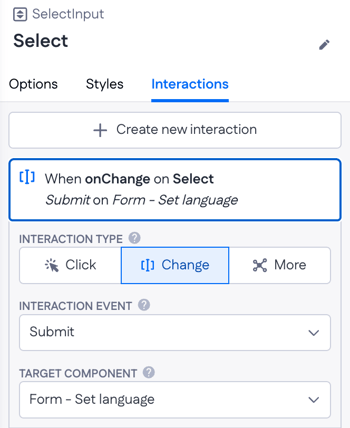
This means the moment a user picks a language from the dropdown, the Form submits automatically – no button needed.
Test the application
With the translation flow in place and both language switching methods set up, it's time to put it to the test. Start by navigating to the back-office pages and adding some records — products with title and description translations for both en and nl, a few FAQ items with their question and answer translations, and make sure your Language records are in place too.
Once you have some data, open the [FE] Products page and go through the translation flow. Check that the page title, product titles and descriptions all display correctly in the active language. Then try switching languages — both ways:
- Use the Select dropdown in the header to switch manually and confirm you land on the correct URL with the right content
- Change the language code directly in the URL (e.g. swap /en/products to /nl/products) and verify the page content updates accordingly
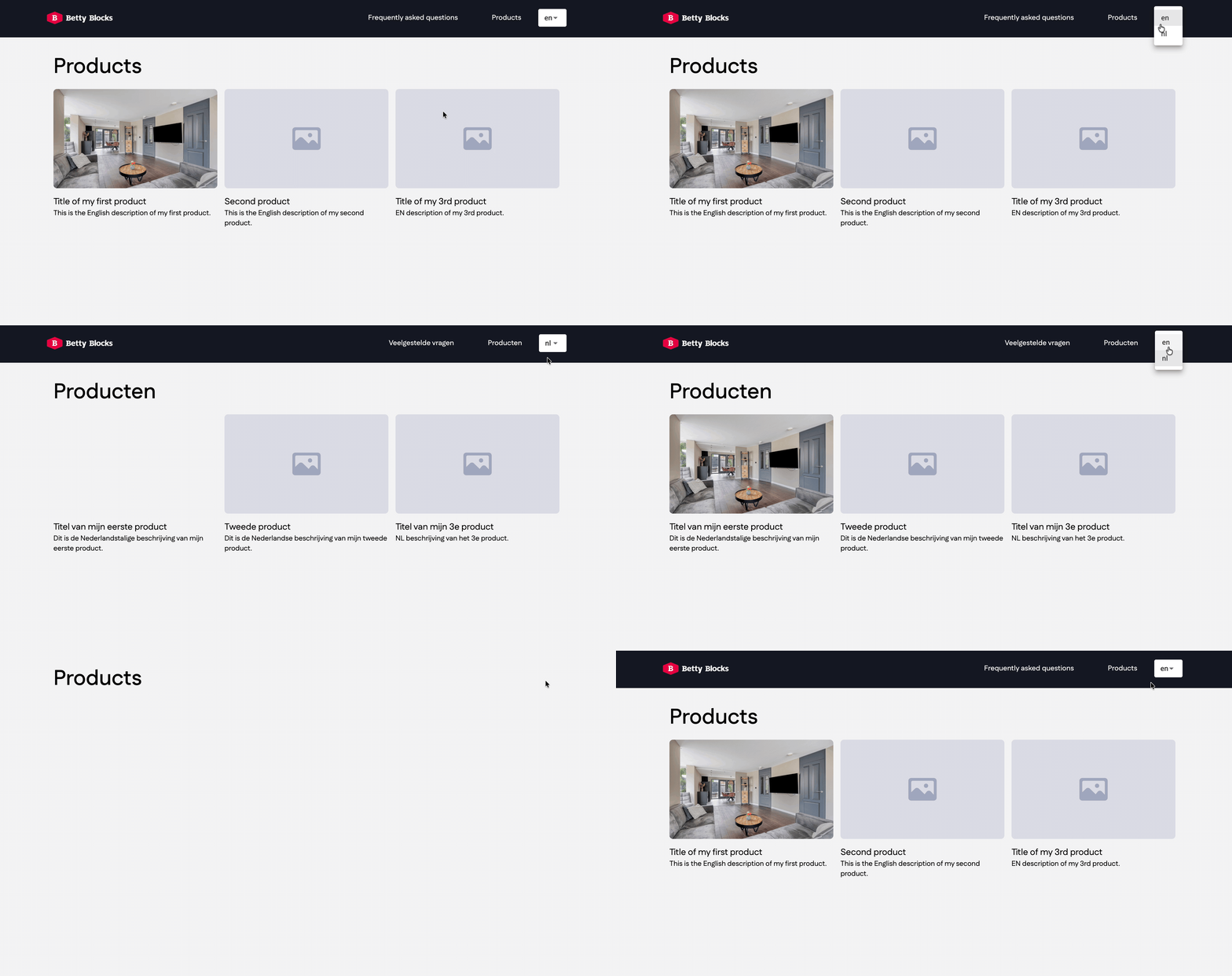
If everything is wired up correctly, both methods should keep the user's locale in sync and render the right translations throughout.