Genius Pages only. The components described here belong to the Genius component set. They are not interchangeable with classic Pages components — even when the names look the same, the options and runtime behavior differ.
Popover
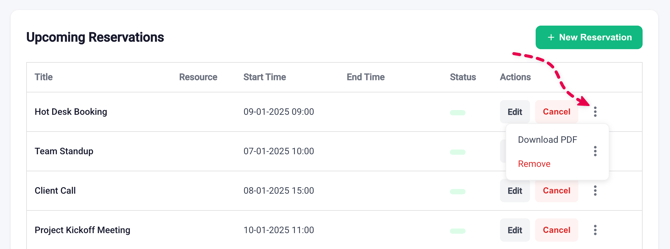
Used to display content on top of a button. A Popover is a trigger button paired with a panel — clicking the trigger opens the panel with whatever you put inside it (a small menu, a short form, a set of row actions).
Users can close the popover menu by clicking anywhere on the page outside the component.
Options
- Visible content – toggles whether the popover panel is open. Disabling it hides the panel and its menu items from view.
- Text – the label on the trigger button (for example, "Options").
- Icon – the icon on the trigger button (for example,
MoreVertfor a three-dot menu). - Icon positioning – Start or End. Where the icon sits relative to the text.
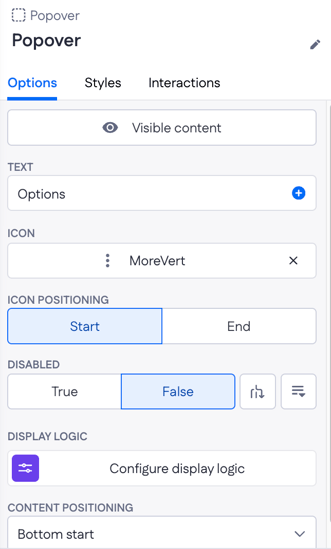
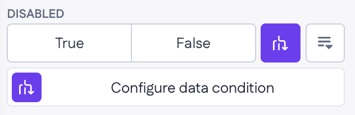
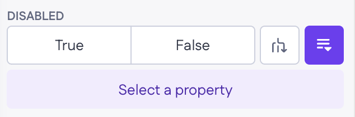
- Disabled – True or False. Disables the trigger so it can't be clicked. Two controls sit next to this option:
- Configure data condition — opens a panel where you set one or more conditions (for example, "current user role equals viewer") that make the Disabled value true at runtime. Useful for disabling the trigger based on data rather than a static value.
-
- Select property – binds the Disabled value to a property on a page variable or record, so the trigger reacts to live data without manually wiring a condition.
- Display logic – show or hide the Popover entirely.
- Content positioning – where the panel opens relative to the trigger (for example, Bottom start, Top end).
Example
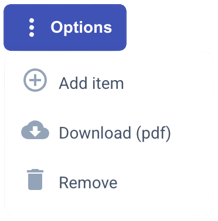
On a reservation details page, a Popover trigger labeled "Options" with a MoreVert icon opens a small menu under the button. The menu contains "Download (pdf)" and "Remove" actions. Genius generates the structure as a Popover wrapping a Menu List with two List Items, each wired to its own page action against the selectedReservation record.
Dialog
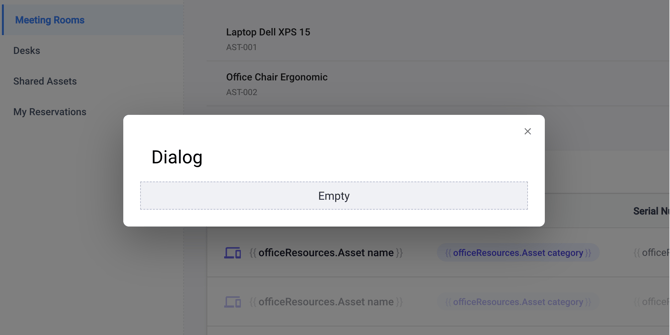
A modal dialog overlay that renders over page content with a dimmed background. Use a Dialog for short, focused tasks – confirming an action, editing a record inline, or showing detail without navigating away.
Options
- Visible – controls whether the Dialog is open. Toggle it off to hide the dialog from view; you can re-open it via an interaction (for example, a Button's "On click" → "Show dialog").
- Display logic – show or hide the Dialog entirely.
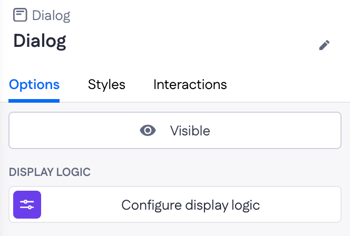
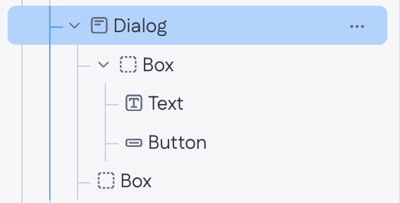
When a Dialog is hidden, you can still find and edit it in the component tree. The tree shows the dialog's internal structure — typically a Box, a Text, and a Button (or a Form) — so you can adjust the contents without having to make the dialog visible first.
Example
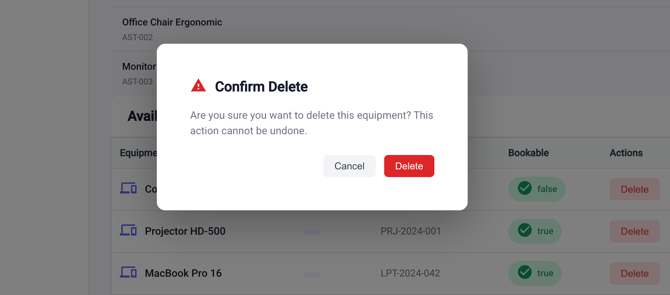
On the Shared Assets page, clicking Delete on an equipment row opens a Confirm Delete Dialog. The user confirms with the Delete button or backs out with Cancel.
Drawer
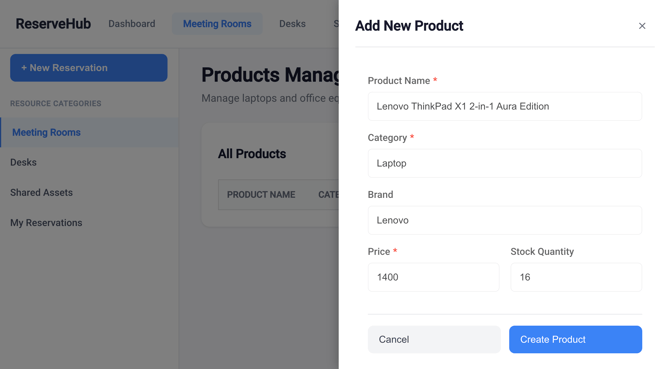
A temporary panel that overlays page content with a semi-transparent background, anchored to one edge of the viewport. Drawers are useful when you need more space than a Dialog offers — viewing a side panel of details, editing a record with several fields, or showing a secondary navigation menu.
Options
- Visible – controls whether the Drawer is open.
- Display logic – show or hide the Drawer entirely.
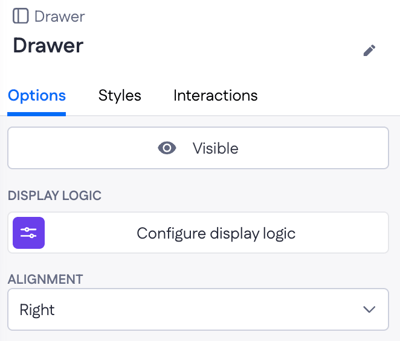
- Alignment – Left, Right, Top, or Bottom. Anchors the drawer to that edge of the viewport.
Drawer structure
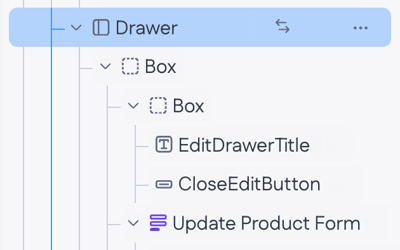
A Drawer is more than a single panel — Genius generates it as a small tree of nested components so the header and body are easy to customize independently:
- Drawer – the wrapper, holds the visibility and alignment options.
- Drawer Panel – the content area, with its own background, link, and display options (same options as a Box).
- Drawer Header – sits at the top of the Drawer Panel.
- Drawer Title – a Text component for the heading.
- Close Drawer Button – a Button wired to close the drawer.
- Drawer Content – the body of the drawer, where you place your main content (a Form, a List, a record summary).
When Drawer Content is empty, the canvas shows an "Empty" placeholder; the placeholder disappears once you add a child component.
Example
On the My Reservations page, a "New reservation" Button opens a right-aligned Drawer. The Drawer Header reads "Book a room" with the Close Drawer Button to dismiss it.
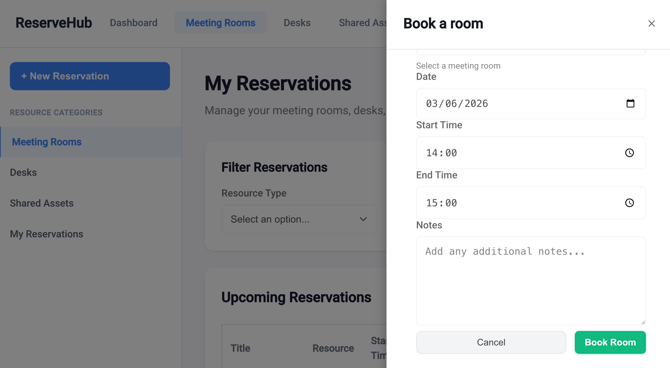
Drawer Content, Genius places a Create Form pointed at the Reservation model, with inputs for room, date, start time, end time, and notes. Submitting the form closes the drawer and refreshes the reservations list.