
Master template in My Betty Blocks lets you manage one core application and use it to create many others. When you promote an app to a master template, it becomes the main reference point for all related sub-applications.
Those sub-applications inherit the template’s structure, components, and logic, and stay linked to it. When you update the master template, the changes become available to every sub-application at once, speeding up development and reducing maintenance work. However, updates are not synced automatically; you must pull the changes to each sub-application individually to apply them.
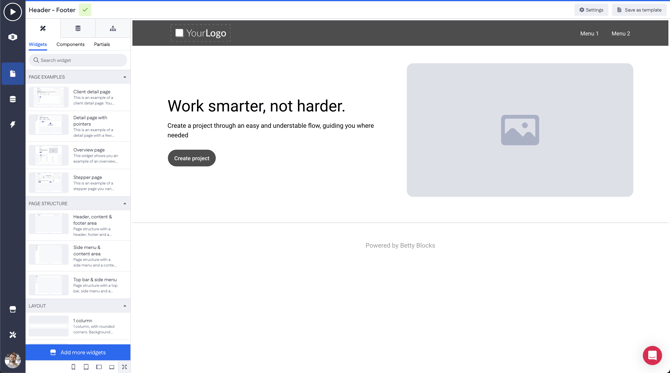 Original 5% master template page
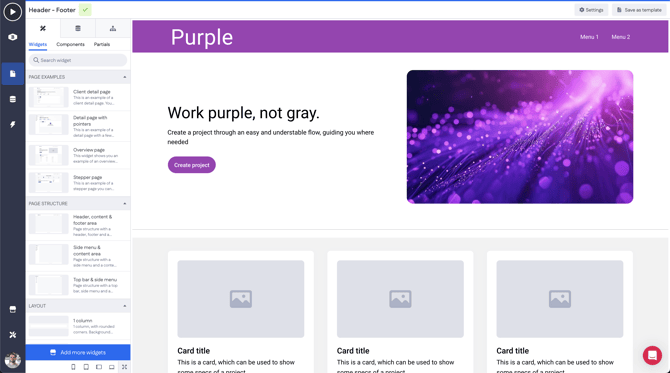
95% purple with specific changes in development
Common use cases
1. Multi-client applications
Useful when you maintain a core product but need variations per customer or internal business unit. This makes it a good fit for SaaS providers or large enterprises: most shared functionality stays in the master template, while each sub-application can take on its own logic, content, or styling — often something like an 80/20 split between shared features and customer-specific needs.
2. Skeleton application base
Create a standard "corporate base" application. This template might only contain 5% of the functionality required by every app in your organization (e.g., SSO configuration, standard branding themes, and basic user roles), ensuring every new project starts with compliance standards already met.
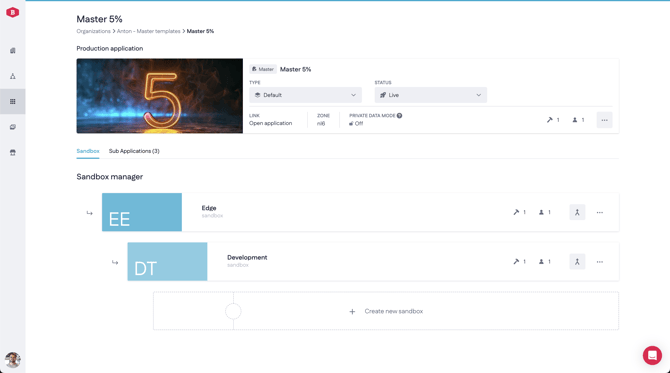 Development street - Master template
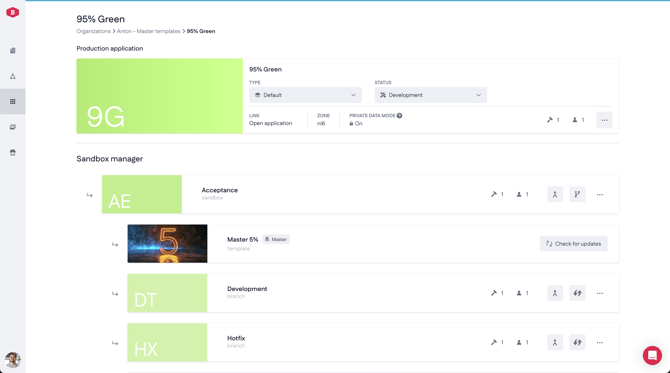
95% green development street
Getting started
Pre-requisites
- Access to My Betty Blocks.
- An application with at least one sandbox environment.
- Branching enabled for your organization, if you want to customize sub-applications in development branches.
Important! Master template and branching may need to be enabled for your organization. Please contact our support if you don't see the options below.
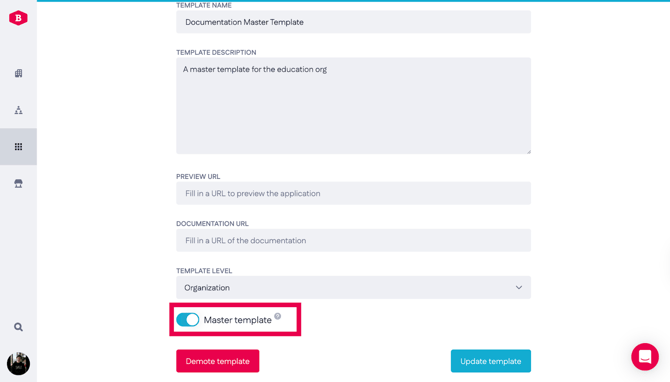
Promote an application to a master template
To turn an existing application into a master template:
- Open the application you want to use as the source.
- Navigate to Settings → Template.
- Toggle the Master template option to on.
- Provide a Name for your master template.
- Confirm the promotion by pressing ‘Promote to template’.
Create sub-applications
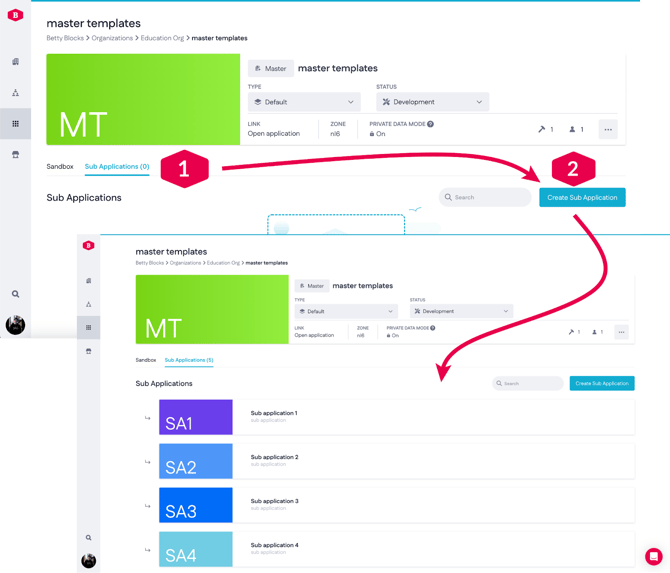
Once an app is promoted, a Sub-applications tab appears in the My Betty Blocks dashboard next to the sandbox manager.
- Navigate to the Sub-applications tab.
- Select Create sub-application.
The new application matches the template at the moment of creation and stays linked for future updates.
Managing the development lifecycle
To keep custom changes in sub-applications while still receiving updates from the master template, follow this workflow:
Branching & customization
Sub-applications support a branching model. This allows them to receive updates from the master template while retaining their own unique development lifecycle.
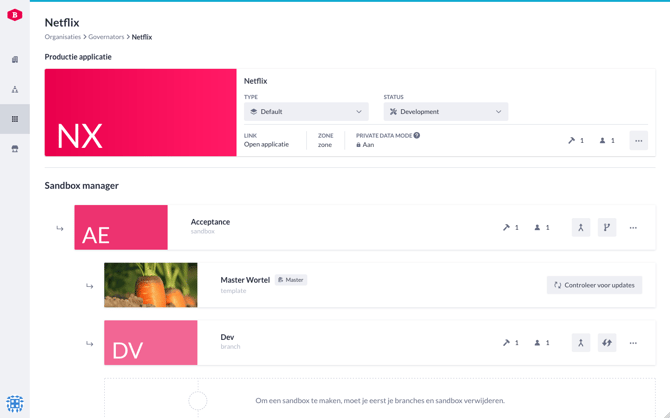
- Create a sandbox and development branch: Below your production sub-application, create a sandbox environment. This process simultaneously creates a development branch, which will house all customizations specific to this sub-app (e.g., specific workflows, UI tweaks, or integrations).
Note: To learn more about branching, check out this article.
Receiving updates
New versions of the master template are not automatically pushed to your sub-application's production environment. Instead, once you update the master application, that version becomes available to pull into the sub-application's sandbox. To see if a new version is ready, click the 'Check for updates' button within your sub-application. This allows you to test and validate the template changes against your sub-app's specific customizations before they go live.
Workflow:
- Pull to sandbox: Pull updates from the production environment of the master template into the sandbox of the sub-application.
- Pull to branch: Pull updates from the sandbox of the sub-application into the development branch of the sub-application.
- Apply customizations: Apply or verify custom changes in the development branch on top of the pulled updates from the master template.
- Merge and validate: Merge the changes from the development branch back into the sandbox of the sub-application and validate these before merging them into the production environment.
Promote to production
Once you have validated the results in the sandbox, you can complete the process by merging the changes up the chain:
- Merge to production: Merge the validated changes from the sandbox environment into the production environment of the sub-application.
Your sub-application now includes the latest master template updates along with its own customizations.
Limitations
Custom action functions & updating branches
Currently, there is a limitation regarding custom action functions when working with multiple branches and pulling in updates.
Because custom action functions can disappear when a branch is updated with new template changes, we do not recommend adding them directly to your branches. Instead, use the following workaround:
- Publish to the Block Store: Save your custom action functions to the Block Store first.
- Install in your branch: Install the functions from the Block Store into your development branch. This ensures they remain intact and functional when you pull updates from the master template.
FAQ
What is a master template?
A promoted application that acts as the central source for creating and managing multiple sub-applications.
What is a sub-application?
An application created from a master template. It is identical at creation and remains linked for update purposes.
How do updates flow?
Once a new version of the master template is released to production, those changes become available to all sub-applications. While we strongly recommend pulling these via a sandbox to ensure compatibility, you can also pull updates directly into the production environment of a sub-application. However, please note that doing so means you can only test and validate these changes while they are already live.
Can sub-apps be customized?
Yes. Each sub-app can branch off to add or override specific functionality, logic, styling, or integrations (deviations).
What if I want 100% synchronization?
If you do not create custom branches in the sub-application, it will remain fully in sync with the master template.
Note: You still need to pull all updates from the master template application to each sub-application manually; they will not be applied automatically.
What kind of deviations are supported?
- Client-specific business rules.
- Styling and branding changes.
- Localization or regional compliance logic
Why can't I pull updates into my development branch?
Branching is likely not enabled for your organization. In this case, updates from the master template reach the sub-application's sandbox, but there's no option to pull them into the development branch. Contact our support to enable branching.