Note. This article applies to Betty Genius Pages only. The components it refers to belong to the Genius component set. They are not interchangeable with classic Pages components — even where the names match, the available options and runtime behavior differ.
Interactions let a page run logic in response to events, rather than only when a user fills in a form. You define a trigger (when something happens) and an interaction (what happens in response). While the page is open, it watches for the trigger and runs the interaction automatically.
You can set up an interaction in two places:
|
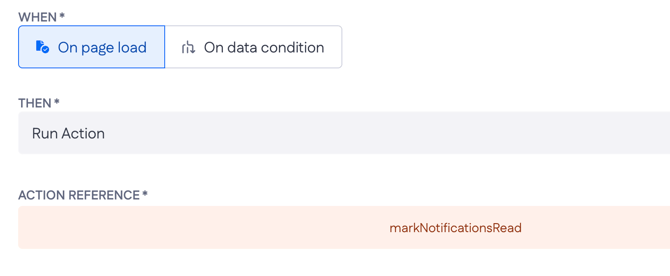
On the page — triggered when the page loads, or when its data meets a condition you set. Example: On page load > Run action > |
 |
|
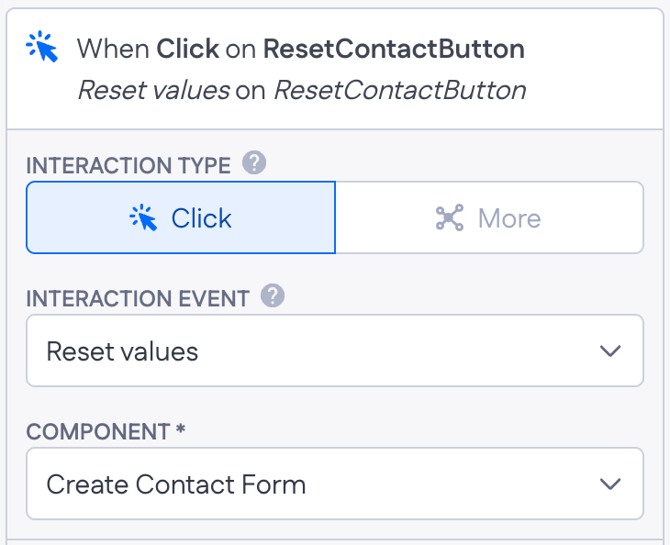
On a component, such as a button or input — triggered when the user interacts with it, for example clicking a button Example: On button click > Reset values > Create Contact Form |
 |
The interactions you can run are the same in both places. For example, you can run an action when a page loads, reset a form after it is submitted, or refetch a list when a record changes.
How to create an interaction
On the page
Page interactions are part of a page’s resources:
- Open your page in the page builder (Pages)
- Go to Page resources.
- Select
+(Add) and choose Interaction — or open the Interactions tab and select+.
The Create interaction dialog opens. Choose a trigger under WHEN, then an interaction under THEN.
-gif.gif?width=670&height=366&name=Screen-Recording-2026-07-10-at-1%20(1)-gif.gif)
On a component
Component interactions are set on the component itself:
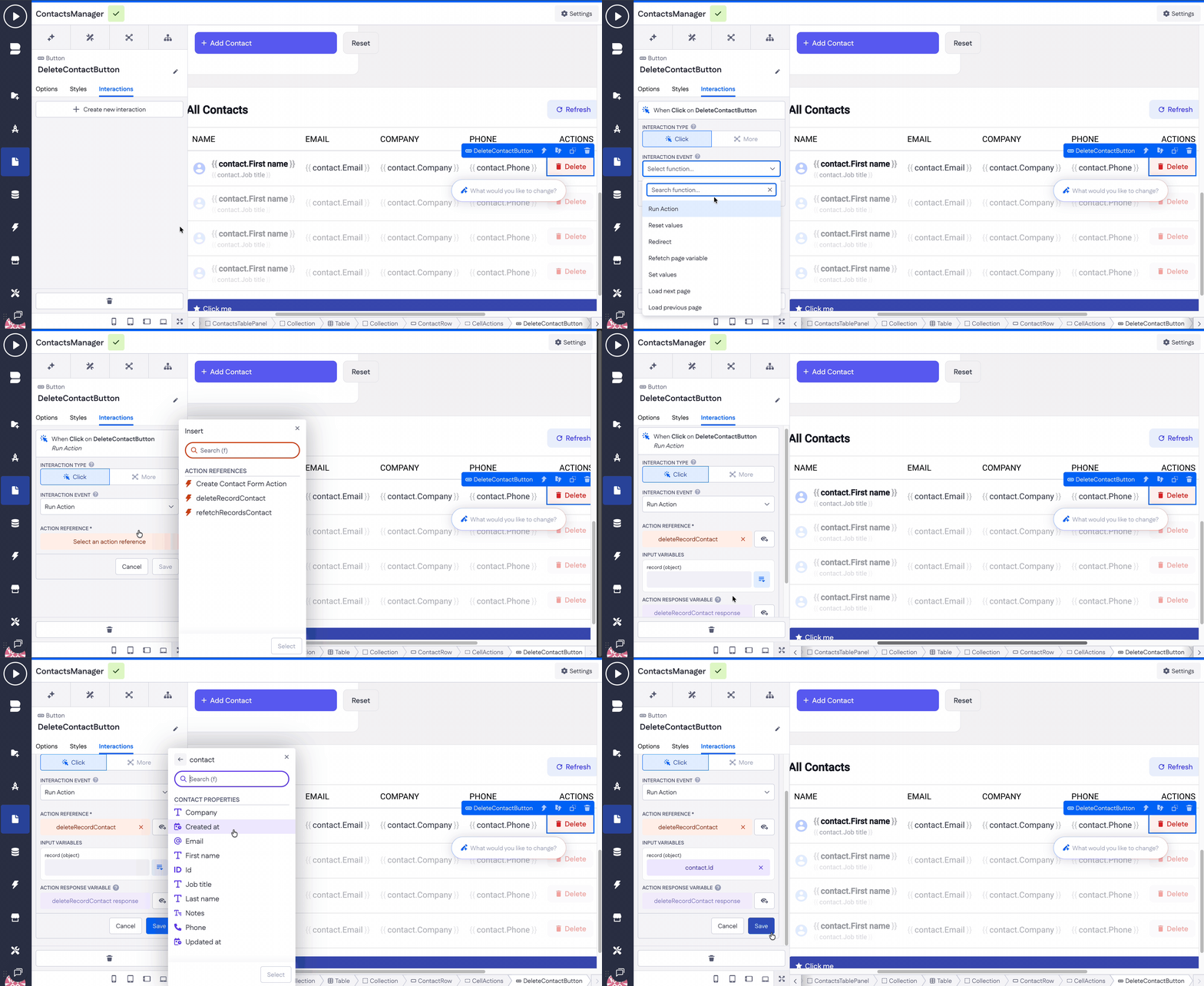
- Select the component (for example, Button).
- Open the Interactions tab.
- Under Interaction type, choose Click (or Change, Blur – depending on component type)
- Under Interaction event, select the interaction to run (e.g. Refetch page variable, Run action, etc.)
Triggers
The trigger is the WHEN part of an interaction. Which triggers are available depends on where the interaction lives.
Page triggers
1. On page load. Runs the interaction once, as soon as the page finishes loading. Use it for setup work: fetching data, setting a default value, or running an action before the user does anything
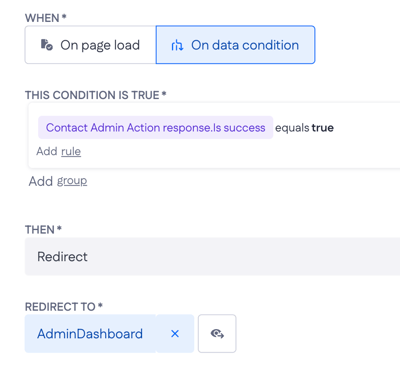
2. On data condition. Runs the interaction whenever a condition you define becomes true. A condition has three parts: a property, an operator, and a value. You pick the property from the Insert menu (page variables, action response variables, or current user variables), choose how to compare it, and set the value to compare against.
-
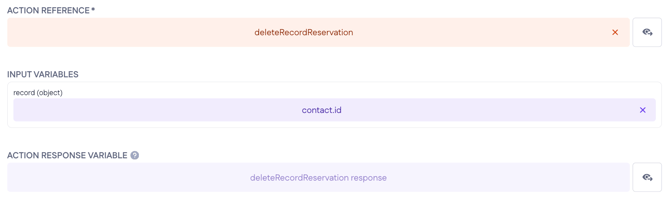
Action reference — points to the action you want to run. The interaction doesn't contain any logic itself; it just references an existing action in your app (for example,
deleteRecordContact). This is how the page knows which action to trigger. -
Input variables — the values the action needs to do its job. An action rarely works in a vacuum: a delete action has to know which record to remove, so you map its
record (object)input to the contact's id (contact.Id). This is where you hand the action the data it should act on — without it, the action has nothing to work with. -
Action response variable — holds whatever the action sends back once it finishes (
deleteRecordContact response). Other logic on the page can read from it, so you can react to the result — show a message, redirect, or refetch the list once the delete succeeds.
Component triggers
Set on a component through its Interactions tab.
|
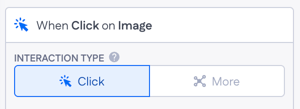
Click
|
Runs when the user clicks the component, such as Button. |
|
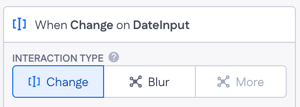
Change
|
Runs when the component's value changes, such as typing in an input or selecting an option. |
|
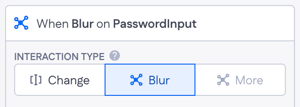
Blur
|
Runs when a component loses focus — when the user clicks or tabs away from it after interacting, such as leaving an input field. (It's the counterpart to Change: Change fires as the value changes, Blur fires once the user moves on.) |
|
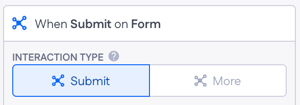
Submit
|
Runs when a form is submitted, for example when the user selects the submit button. Available on the Form component. |
|
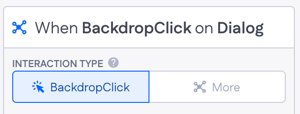
Backdrop click
|
Runs when the user clicks the dimmed area outside the component (the backdrop), which usually dismisses it. Available on Drawer and Dialog. |
|
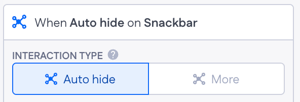
Autohide
|
Runs when the component dismisses itself automatically after its set time, rather than from a user action. Available on Snackbar. |
After choosing a type under Interaction type, pick the interaction to run under Interaction event. The available interactions are the same as for page triggers.
Supported interactions
Once a trigger is set, choose the interaction to run. The same interactions are available whether the trigger is on the page or on a component:
|
Interaction |
What it does |
|
Run action |
Runs an action by reference (for example, save or delete a record). |
|
Reset values |
Resets a form or component's inputs to their default values (empty if no default is set). |
|
Redirect |
Sends the user to another page. |
|
Refetch page variable |
Re-runs a page variable’s data fetch so it shows current data. |
|
Set values |
Assigns a value from a component, another variable, or an action response to a page variable or form property when a trigger fires |
|
Set variables |
Assigns one or more values to page variables. |
|
Load next page |
Loads the next page of a paginated collection. |
|
Load previous page |
Loads the previous page of a paginated collection. |
|
Login |
Stores an authenticated user's access (and optional refresh) token, so the app treats them as signed in. |
|
Logout |
Clears the stored tokens, signing the user out. |
Each interaction is described in detail below, using a Contacts page as the running example.
Run action
What it does: Runs an action you select by reference. After choosing this interaction, pick the action under Action reference.
When to use it: Use it to trigger backend logic automatically — saving, creating, or deleting a record, or any custom action on the page.
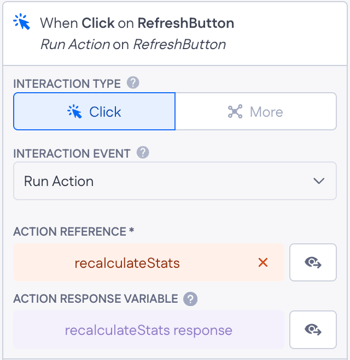
Example. On a Refresh button, add a Click interaction that runs recalculateStats, updating the dashboard's figures on demand.
Reset values
What it does. Resets the inputs of a chosen component to their default values — empty if no default is set. Select the component under Component (for example, a form).
When to use it. Use it to reset a form or component, usually after a successful action. Tie it to the action's success rather than to Submit, so the fields aren't reset if the action fails.
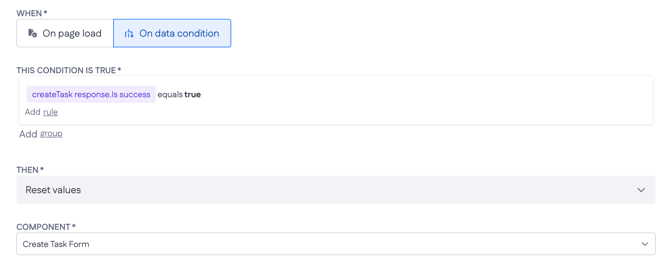
Example. On data condition, when createTask response.Is success equals true, reset the task form. The inputs return to their defaults only after the task is actually saved, so a failed save leaves the user's entries intact to retry.
Redirect
What it does. Sends the user to another page. Under Redirect to, choose the destination type: an Internal page in the app, or an External page via a URL — and that URL can be typed in or pulled from a variable, such as an action's response. You can also set whether it opens in the current or a new tab.
When to use it. Use it to move the user along after something completes — for example, after a successful save, on a role/permission check, or to a URL the backend returned.
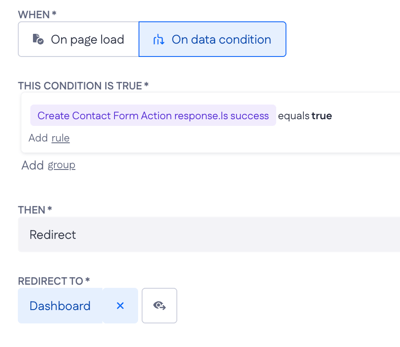
Example (internal). After a contact is created, redirect the user from the form page to the Dashboard page.
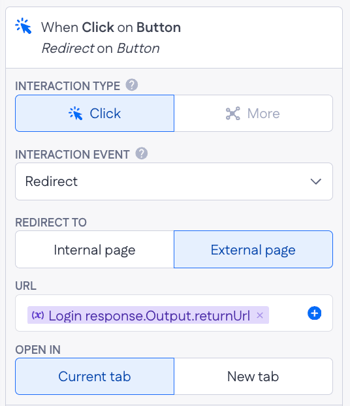
Example (external, from a variable). On a Login button's Click interaction, set Redirect to → External page and map the URL to Login response.Output.returnUrl, so the user lands on whatever page the login action returned.
Set values
What it does: Assigns a value from a component, another variable, or an action response to a page variable or form property when a trigger fires
When to use it. Use it when an action returns data – a lookup result, a calculated value – that needs to go straight into a page variable or into specific fields on a custom object.
Example: The Book List page shows a list of available books and a search bar for filtering the list. As the user types a book title or author name, the app filters the collection and displays the matching results.
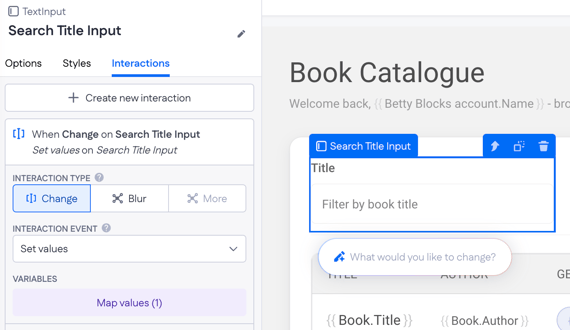
In the mapped values, the page variable titleSearch has the value from Search Title Input component.
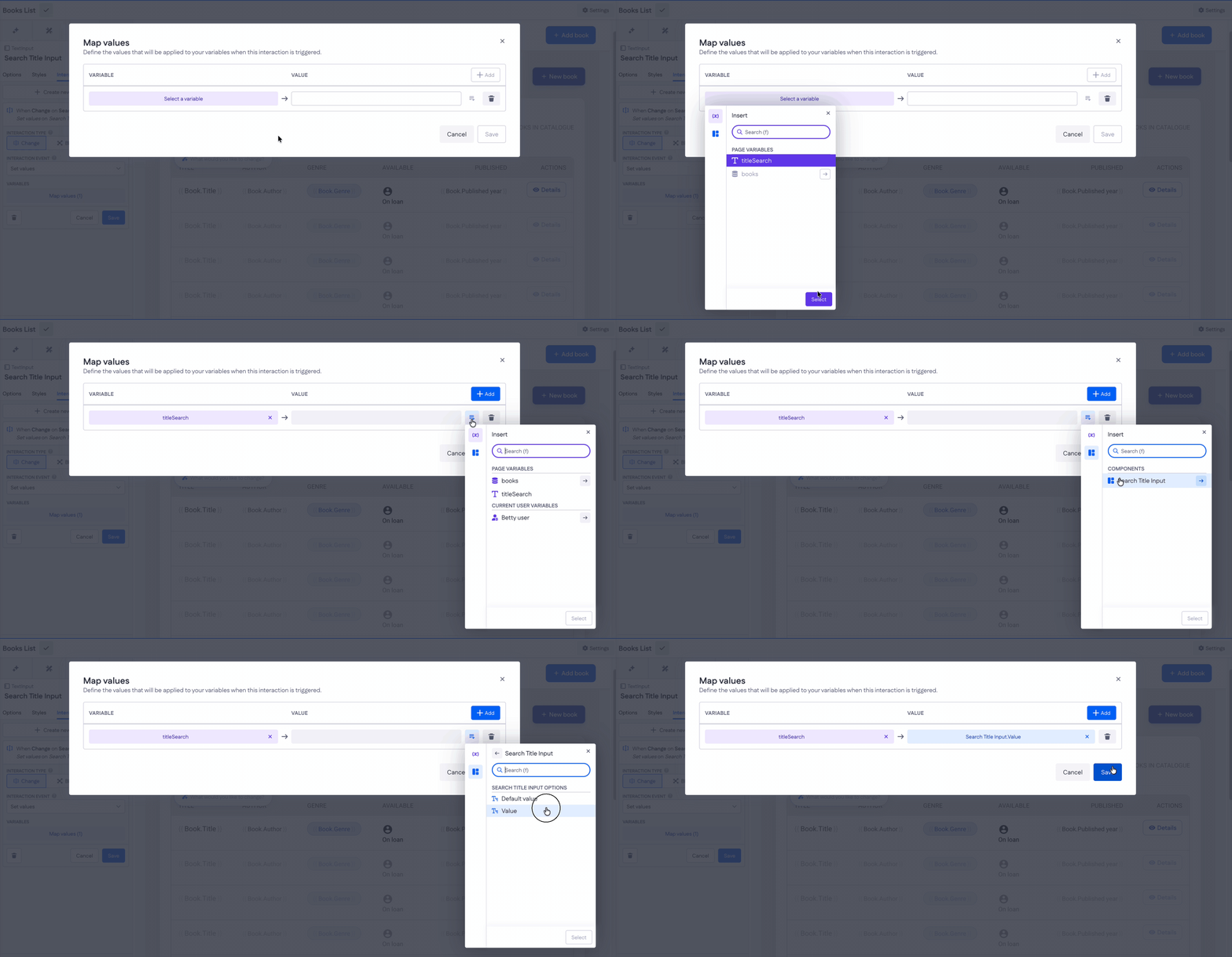
Find more examples in the Set values interaction article.
Refetch page variable
What it does: Re-runs a page variable’s data fetch, so the variable returns current data instead of what was loaded earlier. Select the variable under Page variable.
When to use it: Use it after data changes on the page, so what the user sees stays in sync with the database.
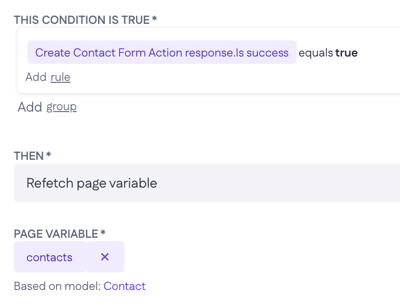
Example. After a contact is added or deleted, refetch the contacts page variable so the list reflects the change without a full page reload.
Set variables
What it does: Assigns values to one or more page variables. For each row, pick the variable and enter the value to assign. Select + Add to set more than one.
When to use it: Use it to update state on the page — a counter, a flag, or a value that other components read from.
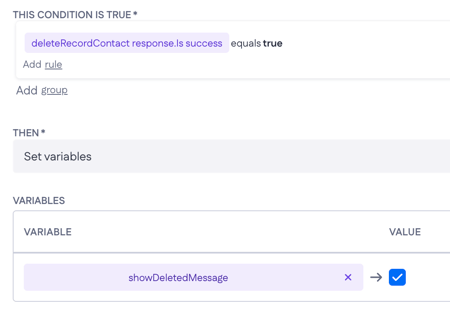
Example. Set a showDeletedMessage variable to true when deleteRecordContact response.Is success equals true, so a message component on the page confirms the contact was deleted.
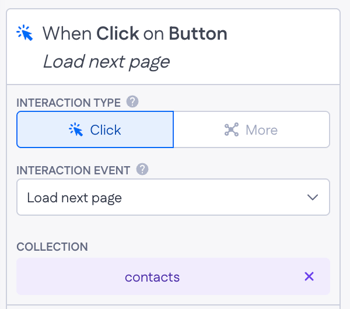
Load next page
What it does: Loads the next page of a paginated collection. Select the collection under Collection.
When to use it: Use it to page forward through a long list — for example, behind a “Next” control or when the user reaches the end of the current page.
Example. On the Contacts page, load the next page of the contacts collection so the user can browse beyond the first set of results.
Load previous page
What it does: Loads the previous page of a paginated collection. Select the collection under Collection.
When to use it: Use it to page backward through a list, alongside Load next page.
Example. Load the previous page of the contacts collection so the user can return to earlier results.
Login
First, set up the action. Login relies on an action that authenticates the user and returns the tokens — it verifies the credentials and builds a return object holding the token values.
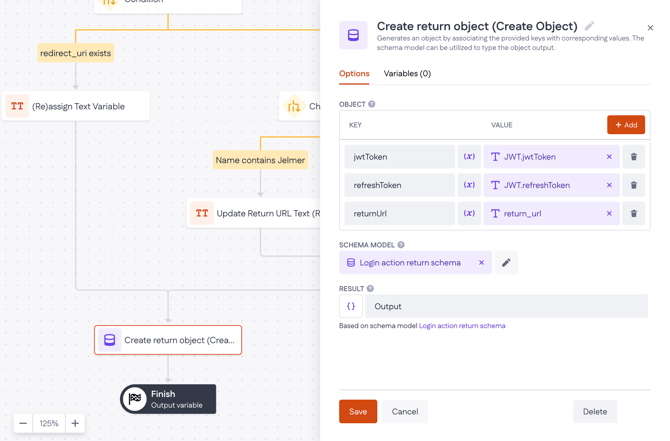
That action's response becomes an action response variable, a custom object like Login response, whose Output carries jwtToken, refreshToken, and returnUrl. The Login interaction reads the tokens from there.
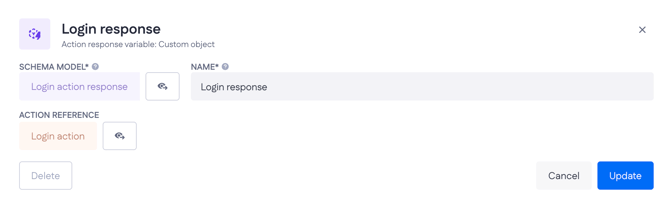
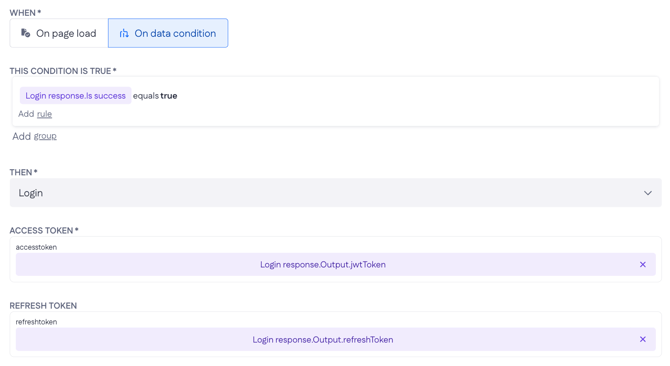
What it does. Stores the tokens for the signed-in user. Map the values from the login action's response under Access token (required) and Refresh token (optional).
When to use it. Use it right after the login action succeeds, so the app registers the user as authenticated.
Example. On data condition, when Login response.Is success equals true, run Login — mapping Access token to Login response.Output.jwtToken and Refresh token to Login response.Output.refreshToken (images 1–2). Once the action confirms success, the tokens are stored and the user is signed in.
Logout
What it does. Clears the stored access and refresh tokens, signing the user out.
When to use it. Use it on a logout control, such as a Button.
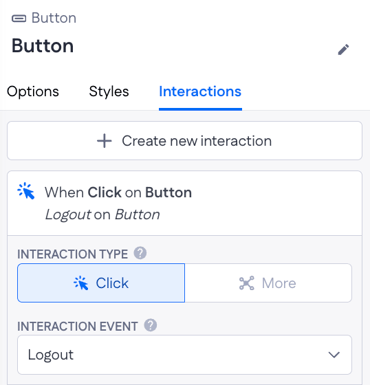
Example. On a Logout button, add a Click interaction and choose Logout. That's the whole setup — no fields to map.