
MCP server feature allows your Betty Blocks applications to securely expose business data and workflows to AI clients such as those provided by Microsoft, OpenAI, Anthropic, etc. This enables AI assistants to access structured, governed context from your application instead of relying only on general knowledge.
Why use an MCP server?
AI clients can't see inside your application, so they answer from assumptions. An MCP server enables connected clients to read your data and run your actions. You decide what goes through it. Each action in the folder appears to the AI client as a tool it can use.
Before you start
Only Wasm actions can be made available to AI clients through an MCP server. You build them in the action builder like any other action, but they run on the Wasm runtime. In the Actions overview, look for the Wasm icon or open the Wasm actions tab to show only Wasm actions.
Note: If your application was built before Wasm actions were available, you can't expose its existing actions through an MCP server directly. Build Wasm actions for the operations you want to expose. No platform upgrade or new compiler is required.
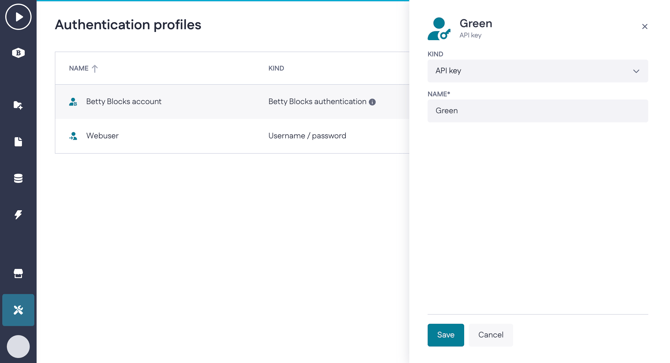
If your server should be private, create an API key authentication profile. You'll need it while creating the server, so set it up first: Tools > Authentication profiles > New profile > API key. Enter a name and the configuration is created for you.
What isn't possible yet
|
Authentication |
API key only. No OAuth. Check whether your target AI client supports API-key-authenticated MCP servers — support varies, and some clients only handle public ones. |
|
User identity |
Every request arrives as the same identity, not as the person chatting. The AI can't act “as” a named user, so anything saved to someone's own account isn't possible yet. |
|
Scope of permissions |
Authentication is set per folder and applies to every action in it. There is no per-action override. |
1. Create the MCP server folder
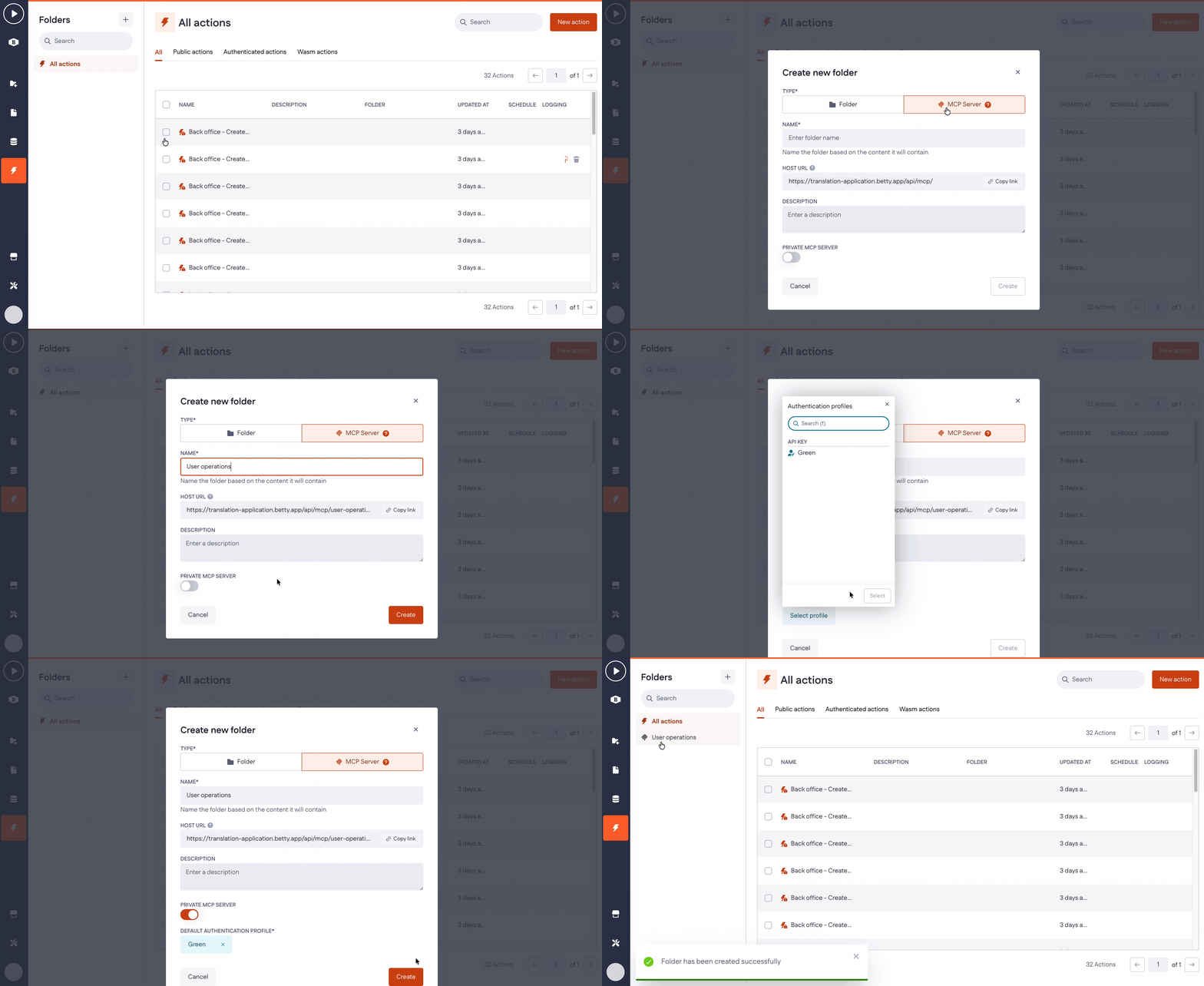
In the Actions sidebar, click + beside Folders. In the Create new folder dialog, set Type to MCP Server and fill in:
- Name — name the folder after the content it will contain
- Description (optional, but recommended) — tells the AI client what this server is for. It's sent to the client when it connects, so write it for the AI, not as a note to yourself. See Design your actions as tools.
- Private MCP server — switch on to require authentication, then select your Default authentication profile
The dialog shows the Host URL your AI client connects to, with a Copy link button. Host URL is based on the folder name. If you rename the folder later, the URL changes and every connected AI client loses the connection. You'll need to paste the new URL into each client.
Important: Leaving 'Private MCP server' off makes every action in this folder executable by anyone with the URL, with no authentication — including actions that were private before you moved them in.
Public MCP server also ignores the read permissions set in Roles & permissions. If an action in the folder fetches records from a data model that isn't publicly readable, it still returns those records to anyone with the host URL.
2. Add actions to the server
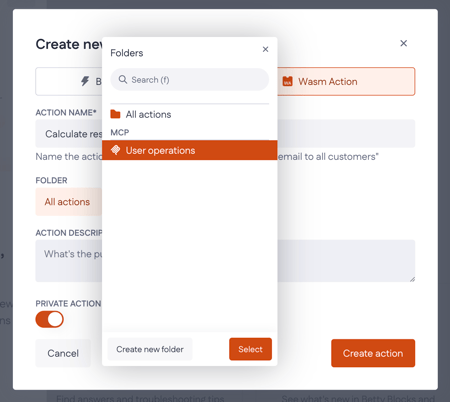
- New action: select the MCP server in the Folder field and save.
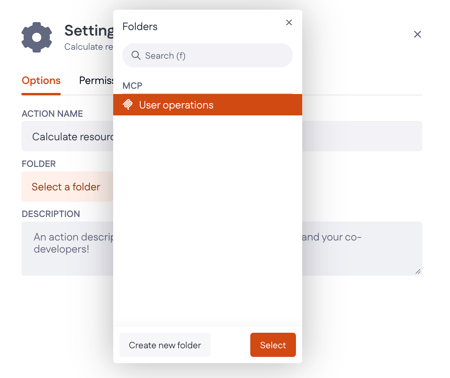
- Existing action: open its Settings tab > Select a folder > your MCP server.
Let Genius build the actions
Betty Genius can generate Wasm actions for you. It doesn't add them to the MCP server folder yet, so after they're generated, add each one to the folder as described above (Settings tab > Select a folder > your MCP server).
The action is now exposed through the MCP server and can be executed by connected clients.
You can assign multiple actions to the same MCP server to expose a group of related operations.
An action has to validate before the MCP server will expose it. Connected clients pick up new actions when they next discover the server's tools — some clients need reconnecting.
Does the action still work inside my app? Yes. The folder is organisational — the action continues to work everywhere it's already used. What changes is its authentication, which is now the folder's. See below.
3. Design your actions as tools
AI clients use actions differently from your app. Give them clear descriptions, useful outputs, and explicit inputs.
Start with the folder's Description: explain what the server does and when to use it. For example: “Look up and book meeting rooms. Check availability before creating a booking”.
Return the data itself, not just a page redirect, record ID, or URL. Define an input for each search filter, such as country or specialism.
Clients choose actions by their names and descriptions, so:
-
Use descriptive names: Find people by country, not WasmAction3.
-
List all allowed List property values in the description. These properties receive Text inputs, so the AI can't infer valid options. For example: “Status accepts: New, In progress, Blocked, Done.”
-
State input limits, including the 255-character limit for single-line text properties.
-
Name inputs clearly: customer_email, not input2.
Keep each action focused on one job. Clients can combine calls: to find Open and Done tasks, they can call a status-filtering action once for each status.
4. Connect your AI client
What you need:
- Host URL: open the MCP server folder and click Copy link.
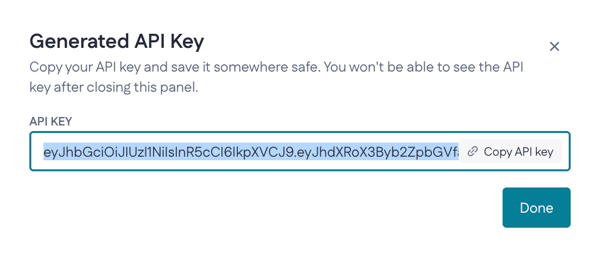
- API key (private servers only): go to Tools > Authentication profiles > your API key profile, then click
Regenerateto generate a key.
To connect:
- In your AI client, add a new MCP connector and paste the Host URL. In Claude, go to Settings > Connectors > Add custom connector. Other clients have a similar option under connectors, integrations or tools.
- Private server only: add your API key as a request header in the connector settings. Use this format:
Authorization: "Bearer <api_key>" - Save the connector. The client connects to your server and lists your actions as tools, one tool per action.
An action is missing? Check that it's in the MCP server folder and has validated without errors, then reconnect the client.
Need help with the setup? Contact our support team and we'll help you configure the connection.
Authentication and access
Every action in an MCP server folder uses the folder's authentication profile. This replaces the action's previous authentication settings; profiles aren't inherited, and you can't override authentication for individual actions.
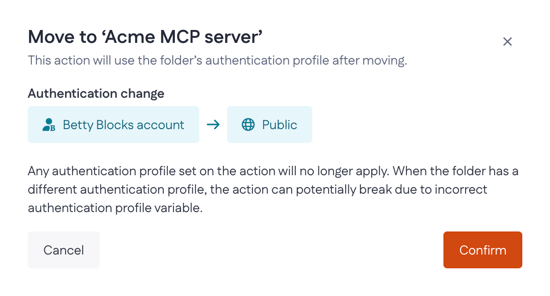
Important: moving a private action into a public MCP server makes it publicly executable. The platform shows a confirmation warning when you do this. After confirming, the action can be called with no authentication, and any authentication profile previously set on that action no longer applies — including where that action is used elsewhere in your app.
|
You move an action into |
Result |
|
Public MCP server |
Anyone with the host URL can execute it without authentication. Read permissions from Roles & permissions don't apply. |
|
Private MCP server |
Every action in the folder requires the folder's API key |
Before adding an action to a public MCP server, check what it does. Anything that creates, updates or deletes records, sends mail, returns personal data, or reads from a data model with restricted permissions belongs in a private server.
To change authentication, edit the folder — not the individual actions.
Example use cases
What's possible today depends on the identity limits above. An MCP server acts as one identity, so anything that depends on who is asking isn't available yet.
|
Use case |
Status |
|
Search or filter records on dimensions you've exposed as inputs |
Works today |
|
Check live availability, stock, status |
Works today |
|
Retrieve reference data that's the same for everyone |
Works today |
|
Create or update records in a shared workspace |
Works today, but the record won't be attributed to the person asking |
|
Save something to an individual's own account or list |
Needs per-user identity — not yet available |
|
Trigger approvals |
Needs per-user identity — the action can't know who approved |
|
Return data restricted by role |
Needs per-user identity if records are scoped per user |