
After reading this article, you’ll know the following:
-
What unified component styles are
-
How to save and apply custom CSS stylings to your page components
-
How to reuse styles, save edits, and revert changes
What is a unified component style?
Unified component styling empowers builders with control over component design. With custom CSS properties, you can easily add any CSS property to default components, customizing their appearance to your specifications.
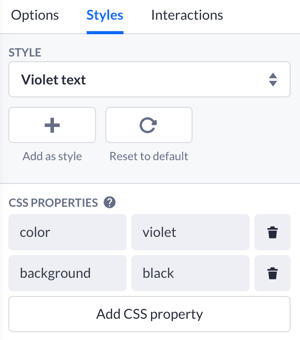
Additionally, you can create, save, and reuse groups of CSS properties as 'Styles', building up consistency across your applications. This feature integrates with custom components, allowing low-code developers to maintain a uniform design experience across all component types.
Creating and saving styles
Let’s look at how to create and save a new component style straight from Pages. Add any of the default page components to your canvas. For example, it can be the Text component on the top of the card made of a Box.
-
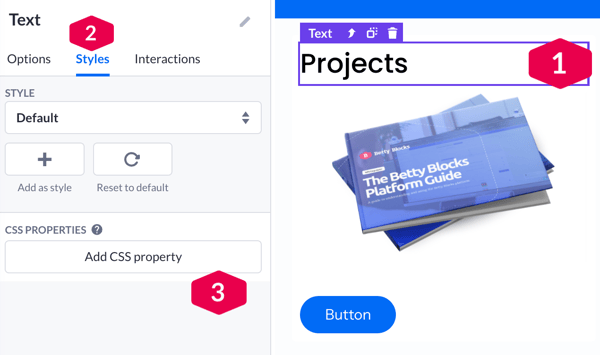
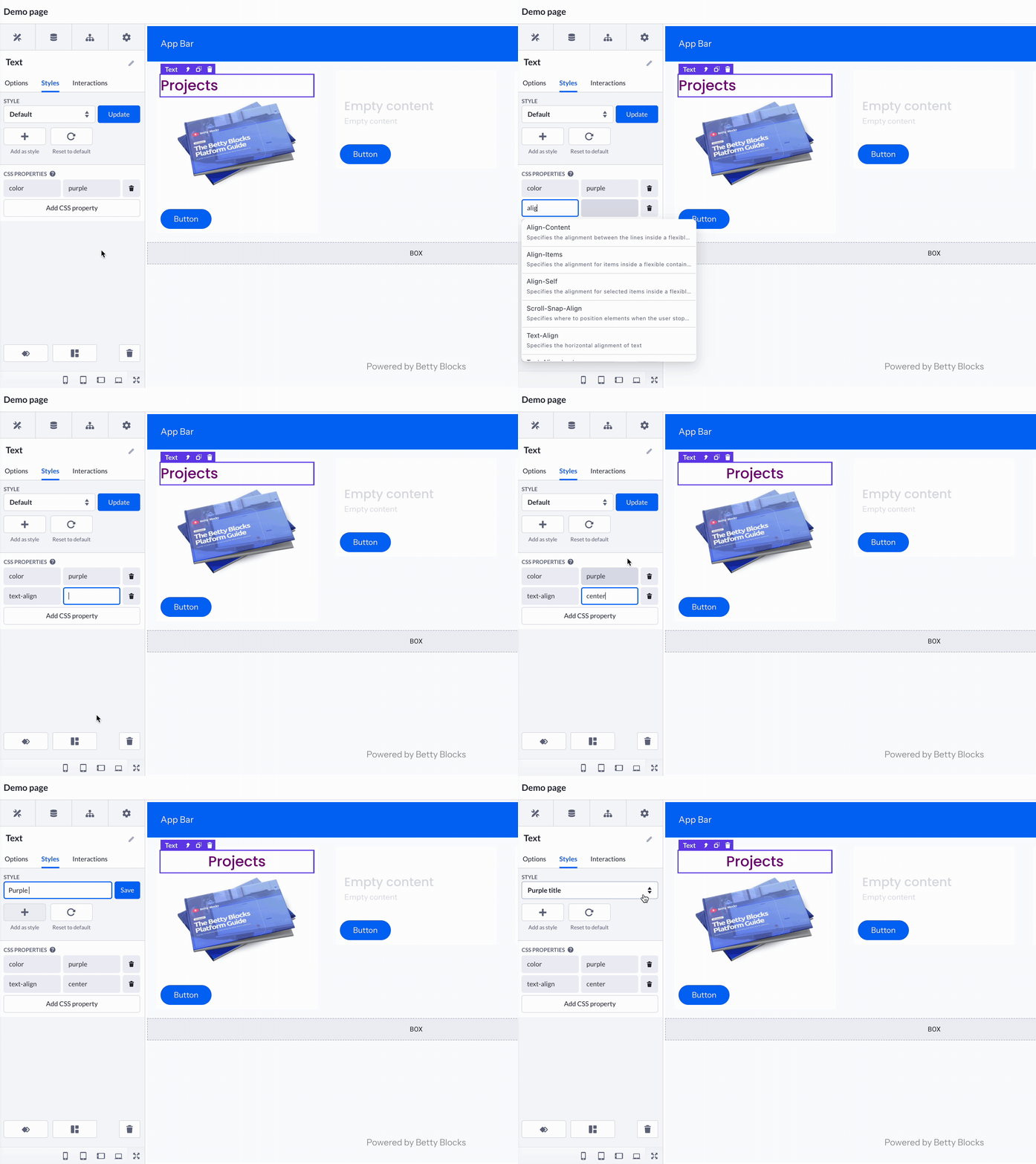
Drag and drop the Text on a page canvas (1). In its options, head to the Styles tab (2):
-
See the Default style applied
-
-
To start applying styles, go down to CSS Properties and press Add CSS property (3)
-
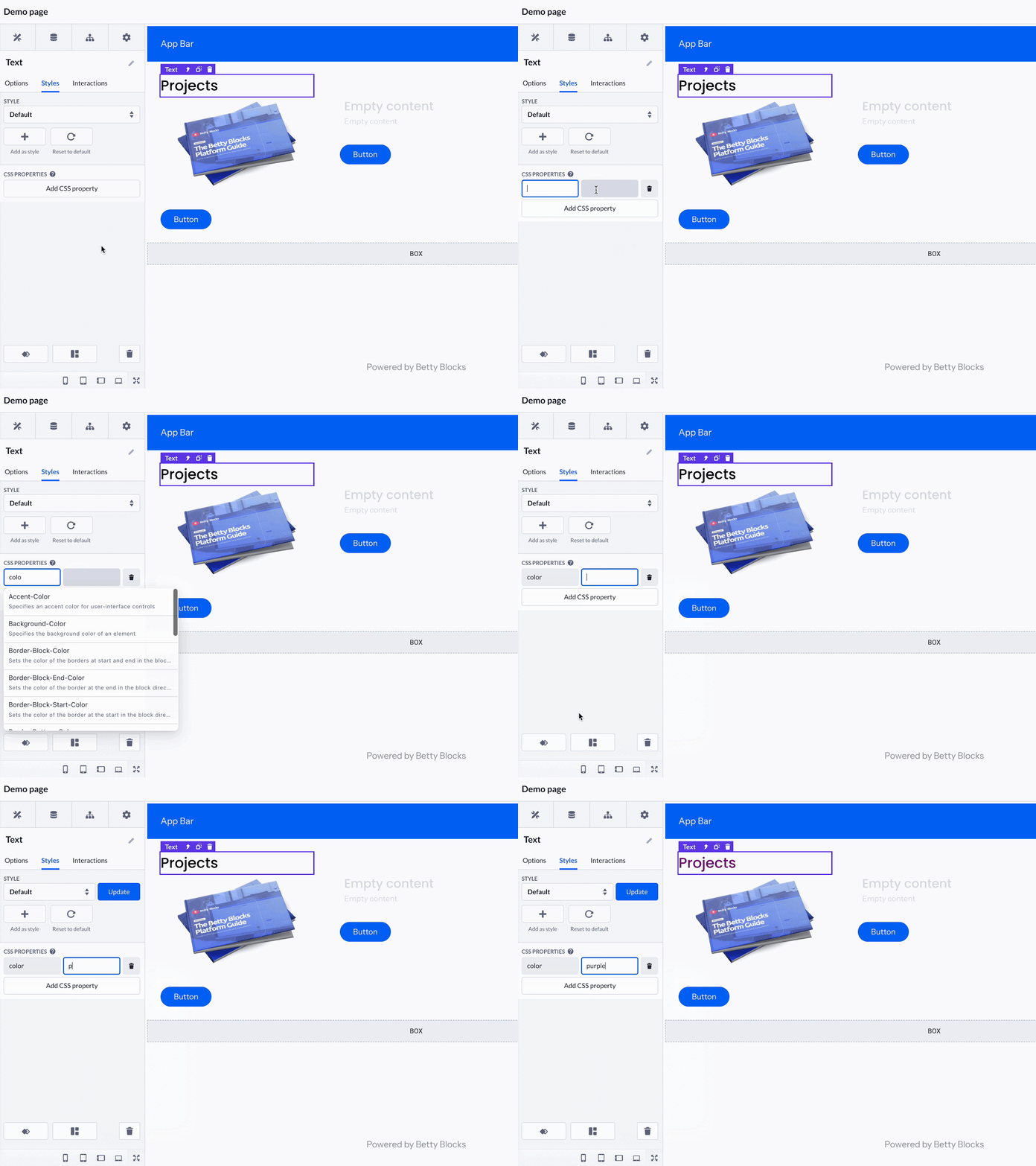
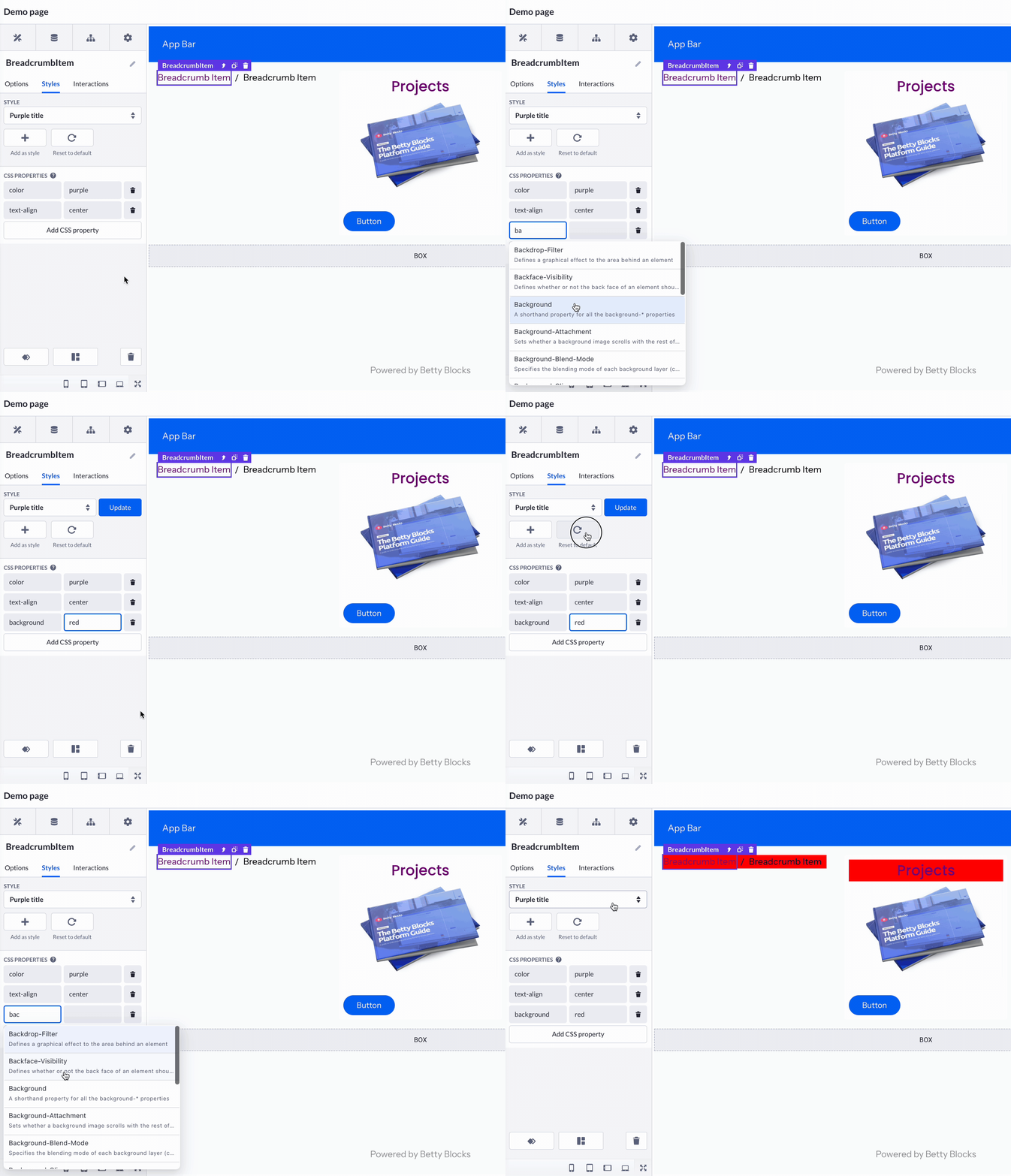
On the left, you can add a property out of existing ones. Start typing the property (like ‘color’, ‘align-items’, ‘border’, etc.) or just click once on the input field to access a CSS properties reference window
-
In the right field, type in the value you want to set for the selected property. It's a color name in our case
-
Note: Check the CSS reference to read about properties you can use
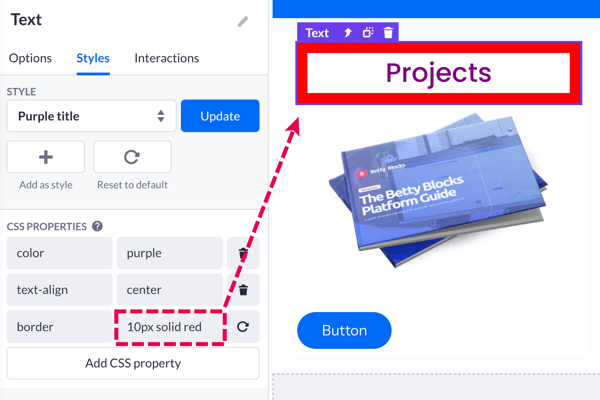
A value you set depends on the kind of CSS property, e.g. border, it would be: 10px solid red:
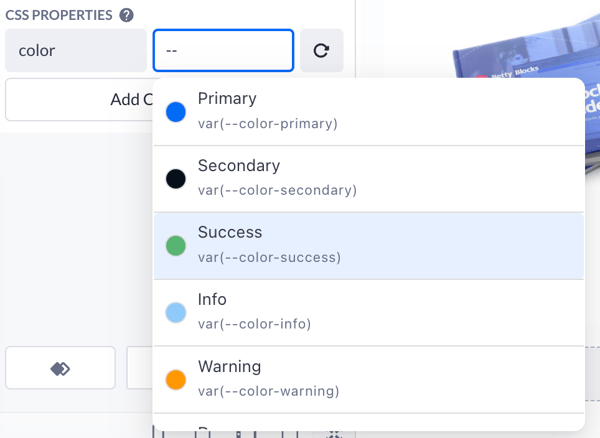
Using a double hyphen (--) in the value input, you can select the colors from the theme you've set via the Theme builder:
-
Add more customizations via the CSS Properties menu, and when you’re done - press Add as style (+) and then Save to save your new style.
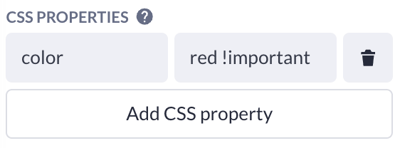
Note: In some cases, you may need to add !important to your CSS values to ensure they are applied correctly. This is necessary when the same CSS properties are also available as styling options within the component options. We are currently working on providing a better solution instead of this workaround.
Reusing and editing styles
After saving your style, you can use the Style dropdown to apply it to similar components like Breadcrumb items or Card headers that contain text. This allows you to apply the saved styling across various elements effortlessly.
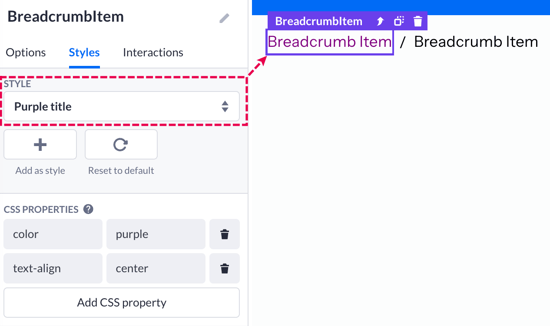
You can add more CSS properties to the chosen/saved style, or delete any of the existing properties individually.
-
To remove all the new unsaved edits and return to the last saved version of your style, press the Reset to default button, or delete each CSS property separately via the small delete button next to a single property
-
To apply new changes to the style, press the Update button that will emerge as you make changes to the saved style
Always verify if the component you intend to style supports the properties you wish to apply. For instance, attempting to set the background color of a Navigation bar may not be possible, as this component does not have that specific property.