
Creating the action
To get started, create a simple page and drag an Action Button onto it. Then click the pencil icon in the button options to navigate to the action created behind it.
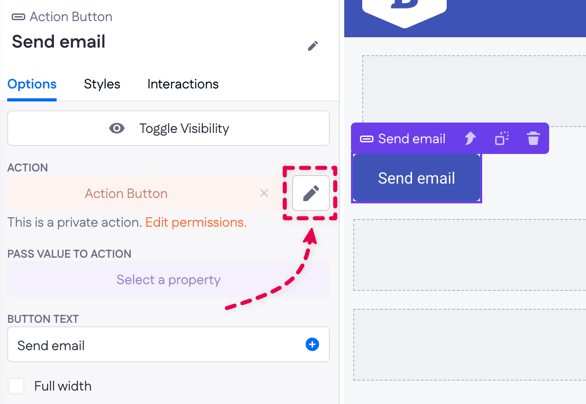
For testing purposes, change the action to public so you can simply click the button to verify that the email function works.
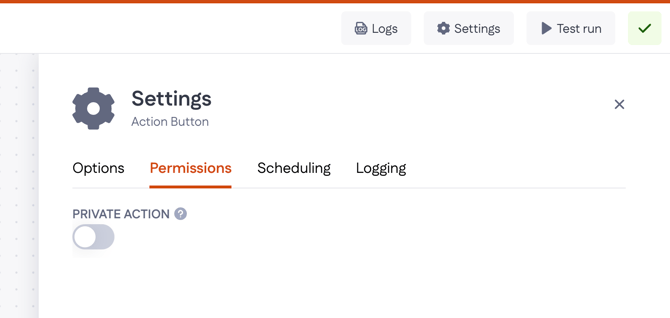
With that out of the way, we can start building our email functionality.
Getting started
Sending e-mails with Betty Blocks is done via your actions. There's no base mail function currently, so the first thing that'll need to be done is installing the Send E-mail via SMTP block.
It can be easily done via action step search. Press + next to Send email via SMTP block to install into your current application.
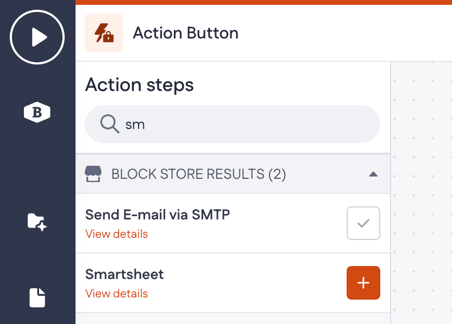
After installing, you can find the new action step next to your other action functions in the External section.
Drag the Send Email step into the action flow. When you open it, you’ll see it requires quite a bit of configuration.

Let's walk through the configurations together to get an idea of how this step works.
Create new email configuration
In order to make email configuration work, first make sure you have your organization’s email (SMTP) settings available. If you don’t have them yourself, reach out to someone who does — and if that’s not possible, don’t worry, there’s an alternative approach we’ll use next.
We can use a tool such as Ethereal Mail to create a dummy SMTP service that'll do the job for us. Ethereal only works for a few hours, so you have to reset the values once the inbox disappears.
So, how do we configure the step? In this example, we’ll use Ethereal. After clicking the +Create Ethereal Account button, you’ll get a set of generated SMTP settings like this:

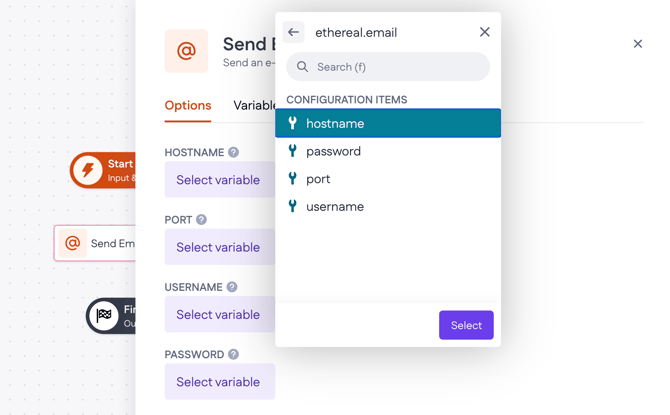
We’ll use these values to configure a working SMTP step. Next, go to Tools > Configurations in Betty Blocks and create a new email configuration. Give it a clear name and add four variables — hostname, port, username, and password — using the values from your Ethereal dummy email service.
This will be smtp.ethereal.email in our case. The port is 587, the username is freeman.rice@ethereal.email, and the password is u9N3XvTzWtX8DSCh6b. These values allow us to connect to the dummy SMTP server from Ethereal.
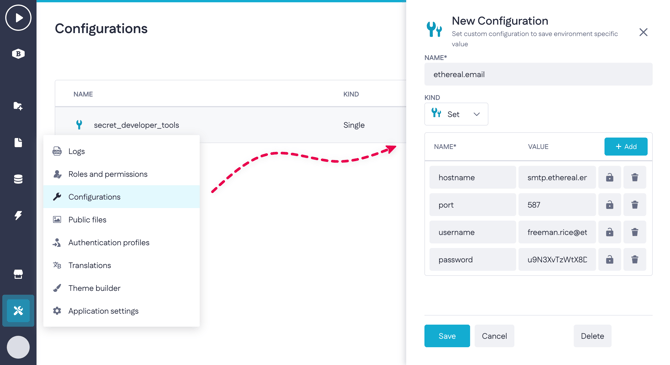
Save your new configuration and let's come back to our Send Email action setup.
Configuring Send Email step
In the Send Email action step, there are quite a few options to configure. Let’s walk through them one by one.
1. Set the email configuration variables. Because we already stored these values in our email configuration, you now only need to select the existing hostname, password, port, and username variables from your application.
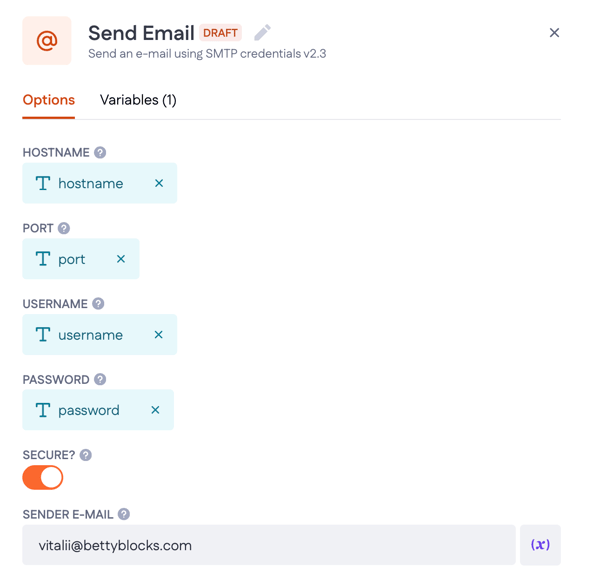
2. Decide whether the connection should be secure. If you set this to 'true', the connection will use TLS when connecting to the server. If you leave it at 'false' (the default), TLS is only used if the server supports the STARTTLS extension. As a guideline, set this to 'true' when using port 465 and keep it 'false' for ports 587 or 25 – which is what we’ll do here.
3. Fill in the sender’s email address. If you want the emails to come from you personally, use your own address, or choose a generic sender address instead. In this example, we’ll use vitalii@bettyblocks.com as the sender email and Vitalii as the sender name.
4. Fill in the receiver's email address. For example, jip@bettyblocks.comfor email and for the recipient name value – Jip.
5. Add CC/BCC addresses and an additional reply-to email. Use these when you want to:
-
CC (Carbon Copy) includes extra recipients in the email loop
-
Route replies to a different address than the original sender
-
BCC (Blind Carbon Copy) lets you send an email to someone without the other recipients seeing that they were included
6. Choose the subject of the mail. For example Welcome to the club.
7. Email body template – this is where you define the actual message. You can write your email content here and make it dynamic by using template variables. The body itself is written in HTML.
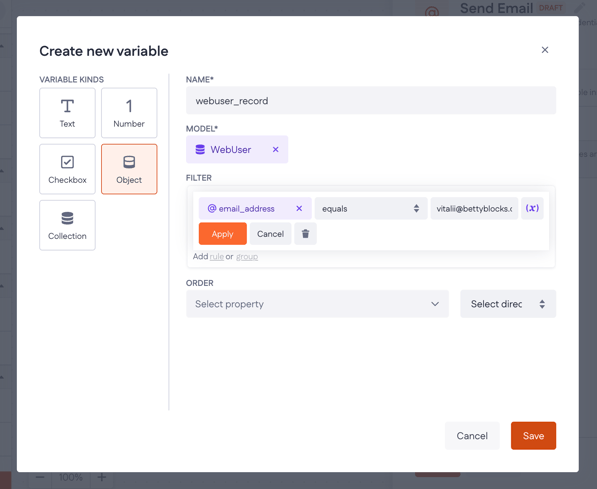
For this example, we’ll send a “Welcome to the club” email that greets the user and shares their account status. To support this, first create a variable in the action step: save the step, then open the Variables tab.
Create a webuser_record object variable like the one shown. In this example, the filter targets Vitalii’s account, but you can just as easily make this dynamic by using input variables from your pages.
8. Return to the Template variables tab. You can now use the action variable you just created to dynamically define your template variables, as shown here:
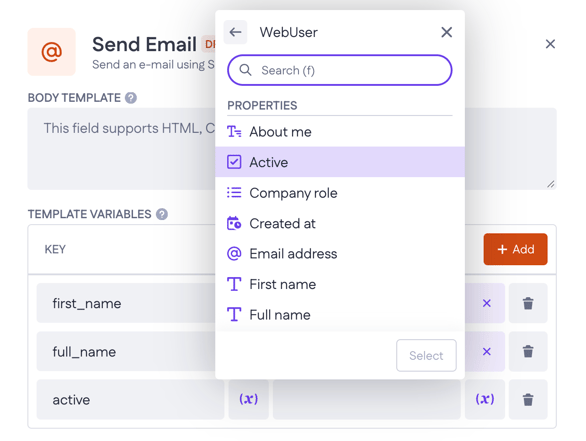
In this example, we’ll use the First name, Full name, and Active properties in the body template, so create template variables for each of those.
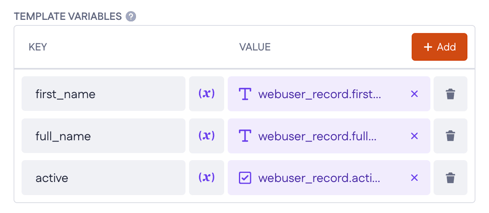
9. Create body template using variables. The template consists of some HTML code combined with the variables like so:
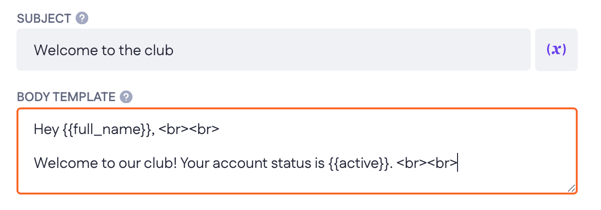
To use a template variable in the body, wrap its name in double curly brackets: {{ variable }}
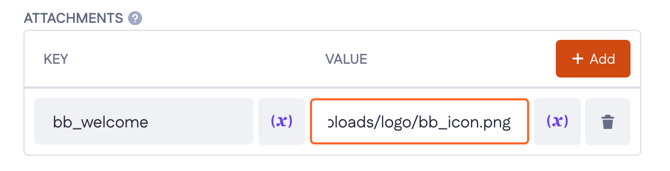
10. Pick up the attachments. The step gives you two ways to attach files to your email:
Use Attachments to add individual files. For each attachment, enter the filename in the Key column and the file URL in the Value column. Click + Add to include more files.
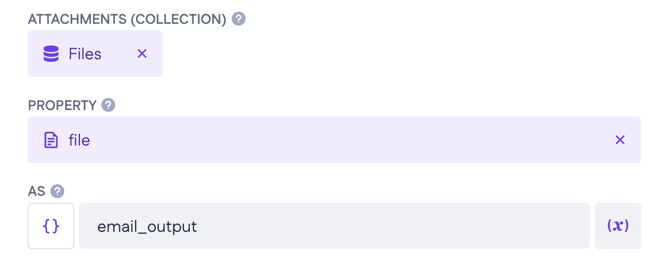
If you're working with multiple files stored in a collection, use Attachments (collection) instead. Select the variable that holds the collection, then use the Property field to point to the specific property that contains the file within that collection.
11. Give the step’s outcome a clear name, such as email_output, so you can easily reuse it later in the flow.
Sending to multiple recipients
A single Send Email step can send to multiple people at once by passing a comma-separated string of email addresses into the Recipient, CC, or BCC fields.
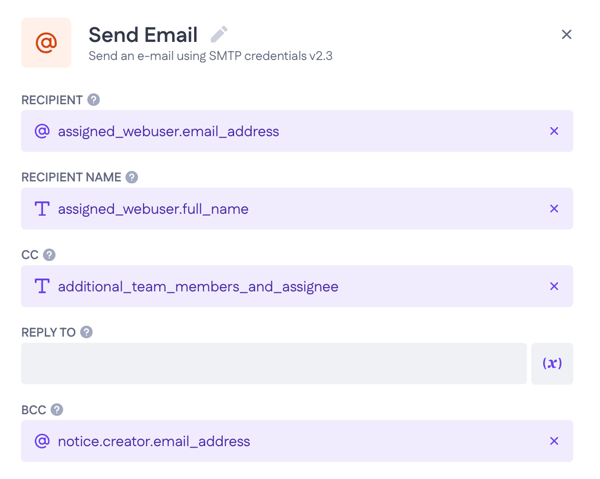
The easiest way to build that string is with an Expression step beforehand. For example, this expression combines a collection of team members with an individual assignee's email:
"{{ additional_team_members.map(item => item.emailAddress )}},{{ assignee_email }}"
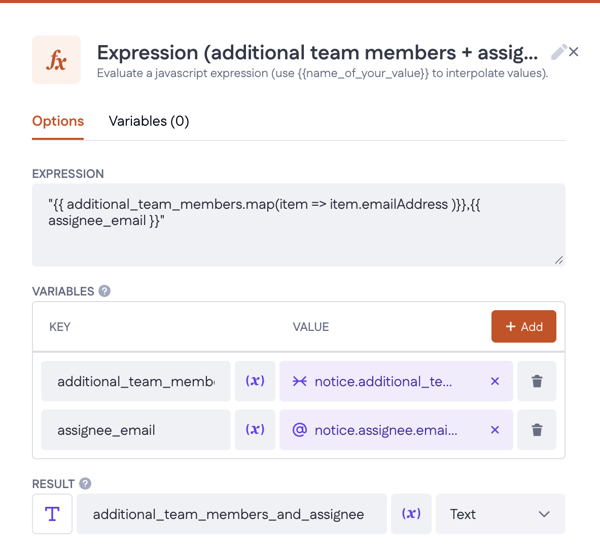
Store the result as a text variable (e.g. additional_team_members_and_assignee), then use it directly in the CC field — or any other recipient field — of the Send Email step.
Testing the action
Now let’s test it. Go back to your page and click Play button in the top-left corner to compile it. Then click Send email button and check your mailbox. For this example, we’ll open the Ethereal inbox via Messages.
If all went well, you should see your mail pop up like this:
