Once you've created an application, you can manage its settings from two places.
Most settings live in application settings on the My Betty Blocks dashboard, where you can:
- manage the name, image, and general details of your application
- verify and link a domain to manage your hostnames
- customize invitation emails, including the invitation text in HTML
- convert your application into a reusable template
- set a security policy, manage iframe settings, and find the application UUID
- set the app identifier, or move the app to another organization within Betty Blocks
- delete your application
The rest are set inside the application itself, under Tools > Application settings, where you can:
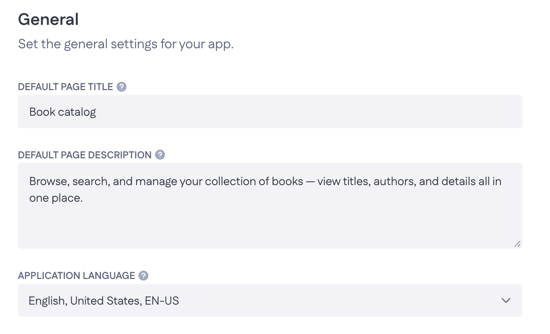
- set the default page title and description
- define the application language
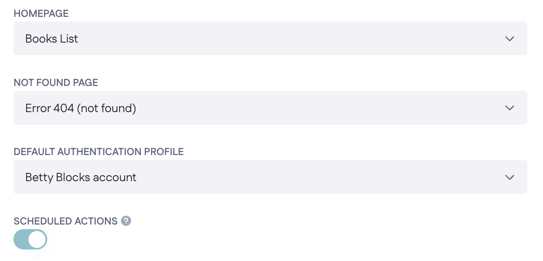
- set the home page and the not found (404) page
- choose the default authentication profile
- enable scheduled actions
Each tab is explained in more detail below.
Application settings (My Betty Blocks)
To open the settings for the app you are currently working on, click the My Betty Blocks breadcrumb (A), then select the Settings tab (B).
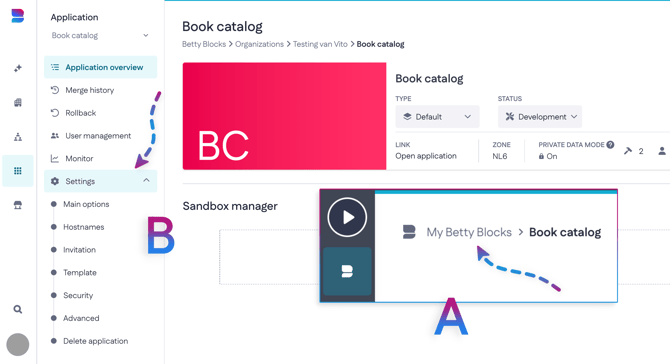
You can navigate to the different pages (Main options, Hostnames, Invitation, etc.) using the tabs.
Main options
- Application name: Assign a name for your application.
- Application initials: Set a short code (like "BC") used where the full name doesn't fit.
- Update your application logo: Pick a color tile or upload your own image as the logo.
- Application login background: Upload the image shown behind the login screen (recommended 832 x 376 pixels, max 5 MB).
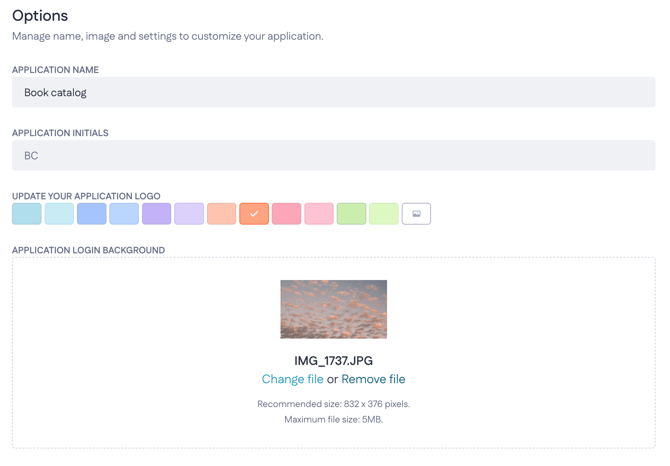
Main options are practically the same options you choose when creating a new application from scratch.
Hostnames
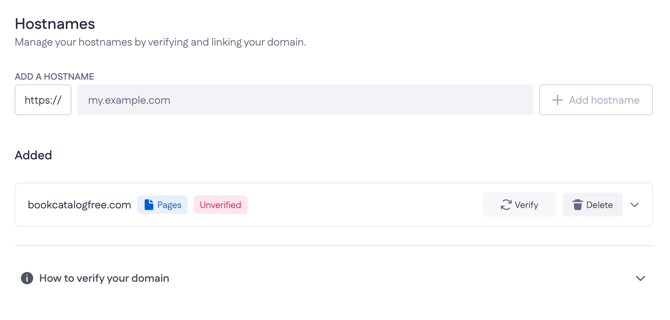
- Add a hostname: Enter your domain (like
bookcatalogfree.com) and selectAdd hostnameto link it. - How to verify your domain: Expand this section for the domain verification instruction.
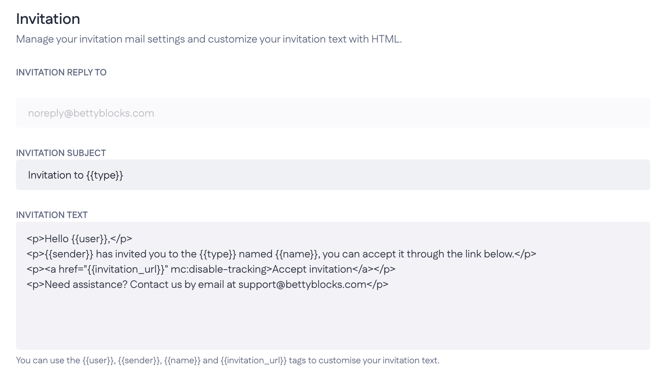
Invitation
- Invitation reply to: Set the reply address for invitation emails.
- Invitation subject: Write the subject line of the invitation email.
- Invitation text: Edit the email body in HTML
Template
- Image: Upload a cover image for the template's detail page (626 x 406 pixels, max 5 MB).
- Index: Set the position used to order the template in a list.
- Template name: Name your template.
- Template description: Describe what the template is for.
- Preview URL: Add a link to a live preview of the application.
- Documentation URL: Add a link to the template's documentation.
- Template level: Choose who can access the template (like Organization or Company).
Security
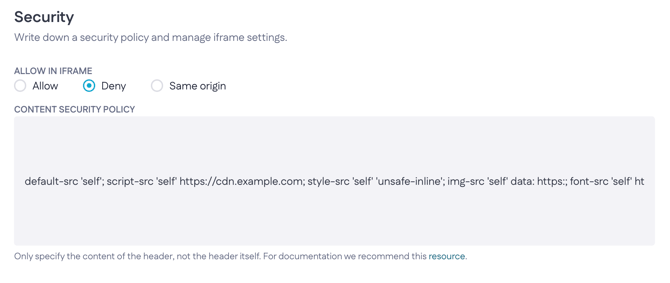
- Allow in iframe: Choose Allow, Deny, or Same origin to control whether other sites can embed your app.
- Content security policy: Define which sources your app can load. Enter only the content of the header, not the header itself.
Advanced
- Identifier: Set the subdomain for your app's
betty.appURL. Changing it disables the app for up to 20 minutes. - Organization: Move your app to another organization. This resets all users and builders, including roles and permissions.
- Application UUID: Copy your app's unique ID – a 128-bit value used to uniquely identify your application on the web
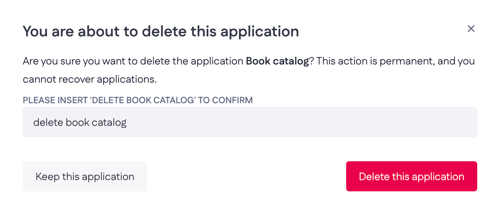
Delete application
- Delete: Type
DELETE [app name]to confirm. This permanently removes the app and can't be undone.
Application settings (My Betty Blocks)
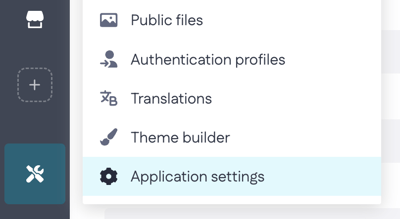
The rest of application settings can be found within the app itself by navigating to Tools > Application settings.
-
Default page title: Set the title shown in the browser tab.
-
Default page description: Write a short summary of your page, used by browsers and search engines.
-
Application language: Set the default language for the application. This helps screen readers present content correctly. Individual pages can override it with their own language.
-
Home page: Choose the page users land on when they open the application.
-
Not found page: Choose the page shown when a URL doesn't exist (the 404 page).
-
Default authentication profile: Set the authentication profile applied by default when a page requires login.
-
Scheduled actions: Turn scheduled actions on or off. They're always enabled on production; you can change this in the Playground app type.