
By default, the Redirect interaction in Betty Blocks only lets you point users to a static page after login. If your app needs to send users to different pages depending on their role – like an admin dashboard, a manager view, or a customer home page – you need a small workaround.
This article covers two approaches:
- No-code (recommended for most use cases)
- Pro-code (for developers who want a cleaner flow without an intermediate page)
No-code approach: creating Redirector page
This method uses a hidden intermediate page to handle the role check and redirect logic – no custom code needed. All you need is your Login page and a new functional page to handle further redirect logic.
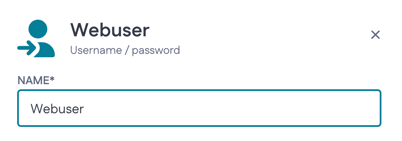
Of course, since the use case will redirect users based on their role, one needs at least one additional role (set up via Roles and permissions > Roles > Add) and an authentication profile (Authentication profiles > New profile) to handle this flow. Both of them are called ‘Webuser’ in our application.
Step 1: Update your login form interaction
Create a new page called Redirector (or similar). Leave it empty for now.
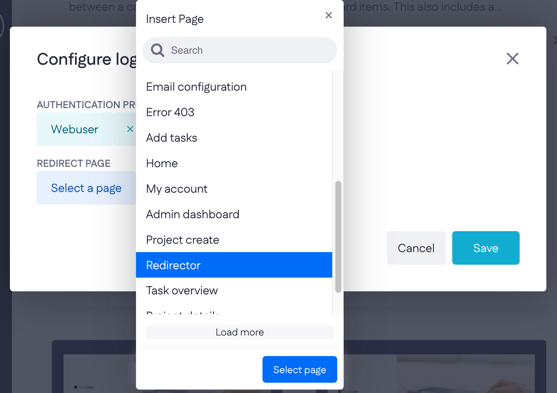
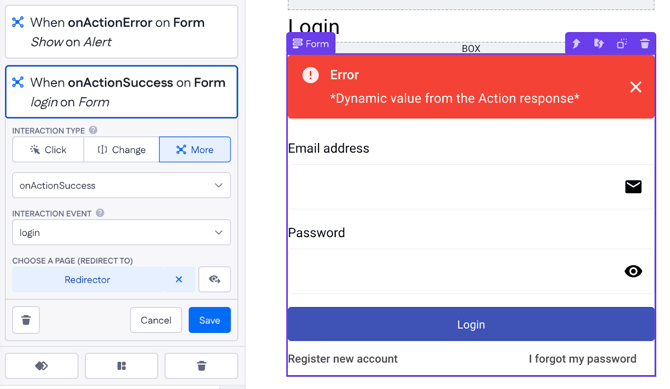
On your Login page, set the onActionSuccess interaction to redirect to a new, empty page. You can call it something like "Redirector". This will be the page that handles the role-based logic.
In the example below, we just use ‘User, account login only’ page template, so the setting looks like this:
The Form’s interaction looks like this if you use the existing login page:
Step 2: Set up the Redirector page
Navigate back to our Redirector page. On this page:
1. Add a Form component. Make it action-based by toggling model-based form off, add a name for your action (e.g. ‘redirect’)
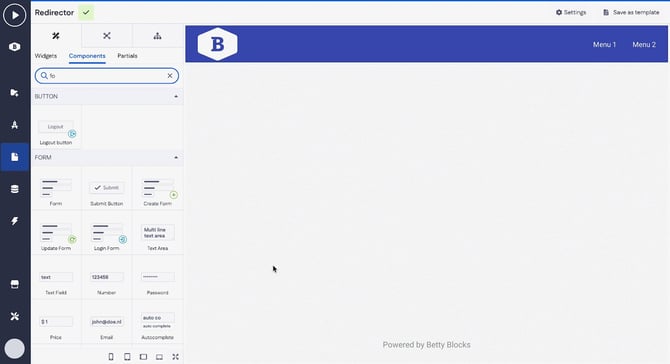
2. Inside the form, add a Hidden Input – this is required for the form to compile, even though you won't use it for input
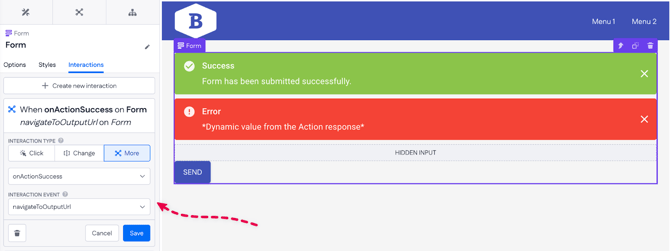
3. On the Form component, set the onActionSuccess interaction to navigateToOutputUrl
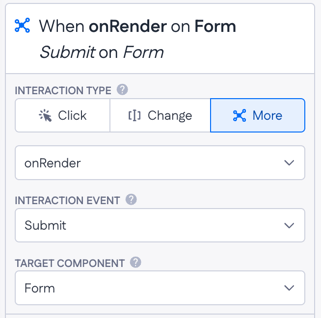
4. Add an onRender trigger on the same Form component and set it to Submit — this makes the form auto-submit as soon as the page loads, so the user won't notice the intermediate step
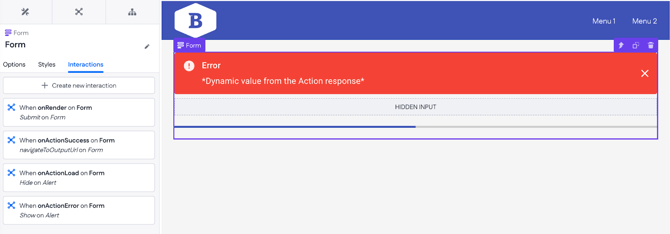
5. Additionally, you can delete the success alert message and a button from the form. Add a Progress Bar component to show that the page is loading while the user is being redirected.
Step 3: Set up the action
Open the action attached to the Form on your Redirector page and configure it as follows:
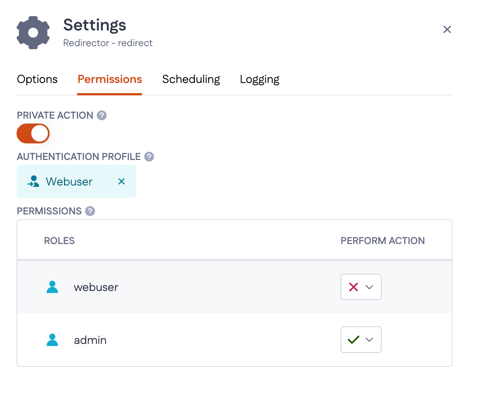
1. In the action Settings > Permissions, select your authentication profile
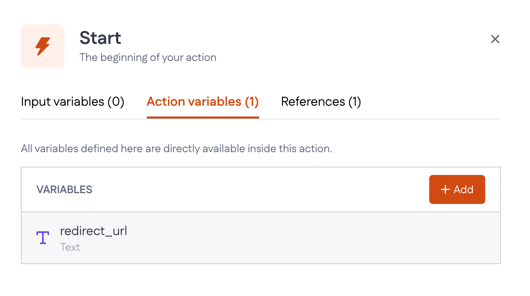
2. In the Start step, create an action variable Text variable having a default value – name it something like redirect_url
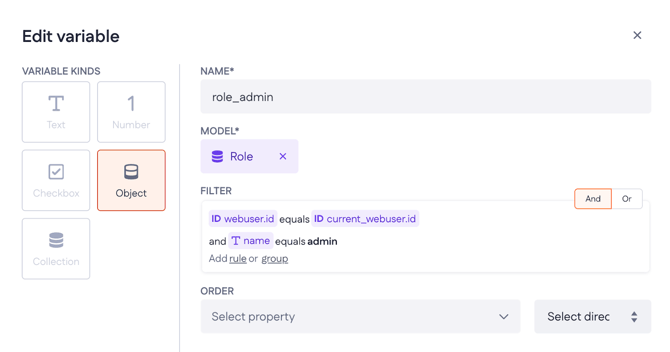
- Add an Object variable (Condition > Variables > +Add) with a filter to retrieve the logged-in user's role from the authentication profile
- Model: Role
- Filter:
webuser_idequalscurrent_webuser_id
and nameequalsadmin
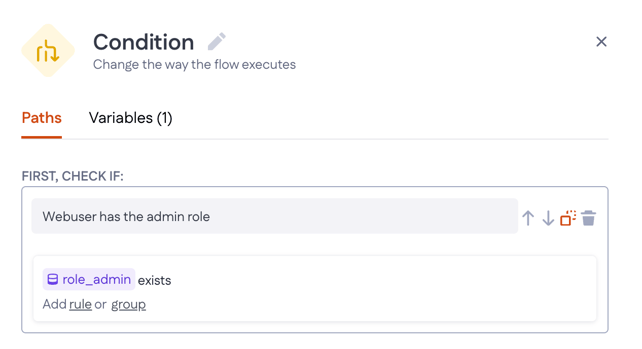
- Return to Paths and set it up to check if Webuser has the admin role:
role_adminexists
4. Add an Expression step to reassign the redirect_url variable to the correct path (for each role if you have several of those).
For example:
- Admin →
/admin-dashboard - Manager →
/manager-page - Customer →
/customer-home
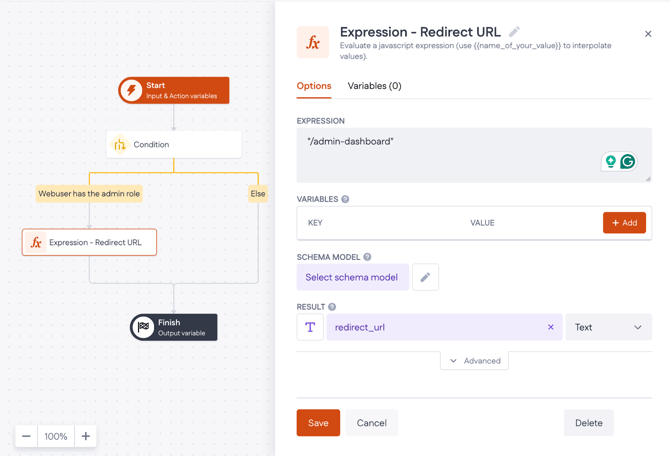
redirect_url variable back to the page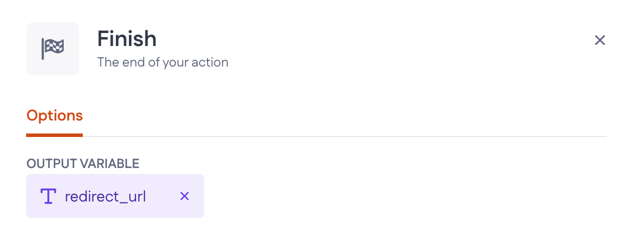
That's it. When a user logs in, they'll briefly land on the Redirector page, the form will auto-submit, the action will check their role, and they'll be sent to the right page – all without any visible delay.

For the method of securing pages, check this article: Page security for a specific role
Pro-code approach: custom interaction
If you'd prefer to skip the intermediate page entirely, you can use a custom loginDynamicRedirect interaction. It reads the redirect URL directly from the action response and handles the login and redirect in one step.
You can find the source code and setup instructions here: loginDynamicRedirect on GitHub
-
Build and run the component set locally. If you're using the default port (
http://localhost:5002), go to your page settings and set Component set to Local -
If you're running on a different port, set it to Custom and enter the full URL – for example,
http://localhost:5001
Setting up the action
Your action needs to inject redirectUrl into the JWT before returning it. The flow looks like this:
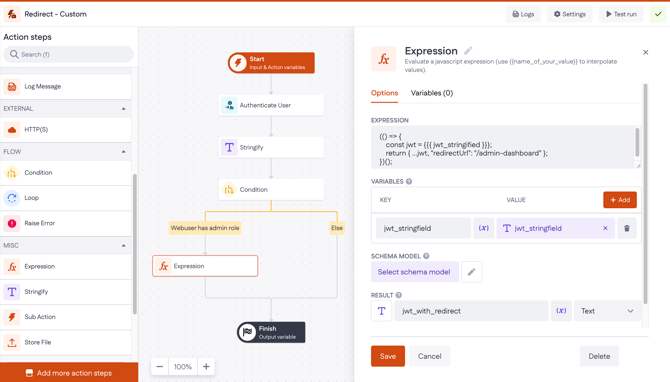
- Authenticate User
- Stringify — stringify the JWT object into a text variable (e.g. jwt_stringified)
- Condition — check the user's role (e.g. "Webuser has admin role")
- Expression — for each role branch, inject the redirect URL into the JWT:
javascript

(() => {

  const jwt = };

  return { ...jwt, "redirectUrl": "/admin-dashboard" };

})();
Store the result in a variable like jwt_with_redirect. Repeat the Expression step for each role on its respective branch.
5. Finish — return jwt_with_redirect as the output variable