
A data condition lets a component option change on its own while the page runs. You don't set an option such as Loading or Disabled to a fixed True or False. You set rules instead, and the option becomes true whenever those rules are met.
Use a data condition when an option should react to something happening on the page. For example:
- Show a loading state while an action is running
- Disable a button until a user is logged in
- Change a component's state based on the current user's data
Example: show a loading state while an action runs
In this example, a button runs an action. While the action is running, the button shows its loading state. When the action finishes, the button goes back to normal.
Trigger → interaction → outcome: the user clicks the button → the Generate report action runs → the button shows a loading state until the action finishes.
Before you start
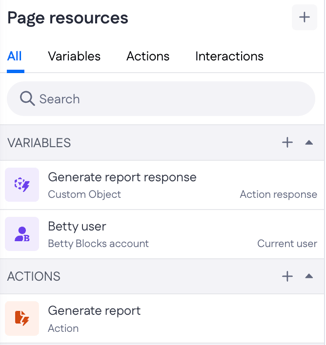
Make sure the page has these two entities present. You can check them in Page resources.
- An action. In this example, it's a native action called Generate report. It appears under Actions.
- An action response variable for that action. Here it's Generate report response. It appears under Variables with the label Action response.
You'll connect the action to the button in the next step, and use the response variable to set up the data condition.
Connect the action to the button
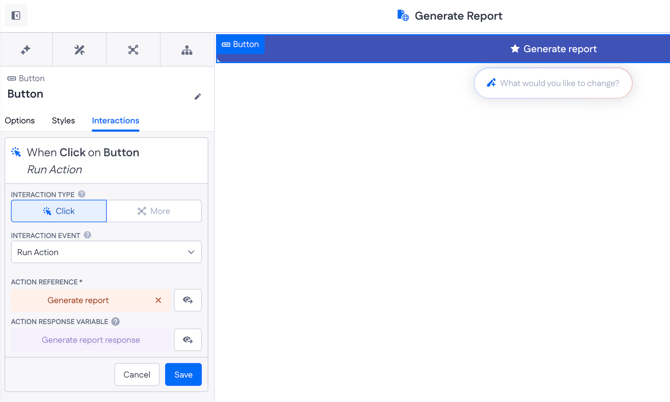
1. Select the Button component and open the Interactions tab.
2. Click Create new interaction.
3. Set Interaction type to Click and Interaction event to Run action.
4. In Action reference, select Generate report.
The Action response variable is filled in for you: Generate report response. You'll use this variable in the next step.
Set up the data condition
1. Go back to the Options tab of the button.
2. Next to Loading, click the data condition icon, then click Configure data condition.
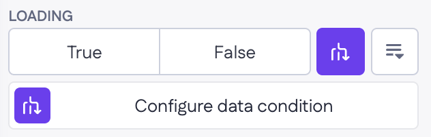
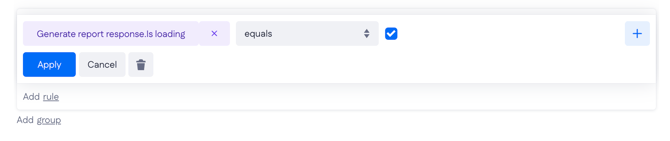
3. In the Configure data condition window, click the first field and select Action response variables → Generate report response → Is loading.
4. Set the operator to equals and select the checkbox (true).
5. Click Save.
Result
Let's open the page and click the button and test the data condition.
Our Generate report action includes a Delay step of 3000 milliseconds (created for testing purposes only), so the button shows its loading state for about three seconds. When the action finishes, Generate report response.Is loading goes back to false and the button returns to normal.
