Note: Betty Solutioneer is currently behind a feature flag. The handoff to Genius — turning your requirements into a build proposal — is not yet fully available and will be rolled out soon.
Betty Solutioneer turns a business problem into a structured analysis you can act on. You describe a challenge in plain language — a coordination issue, scattered data, a process that drags — and Solutioneer asks clarifying questions, then builds a problem statement alongside the chat as you go.
Use it before you start building. It helps you define what you're solving, for whom, and why.
Why start with Solutioneer?
Most applications start with a hunch — someone notices a problem, opens a builder, and starts assembling pages. The problem isn't always well-defined, and sometimes a solution already exists elsewhere in the company. Time gets spent on apps that don't quite solve the right thing, or on apps that didn't need to be built at all.
Solutioneer is designed to be the starting point before any of that. You bring a business case in plain language, and Solutioneer helps you sharpen it — who is affected, what's actually going wrong, what good looks like — until you have a structured analysis worth acting on. From there, you can hand it off to Genius AI to start building, or save the case for later.
Over time, Solutioneer will also help you check whether a similar case already exists in your organization — so teams can join forces on shared problems instead of building the same thing twice.
Where to find it
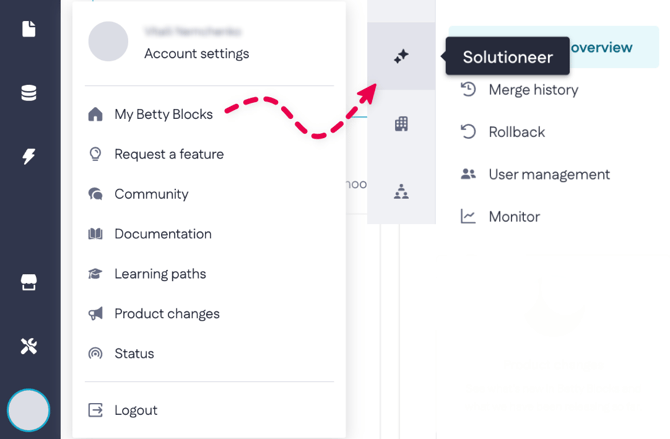
Open Solutioneer from My Betty Blocks — the environment where you manage your organization, applications, and users. Click the Solutioneer icon (the sparkle) at the top of the left sidebar.
Starting a session
The Solutioneer home screen has one input field. Type a problem in your own words.
It can be broad ("our reporting is a mess") or specific ("our logistics team can't prioritize deadlines across regions"). Below the field, you'll see a few example statements — click one to use it as a starting point.
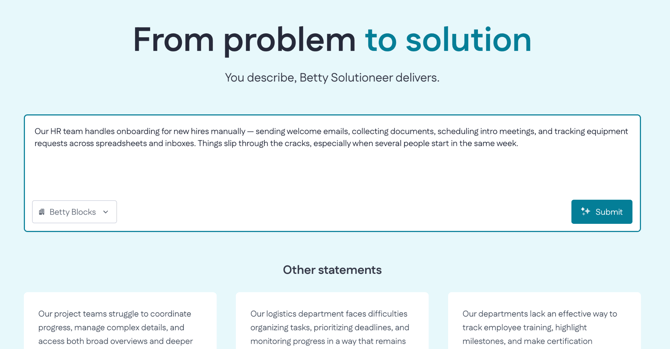
Use the dropdown below the input field to select the company this problem belongs to.
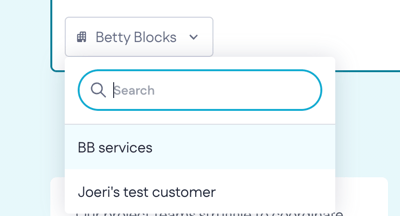
After you’re done describing your case, press Submit.
Working through the problem
After you submit, Solutioneer opens a two-panel view:
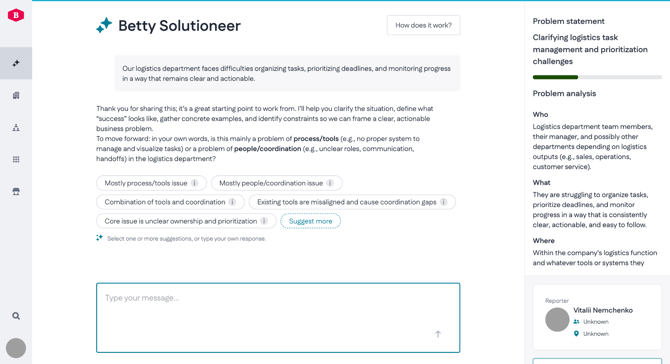
- Chat (left). Solutioneer asks clarifying questions to sharpen the problem context, what "good" looks like, examples, constraints, and priorities. Answer in your own words. You can ask follow-up questions or push back on its interpretation at any point.
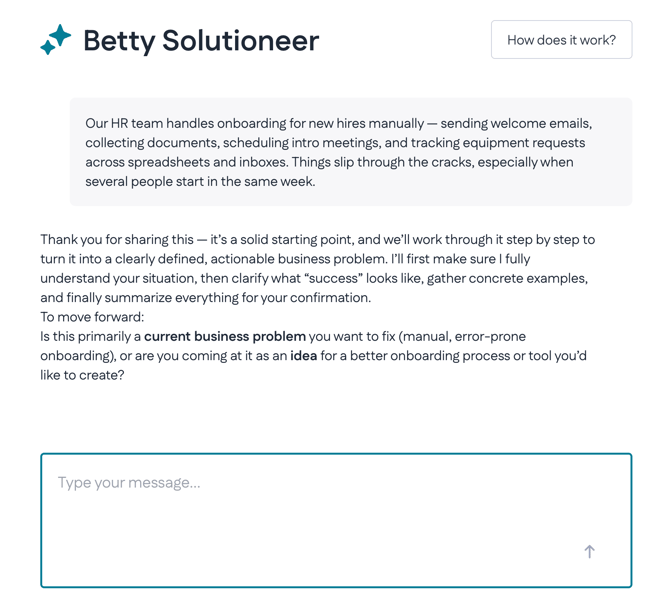
- Problem statement (right). A live summary of the problem as Solutioneer understands it so far. It's structured around six prompts — Who, What, Where, When, Why — and updates as the conversation continues.
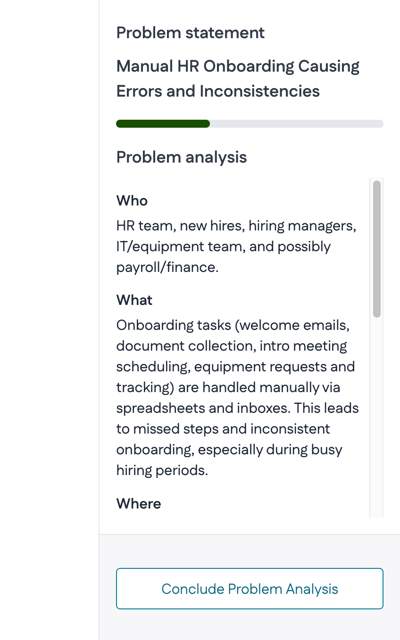
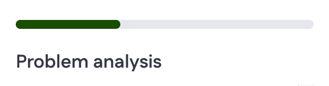
The progress bar at the top shows how complete the analysis is and how far you’ve gone towards getting a solution to your problem.
Keep going until the problem statement reflects what you actually want to solve.
Concluding the analysis
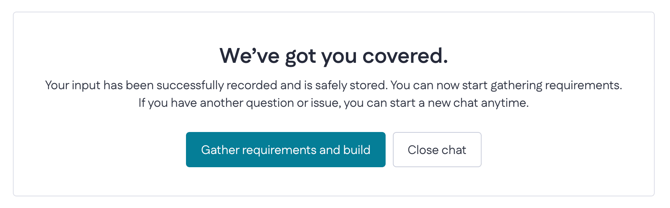
When the problem statement is complete, click Conclude problem analysis at the bottom of the right panel. Solutioneer confirms your input is recorded and gives you two options:
- Gather requirements and build — hand the analysis off to Genius Plan, where you'll see proposed application entities based on what you've defined.
- Close chat — end the session. Your analysis is saved.