
What an AI agent is
An AI agent is a new type of action flow that uses an AI model to reach a goal you describe. In a regular action, you define every step. In an agent, you describe the goal and give it tools — the agent decides which tools to use and in what order.
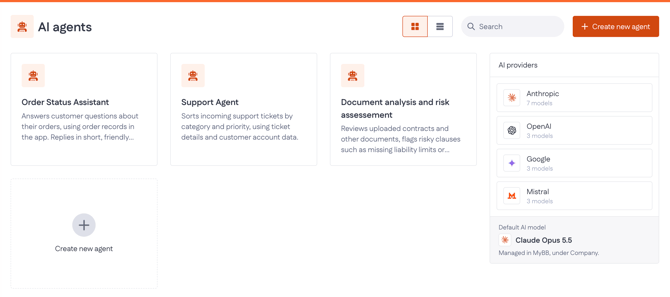
Agents work well for tasks that need some judgment, for example:
- Sorting incoming support requests by topic and urgency
- Answering questions about records in your application
- Looking up current information on the web and summarizing it. etc.
Where to find AI agents
All agents in your application live in the AI agents overview.
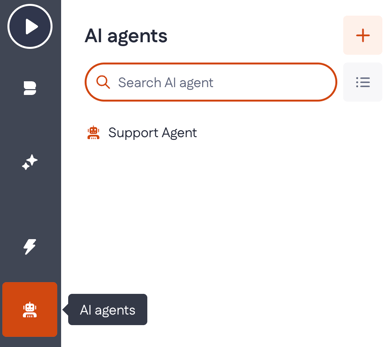
- In the builder bar on the left, click AI agents (the robot icon).
- The AI agents overview opens. It lists every agent in your application.
- Use Search AI agent to find an agent by name, then click it to open its canvas.
If your application has no agents yet, the overview shows There's nothing here, yet.
Create an agent
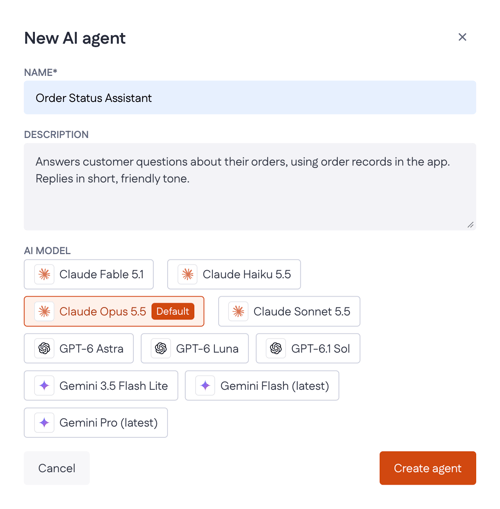
- In the AI agents overview, click + (New AI agent).
- In the New AI agent dialog, fill in the fields below.
- Click Create agent. The agent's canvas opens.
|
Field |
What to enter |
Example |
|
Name (required) |
A short name that says what the agent does |
Order status assistant |
|
Description |
One or two sentences on the agent's job, so other builders know what it's for |
Answers customer questions about their orders, using order records in the app. Replies in a short, friendly tone. |
|
AI model |
The model the agent uses to reason and reply |
Claude Opus 5.5 (default) |
Agents support models from Anthropic, Google AI, Mistral and OpenAI. Models marked Deprecated are on their way out — pick a current model for new agents. You can change the AI provider and model later in the Prompt call step.
The agent canvas
The canvas shows what your agent can do. What it actually did during a run shows up in the logs (see Run and test an agent).
A new agent starts with three steps:
|
Step |
What it does |
|
Start |
Holds the input and agent variables the agent receives when it runs |
|
Prompt call |
The AI step. It holds the agent's instructions, model and tools. Shows BLANK until you configure it. |
|
Finish |
Returns the output variable — the agent's final answer |
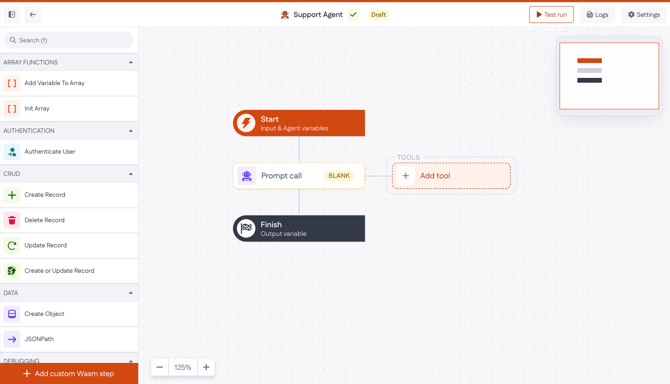
Next to Prompt call is the Tools group, where you attach the tools the agent can use.
Around the canvas you'll find:
- Step menu (left) — the same steps you know from action flows, such as CRUD, data and debugging steps, plus Add custom Wasm step
- Top bar — the agent's name, its status (for example, Draft), and the Test run, Logs and Settings buttons
Configure the prompt call
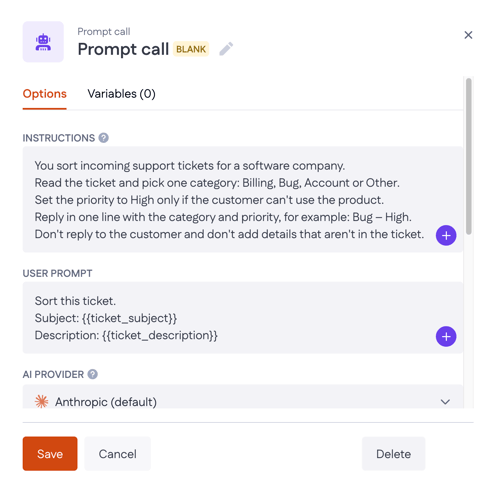
Click Prompt call on the canvas to open its settings in the side panel. The panel has two tabs: Options and Variables.
On the Options tab:
|
Option |
What it does |
|
Instructions |
The agent's role, rules and standards. Write it as you would brief a new colleague. |
|
User prompt |
Optional. The question or task the agent works on in each run. Usually filled with a variable from Start. |
|
AI provider |
The company that provides the model. Your company admin adds AI providers in Company overview > AI providers, and sets the default. These providers apply only to the applications you build, not to Betty Genius. |
|
Model |
The model for this step. The list shows the models of the selected AI provider. |
|
Tools |
The tools the agent can call. See Add tools section. |
|
Max tokens |
The maximum length of the model's response. Default: 4096. Click (x) to use a variable instead. |
|
Result |
The variable that stores the agent's answer. Default: |
Use the + button in Instructions and User prompt to add variables to the text, or type @ to open the variable picker.
For filled-in instructions, see Example: order status assistant.
Example instructions for the order status assistant:
You sort incoming support tickets for a software company. Read the ticket and pick one category: Billing, Bug, Account or Other. Set the priority to High only if the customer can't use the product. Reply in one line with the category and priority, for example: Bug – High. Don't reply to the customer and don't add details that aren't in the ticket.
Click Save to apply your changes.
Add tools
Tools let the agent do things beyond writing text: look things up, read data or start actions. Without tools, the agent can only answer from what's in its instructions and prompt.
- Click Add tool — on the canvas next to Prompt call, or under Tools in the side panel.
- Pick a tool type:
|
Tool type |
Use it to |
|
Web search |
Let the agent search the web for current information |
|
MCP server |
Connect the agent to an external MCP server and use its tools |
|
Internal MCP server |
Give the agent access to the tools your own application exposes |
The agent picks a tool based on the name and description of each function in the MCP server. To check them, open the MCP server, then open Settings of each function. Make sure the name and description say what the function does and when to use it. For example, Get order by number: returns the status and delivery date of one order works better than orderLookup.
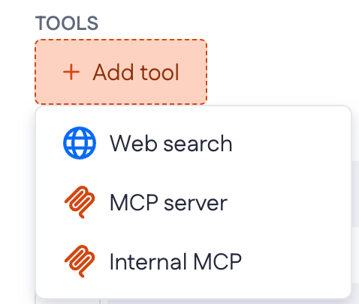
After you add Internal MCP, you can select its underlying actions by pressing Add tool.
Example: order status assistant
This agent answers customer questions about their orders. It uses one tool — the carrier's MCP server — to get the live tracking status.
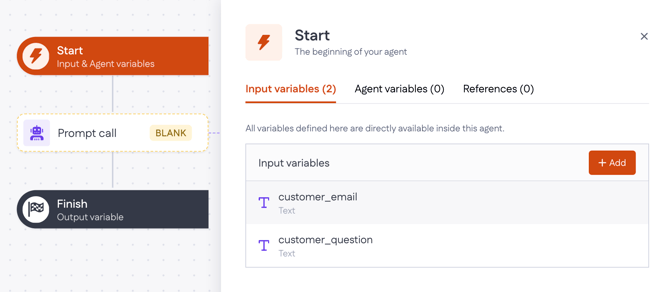
1. Add input variables
Click Start and add two input variables:
customer_question(Text), for example: Where is my order 10482? It was due yesterday.customer_email(Text), for example: anna@example.com
2. Configure the prompt call
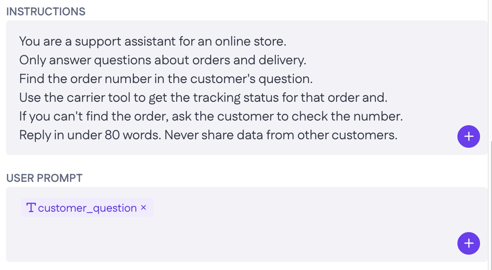
Click Prompt call and fill in the options. Use + to insert the variables.
Instructions
You are a support assistant for an online store. Only answer questions about orders and delivery.
Find the order number in the customer's question. Use the carrier tool to get the tracking status for that order. If you can't find the order, ask the customer to check the number. Reply in under 80 words. Never share data from other customers.
User prompt:
Result: AI_answer (Text)
Note: Instead of writing the instructions here, you can insert a variable that holds them, for example . This way, you can update the instructions in one place — for example, in a record in your application — without opening the agent.
3. Add a tool
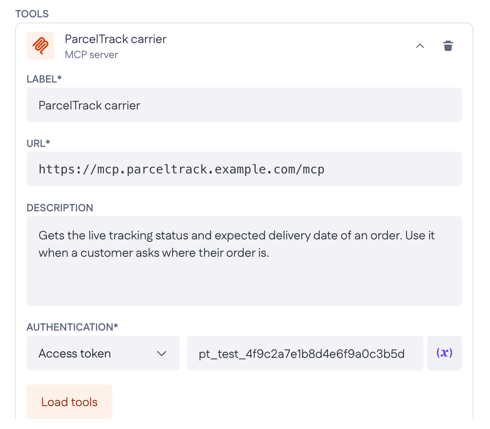
In the Prompt call panel, click Add tool > MCP server and fill in:
- Label: ParcelTrack carrier
- URL:
https://mcp.parceltrack.example.com/mcp - Description: Gets the live tracking status and expected delivery date of an order. Use it when a customer asks where their order is.
- Access token:
pt_test_4f9c2a7e1b8d4e6f9a0c3b5d
Select Internal MCP if you have a server that has already been set up.
Click Load tools. This loads all actions available in the MCP server. Select only the tools the agent needs for this task — in this example, Get tracking status.
The agent reads each tool's description to decide when to use it, so make sure the description says what the tool returns and when to call it.
4. Return the answer
The Finish step returns AI_answer as the output variable by default. You can rename this variable if needed.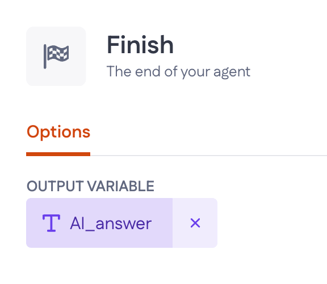
Run and test an agent
Testing and logging work the same way as in regular actions: use Test run to run the agent from the canvas, and Logs to see what happened in each run. For step-by-step instructions, see Testing and debugging an action.

Once your agent works as expected, you can start it:
- Manually, from a button or another UI action in your application
- Through the API or a webhook, so other systems can start it
In the example, you'll see the agent read the question, call ParcelTrack carrier with the order number, and write a reply like this:
Your order 10482 shipped on 15 October. The carrier reports a short delay at the sorting center. Expected delivery is now 21 October. Sorry for the wait!
Every run is saved this way, so you can always check what an agent did and why.